Status: Available. Connect Bing Webmaster Tools with an API key from your Bing Webmaster account. The key reaches the sites verified in that account. Explore the Bing Webmaster connector.

Connect and check your sites

Before you start
  • A Bing Webmaster account with access to your verified sites.
  • A Bing Webmaster API key from Settings, API access, API Key.
1

Open Bing Webmaster in Connections

Choose Connect or Add connection.
2

Enter the API key

Paste the Bing Webmaster API key into the connection form. ApexGenius supplies the Bing API address.
3

Check the verified sites

Save the connection after validation succeeds. Review the Tools tab and enabled site resources before making requests.
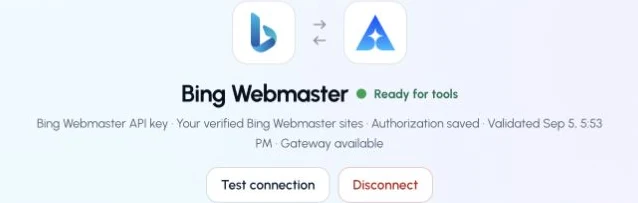
The actual Bing Webmaster connection page in ApexGenius, showing its saved connection status.The actual Bing Webmaster connection page in ApexGenius, showing its saved connection status.

This captured Bing Webmaster connection reports ready. Check your own connection and its latest validation before using tools.

Try a first question with your AI agent
Compare the site list with Bing Webmaster Tools. Listing sites does not submit URLs for indexing.

What your AI can do

  • Read search queries, pages, rank and traffic for a verified site.
  • Read crawl stats, crawl issues and crawl settings.
  • Inspect a URL’s index details and traffic.
  • Read backlinks, sitemaps and feeds, and keyword research history.
  • Submit one URL or a batch of URLs for indexing.
Three ApexGenius tools reach these operations: one to search them, one to read and one to write. Reads use the read route, so an AI agent set to Read only can use them. Submitting URLs uses the write route. Enabled writes run immediately. Turn a tool off to block calls.

Limits

  • Bing sets a daily URL submission quota for each site. Ask your AI to check the quota before it submits.
  • Disconnecting stops future access. It does not withdraw a URL already submitted.
Last modified on October 10, 2026