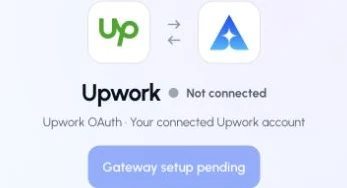
Authorize Upwork’s official hosted MCP server through the ApexGenius gateway.
Status: Available. Upwork connects through its official hosted MCP server. ApexGenius does not ask you to create or paste an Upwork API key. The connected Upwork account, marketplace permissions, and provider confirmation flows remain the boundary.Use this connection from Claude, ChatGPT, Codex, Grok Bot, Muse or another compatible AI agent. Each agent needs its own ApexGenius setup once; start with Claude, ChatGPT or Codex.
Start with a search before attempting a job, offer, contract, or financial action.
Upwork owns the marketplace permission and confirmation flow. Some binding or financial actions can require completion in Upwork.
Connection requirements.The connection routes through Upwork’s official hosted MCP endpoint. ApexGenius still applies its own user ownership, resource boundary, and tool policy around that upstream connection. Compatibility does not imply partnership.
How to connect Upwork
Before you start
An account with permission to use the Upwork resources you intend to connect.
1
Open Upwork in Connections
Choose Connect, or Add connection when offered. Give the connection a name if prompted. If Gateway setup pending appears, contact ApexGenius support before continuing.
Gateway setup pending means Upwork authorization is not available yet. Contact ApexGenius support.
2
Choose the account and review access
Sign in to Upwork, review the requested access, and return to ApexGenius. Use the official browser authorization flow.
3
Review the connected account and resources
Confirm the connected Upwork account and inspect the available tools before using marketplace actions.
4
Check the connection
Use Test connection or Check again and read the reported status. Add an AI agent from the AI agents page, choose Read only for the first test, and try the question below.
Try a first question with your AI agent
Find the available Upwork search tools. Do not send a proposal or message, create a contract, or make a payment.