Connect an Attio workspace to ApexGenius through Attio’s official hosted MCP, read your CRM from your AI, and create or update records, notes and tasks.
Status: Available. Attio uses its official hosted MCP server and browser
OAuth. You do not paste an Attio API key. The connection acts as the Attio user
who signs in, so that user’s workspace permissions set what your AI can reach.Explore the Attio connector.
An Attio user with access to the records you intend to use
An ApexGenius account
How to connect Attio
Before you start
An account with permission to use the Attio resources you intend to connect.
1
Open Attio in Connections
Choose Connect, or Add connection when offered. Give the connection a name if prompted. If Gateway setup pending appears, contact ApexGenius support before continuing.
2
Choose the account and review access
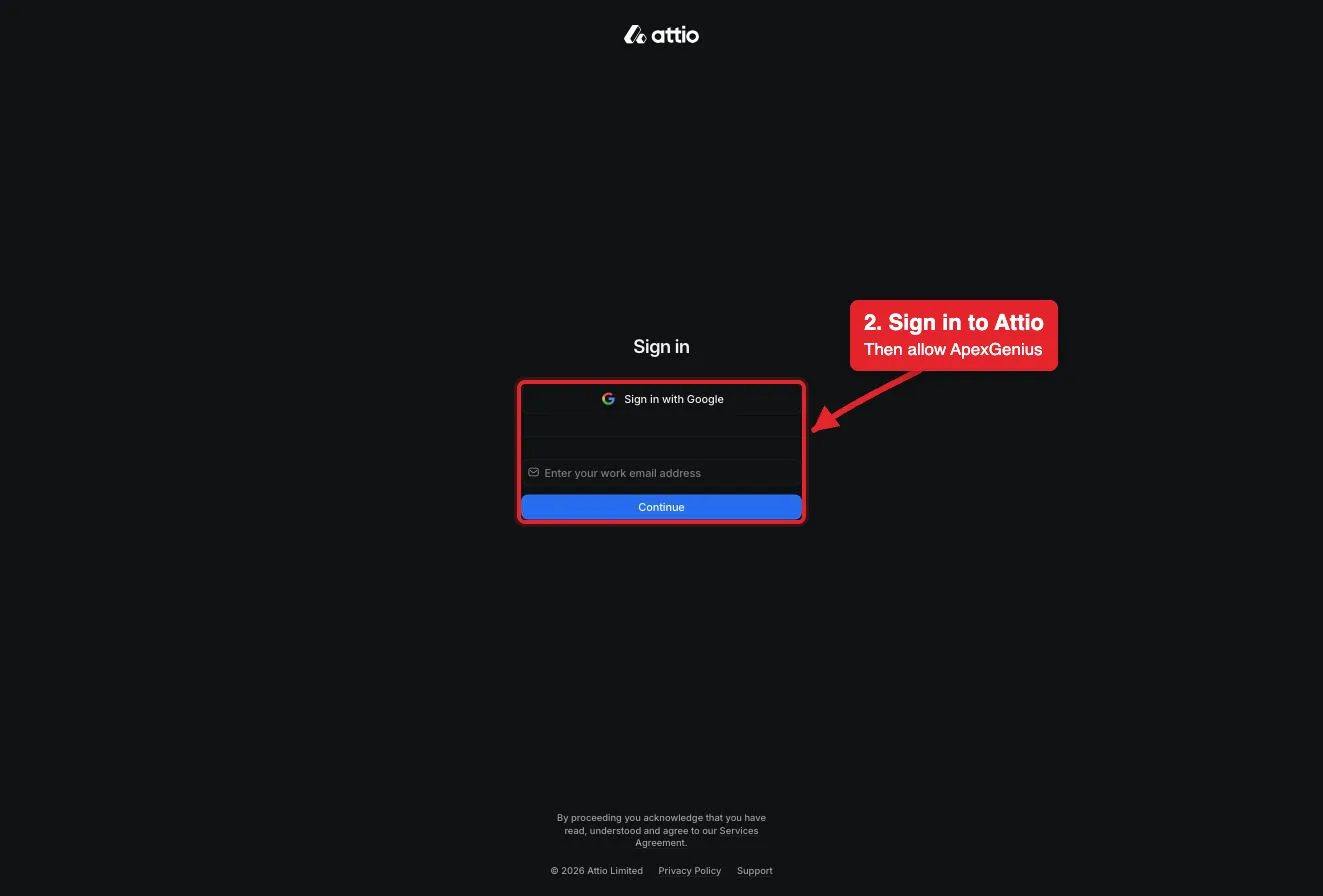
Sign in to Attio in the browser, choose the workspace, and allow access. Attio uses browser authorization; no API key is pasted into ApexGenius.
Connect opens Attio's sign-in. Sign in with Google or your work email, then allow ApexGenius.
3
Review the connected account and resources
Confirm the connected Attio user and workspace. Open Tools to review the record, list, note and task actions. Your Attio permissions set what the connection can reach.
4
Check the connection
Use Test connection or Check again and read the reported status. Add an AI agent from the AI agents page, choose Read only for the first test, and try the question below.
Try a first question with your AI agent
Use whoami to show which Attio user and workspace are connected, then list the lists in my workspace. Do not change anything.
Open Skills on the connection to read Attio, or read that MCP prompt in
a compatible AI client with prompts/get. It covers the first safe read, the
read and write routes, and what cannot be undone.Three ApexGenius tools route Attio’s live catalog:
ApexGenius tool
What it does
Access
attio_search_tools
Lists Attio’s current operations with their schemas
Read
attio_call_read_tool
Runs an operation only when Attio’s live catalog marks it read-only, such as whoami, search-records, list-records-in-list, get-note-body or run-basic-report
Read
attio_call_tool
Runs changes such as create-record, update-record, add-record-to-list, create-note, create-task, merge-records and delete-comment
Write
Attio documents 41 operations: 26 reads and 15 changes. The full list, grouped
by job, is on the Attio connector page.Your AI discovers the tools with apex_search_tools. Reads use
apex_call_read_tool; changes use apex_call_write_tool. Writes run right
away. If the owner set a tool to Ask me first (approval mode always), the call
returns approval_required; a person approves it in ApexGenius and you retry
with the returned approval_request_id.
Unavailable to this account: check that you are signed in to the intended ApexGenius account and refresh Connections.
Reconnect required: use the connection page to renew the saved authorization.
A record or tool is missing: check the Attio user’s permissions and the tool settings for your AI agent. Do not expand access just to make a test pass.
SQL failed:query-particle-sql is not on every Attio plan. Ask for the same numbers with run-basic-report.
Rate limited: Attio limits calls per workspace. Semantic search, reports and SQL allow two calls a second. Space out bulk work.
Approval required: the tool is set to Ask me first. Review the change in ApexGenius, then retry.