Connect Calendly to ApexGenius through Calendly’s hosted MCP, read meetings, invitees and open times from your AI, and book or cancel meetings.
Status: Available. Calendly connects through its official hosted MCP and a
browser sign-in. You do not paste an API key. Reads cover your user, event
types, scheduled meetings, invitees, availability and routing forms. Booking or
cancelling a meeting emails the invitees.Explore the Calendly connector.
An account with permission to use the Calendly resources you intend to connect.
1
Open Calendly in Connections
Choose Connect, or Add connection when offered. Give the connection a name if prompted. If Gateway setup pending appears, contact ApexGenius support before continuing.
2
Choose the account and review access
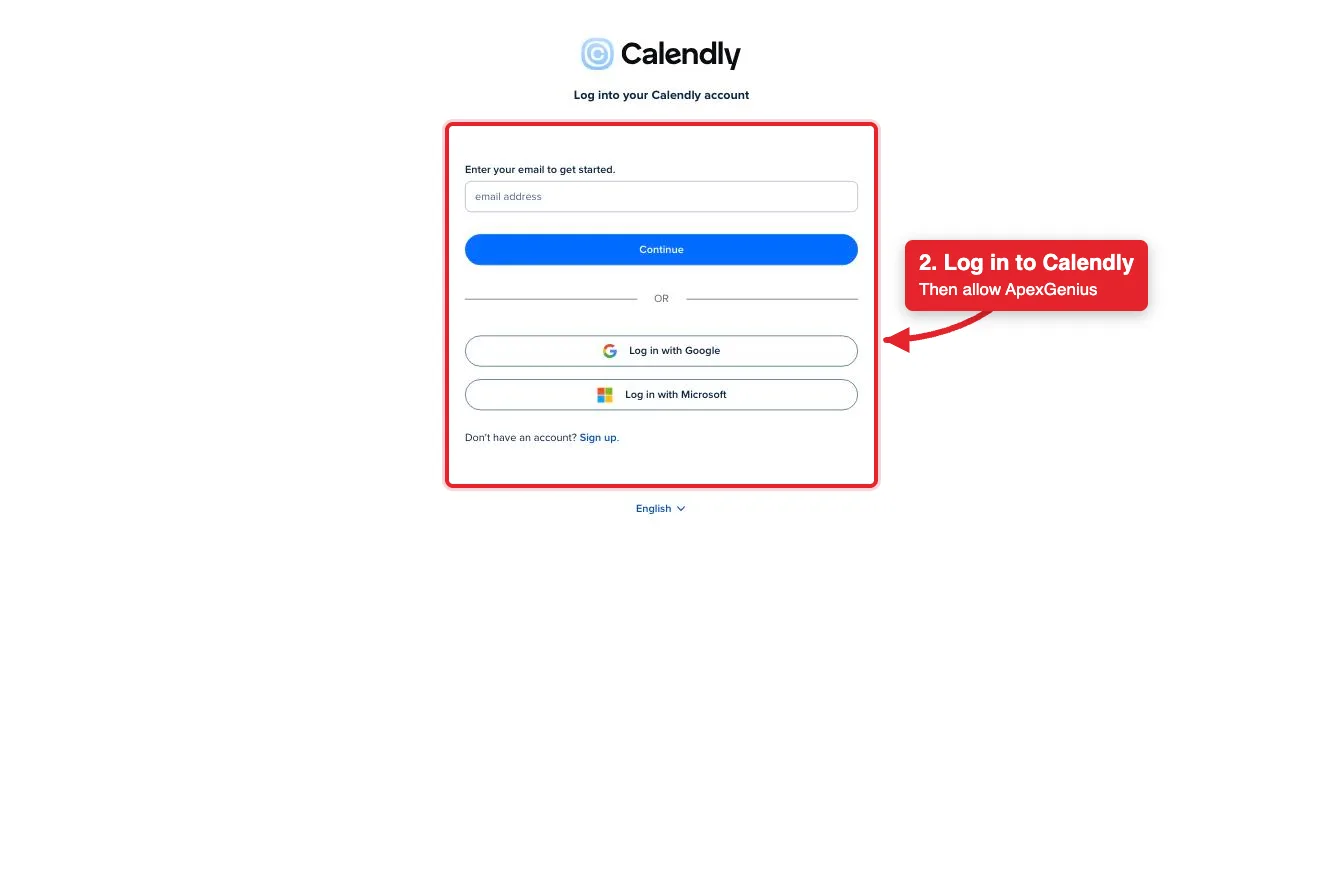
Sign in to Calendly in the browser and allow access for your Calendly user. Calendly uses browser authorization; there is no API key to paste.
Connect opens Calendly's login. Log in with email, Google or Microsoft, then allow ApexGenius.
3
Review the connected account and resources
Confirm the connected Calendly user. Open Tools to review the meeting and event type actions. Booking or cancelling a meeting emails the invitees.
4
Check the connection
Use Test connection or Check again and read the reported status. Add an AI agent from the AI agents page, choose Read only for the first test, and try the question below.
Try a first question with your AI agent
Show my connected Calendly user and list my scheduled meetings for the next seven days. Do not book, cancel or change anything.
Compare the returned account and resource with Calendly. Check the connection status separately from the result of the first read.
Open Skills on the connection to read Calendly, or read that MCP prompt
in a compatible AI client. It explains the first safe read, which operations
email invitees, and what can and cannot be undone.Three ApexGenius tools reach Calendly’s live catalog:
ApexGenius tool
What it does
Access
calendly_search_tools
Lists Calendly’s current operations and their input schemas
Read
calendly_call_read_tool
Runs an operation Calendly marks read-only, such as users-get_current_user, meetings-list_events or event_types-list_event_type_available_times
Read
calendly_call_tool
Runs every other operation, such as meetings-create_invitee or meetings-cancel_event
Runs right away; booking and cancelling email the invitees
Your AI discovers the tools with apex_search_tools. Reads use
apex_call_read_tool; changes use apex_call_write_tool and run right away.
If you set a tool to Ask me first, it returns approval_required until a
person approves in ApexGenius.