Authorize an Atlassian account and understand how Jira projects remain provider-native gateway resources.
Status: Available. Jira uses Atlassian OAuth. The connection belongs to the signed-in ApexGenius user, while the current operation route can still carry an authorized ApexGenius project identifier for account and activation checks. A Jira project is a resource in Jira, not an ApexGenius or Salesforce project.Explore the Jira connector.Use this connection from Claude, ChatGPT, Codex, Grok Bot, Muse or another compatible AI agent. Each agent needs its own ApexGenius setup once; start with Claude, ChatGPT or Codex.
Sign in with the Atlassian user whose Jira permissions should apply.
Confirm that the user can access the intended Jira site and projects.
Review the permissions on the Atlassian consent screen before approving.
Atlassian OAuth scopes do not override Jira permissions. If the connected user cannot browse or change an issue in Jira, the API token cannot grant that missing permission.
Current connection boundary.Jira is Available. The connected Atlassian account and Jira permissions define which sites, projects, and issues the route can reach. The ApexGenius project identifier used by the current schema is an authorization and activation check; it does not turn a Jira project into an ApexGenius project.
How to connect Jira
Before you start
An account with permission to use the Jira resources you intend to connect.
1
Open Jira in Connections
Choose Connect, or Add connection when offered. Give the connection a name if prompted. If Gateway setup pending appears, contact ApexGenius support before continuing.
2
Choose the account and review access
Sign in with the intended Atlassian account. Choose the Jira site and review the permissions before returning to ApexGenius.
3
Review the connected account and resources
Check the connected Atlassian account and site. On the Tools tab, review any project resource controls. The Jira permissions of that account still apply.
4
Check the connection
Use Test connection or Check again and read the reported status. Add an AI agent from the AI agents page, choose Read only for the first test, and try the question below.
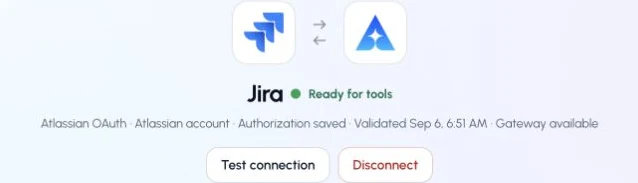
This captured Jira connection reports ready. Check your own connection and its latest validation before using tools.
Try a first question with your AI agent
Find up to five Jira issues I can read. Return issue keys and links without changing anything.
Compare the returned account and resource with Jira. Check the connection status separately from the result of the first read.Add your AI agent · Official Jira instructions