Connect the intended YouTube channel, choose access, enable its resource and verify a first read from your AI. Use it from Claude, ChatGPT, Codex or Muse.
Connect the channel you want your AI to use. Read channel details, video information, and playlists with your current Google access.Use this connection from Claude, ChatGPT, Codex, Grok Bot, Muse or another compatible AI agent. Each agent needs its own ApexGenius setup once; start with Claude, ChatGPT or Codex.Explore the YouTube connector and tools. For performance data and daily reports, use YouTube Analytics.
A Google account with access to the YouTube channel you intend to connect. Check the channel in YouTube first, especially if you use a Brand Account.
An ApexGenius account with this module available. If setup is pending or the module is missing, contact support.
1
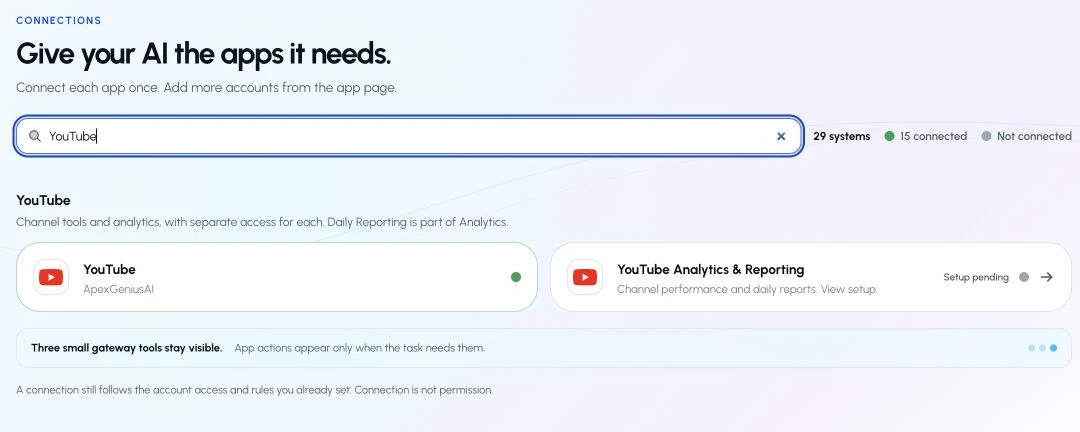
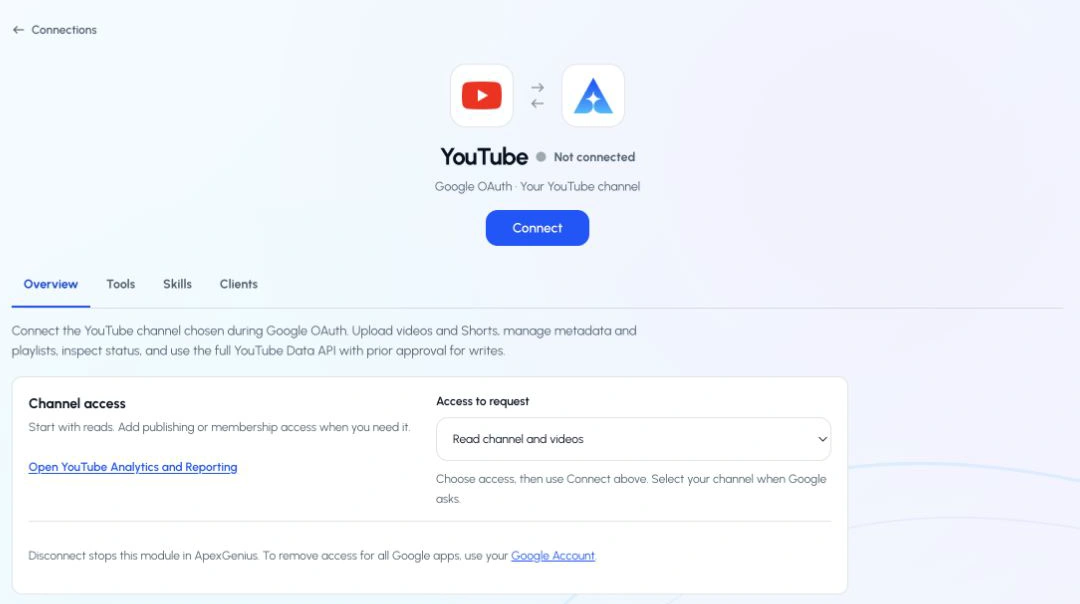
Open YouTube in Connections
Find the YouTube group and open YouTube. Each module has its own channel and access selection.
Find the YouTube group and open YouTube. Analytics & Reporting has its own setup.
Earlier setup view. Review the current read-only access, then use Connect for initial setup.
2
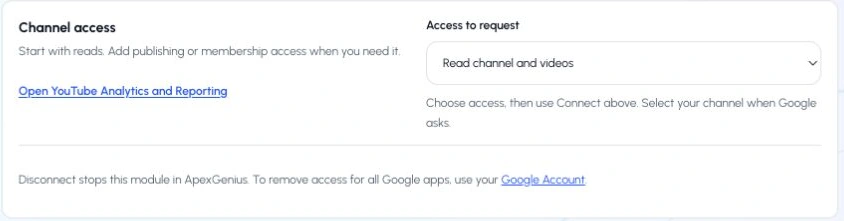
Review read-only access
Read channel details, videos, and playlists. Uploads, edits, captions, comments, subscriptions, and livestream tools are not included. Use Connect only when setting up this module.
Earlier setup view, captured September 7. The current panel shows read-only access without an access selector.
3
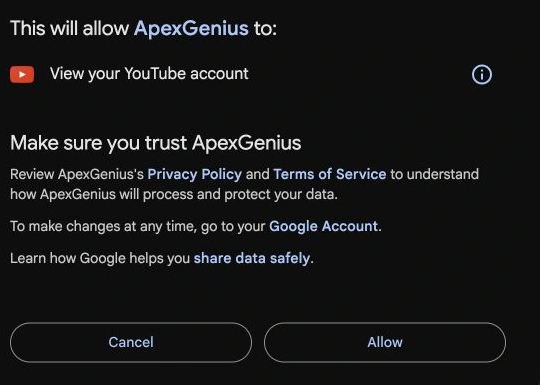
Select your Google account and YouTube channel
On Google’s own page, select the account with access to your intended channel. If Google offers a channel or Brand Account choice, select the intended channel. Review the requested permissions before continuing. Already granted permissions may make these screens look different. Return to ApexGenius when Google finishes.
Review the requested YouTube permission, then choose Allow.
4
Enable the connected channel
Confirm the saved channel name. Open Tools, find Allowed resources, and choose Refresh if needed. Enable the intended channel. Enabling it allows ApexGenius to use existing access; it does not grant new YouTube permissions. If the channel is wrong, stop and connect the intended channel.
Check the channel name and turn on its access.
5
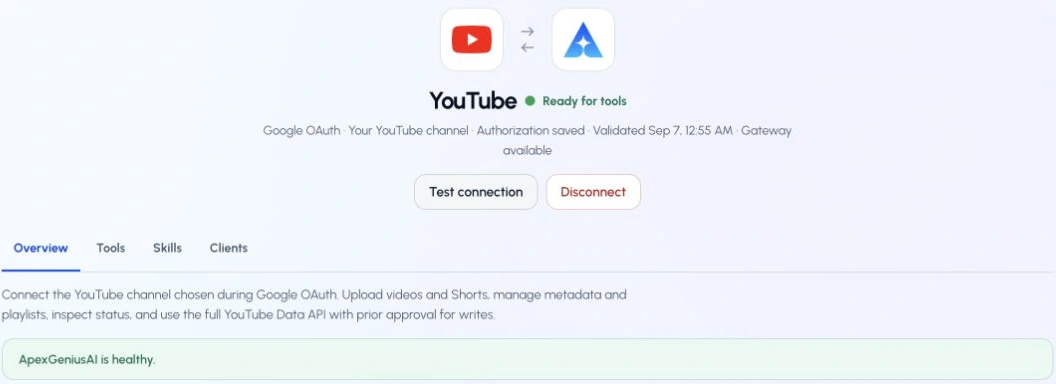
Check the connection status
Use Test connection or Check again when offered. Read the returned status and confirm the saved channel. A healthy connection does not yet prove that a tool read will work.
Select Test connection and check the returned channel and status.
6
Run your first read with an AI agent
Open AI agents and add or select your AI client. Allow this connection with Read only for the first test. Use the question below, then compare the returned channel and data with YouTube Studio. Empty recent analytics can mean data is not available yet.
AI agents · First read
Connection: YouTube
Access for first test: Read only
Copy the first question below into your connected AI client. Check the returned channel and result.Illustrated setup guidance. Follow the controls shown in your own account. Illustrated guide by ApexGenius, not a screenshot; your screen may differ.
Try a first question with your AI agent
Show the name and details of my connected YouTube channel.
Check connection status, the first tool result, and the channel identity separately. If access is missing, review the connection status and enabled channel. Do not assume a new grant is needed. Disconnect stops this module in ApexGenius; Google Account access removal can affect other Google apps.
This connector reads metadata for your enabled channel. It does not read video or audio content, captions, comments, subscriptions, or livestream data. It cannot upload, edit, or delete content. Tools that take video or playlist IDs check that those items belong to your selected channel.Disconnect stops this module in ApexGenius. Removing ApexGenius from Google Account access can affect sibling Google connections.Open YouTube setup · Official YouTube authorization guide
Last modified on September 25, 2026
⌘I
{"docsConfig":{"theme":"maple","$schema":"https://mintlify.com/docs.json","name":"ApexGenius","description":"Connect one app to a supported AI client, then keep the account, available operations, and observed Activity clear.","colors":{"primary":"#0055FF","light":"#4C7FE5","dark":"#4C7FE5"},"logo":{"light":"https://mintcdn.com/apexgenius/PL1VOuYeZtypECmH/logo/apexgenius.svg?fit=max\u0026auto=format\u0026n=PL1VOuYeZtypECmH\u0026q=85\u0026s=ef6a088897a39f3ddbf23122743577fe","dark":"https://mintcdn.com/apexgenius/PL1VOuYeZtypECmH/logo/apexgenius-dark.svg?fit=max\u0026auto=format\u0026n=PL1VOuYeZtypECmH\u0026q=85\u0026s=90a72ff0da22baa182d13aa1ab8398d9","href":"https://www.apexgenius.ai"},"favicon":{"light":"https://mintcdn.com/apexgenius/PL1VOuYeZtypECmH/logo/apexgenius.svg?fit=max\u0026auto=format\u0026n=PL1VOuYeZtypECmH\u0026q=85\u0026s=ef6a088897a39f3ddbf23122743577fe","dark":"https://mintcdn.com/apexgenius/PL1VOuYeZtypECmH/logo/apexgenius-dark.svg?fit=max\u0026auto=format\u0026n=PL1VOuYeZtypECmH\u0026q=85\u0026s=90a72ff0da22baa182d13aa1ab8398d9"},"appearance":{"default":"system","strict":false},"background":{"color":{"light":"#FAF9F6","dark":"#15171B"}},"navbar":{"links":[{"icon":"blocks","href":"https://www.apexgenius.ai/connectors","label":"Connectors"},{"icon":"workflow","href":"https://www.gatechsolutionsllc.com/services/agentforce-consulting","label":"Implementation help"}],"primary":{"type":"button","label":"Connect it free","href":"https://www.apexgenius.ai/auth"}},"footer":{"socials":{"x":"https://x.com/ApexGeniusAI","linkedin":"https://www.linkedin.com/company/apexgenius","youtube":"https://www.youtube.com/@ApexGeniusAI"},"links":[{"header":"ApexGenius","items":[{"label":"Product","href":"https://www.apexgenius.ai/mcp"},{"label":"Connector catalog","href":"https://www.apexgenius.ai/connectors"},{"label":"Security","href":"https://www.apexgenius.ai/security"}]},{"header":"Implementation","items":[{"label":"GAT Solutions services","href":"https://www.gatechsolutionsllc.com/services"},{"label":"AI and Agentforce consulting","href":"https://www.gatechsolutionsllc.com/services/agentforce-consulting"},{"label":"Salesforce integrations","href":"https://www.gatechsolutionsllc.com/services/salesforce-integrations"}]},{"header":"Legal","items":[{"label":"Privacy","href":"https://www.apexgenius.ai/privacy"},{"label":"Terms","href":"https://www.apexgenius.ai/terms"}]}]},"fonts":{"family":"Urbanist"},"icons":{"library":"lucide"},"styling":{"eyebrows":"breadcrumbs","codeblocks":"system","latex":false},"errors":{"404":{"redirect":false,"title":"This route is not in the gateway docs","description":"Check the address or return to the [ApexGenius introduction](/getting-started/introduction)."}},"contextual":{"options":["copy","view","chatgpt","claude"],"display":"header"},"metadata":{"timestamp":true},"navigation":{"pages":[]}},"deployment":{"deploymentMetadataValue":{"subdomain":"apexgenius","hasAudioNarration":false,"actualSubdomain":"apexgenius","customDomains":["docs.apexgenius.ai"],"gitSource":{"type":"github","owner":"ezscore","repo":"apexai","deployBranch":"main","contentDirectory":"content/docs","isPrivate":true,"mountPath":"","label":""},"chroma":{"latestBuiltDeploymentHistoryId":"6ad80504cc3cd82bc28b669d","collectionId":"3d54b08f-29f3-489d-9ea5-b3097ee575a0","liveDeploymentHistoryId":"6ad80504cc3cd82bc28b669d","schemaVersion":"v3"},"entitlements":{},"buildId":"6ad80504cc3cd82bc28b669d","clientVersion":"0.0.3952","searchFilterCounts":[{"language":"default","tag":"Connect apps","count":39},{"language":"default","tag":"Additional connector guides","count":29},{"language":"default","tag":"Salesforce","count":5},{"language":"default","tag":"Connect an AI client","count":5},{"language":"default","tag":"Reference and support","count":4},{"language":"default","tag":"Governance and concepts","count":3},{"language":"default","tag":"Start here","count":3}]},"assistantConfig":{"enableAskAiButton":false,"enableStarterQuestions":false,"enableContextualStarterQuestions":false,"enableAskAiSearchBar":true},"hasChatPermissions":false,"hasWebMcpPermissions":false,"toggles":[{"name":"kill-isr","enabled":true,"variant":{"name":"disabled","enabled":false,"feature_enabled":true},"impressionData":false},{"name":"agent-mintlify-slack","enabled":true,"variant":{"name":"disabled","enabled":false,"feature_enabled":true},"impressionData":false},{"name":"editor-v7-file-tree","enabled":true,"variant":{"name":"disabled","enabled":false,"feature_enabled":true},"impressionData":false},{"name":"agent-integrations-settings","enabled":true,"variant":{"name":"disabled","enabled":false,"feature_enabled":true},"impressionData":false},{"name":"automations-pr-grouping","enabled":true,"variant":{"name":"disabled","enabled":false,"feature_enabled":true},"impressionData":false},{"name":"custom-prefix","enabled":true,"variant":{"name":"disabled","enabled":false,"feature_enabled":true},"impressionData":false},{"name":"analytics-v7","enabled":true,"variant":{"name":"disabled","enabled":false,"feature_enabled":true},"impressionData":false},{"name":"user-flows-analytics","enabled":true,"variant":{"name":"disabled","enabled":false,"feature_enabled":true},"impressionData":false},{"name":"no-publish-flow","enabled":true,"variant":{"name":"disabled","enabled":false,"feature_enabled":true},"impressionData":false},{"name":"workos-onboarding","enabled":true,"variant":{"name":"disabled","enabled":false,"feature_enabled":true},"impressionData":false},{"name":"llms-txt-v2","enabled":true,"variant":{"name":"disabled","enabled":false,"feature_enabled":true},"impressionData":false},{"name":"pause-universal-search-reconcile","enabled":true,"variant":{"name":"disabled","enabled":false,"feature_enabled":true},"impressionData":false},{"name":"snapshot-serving-live","enabled":true,"variant":{"name":"disabled","enabled":false,"feature_enabled":true},"impressionData":false},{"name":"stripTemperatureMiddleware","enabled":true,"variant":{"name":"disabled","enabled":false,"feature_enabled":true},"impressionData":false},{"name":"per-site-search-delta","enabled":true,"variant":{"name":"disabled","enabled":false,"feature_enabled":true},"impressionData":false},{"name":"support-platform-pylon-zendesk","enabled":true,"variant":{"name":"disabled","enabled":false,"feature_enabled":true},"impressionData":false},{"name":"snapshot-serving","enabled":true,"variant":{"name":"disabled","enabled":false,"feature_enabled":true},"impressionData":false},{"name":"instant-rollback","enabled":true,"variant":{"name":"disabled","enabled":false,"feature_enabled":true},"impressionData":false},{"name":"granular-notifications-server","enabled":true,"variant":{"name":"disabled","enabled":false,"feature_enabled":true},"impressionData":false},{"name":"granular-notifications","enabled":true,"variant":{"name":"disabled","enabled":false,"feature_enabled":true},"impressionData":false},{"name":"editor-private-page-search","enabled":true,"variant":{"name":"disabled","enabled":false,"feature_enabled":true},"impressionData":false},{"name":"automations-fable","enabled":true,"variant":{"name":"disabled","enabled":false,"feature_enabled":true},"impressionData":false},{"name":"fixed-ai-action-pricing","enabled":true,"variant":{"name":"disabled","enabled":false,"feature_enabled":true},"impressionData":false},{"name":"automation-resolve-merge-conflict","enabled":true,"variant":{"name":"disabled","enabled":false,"feature_enabled":true},"impressionData":false},{"name":"scoped-publishing","enabled":true,"variant":{"name":"disabled","enabled":false,"feature_enabled":true},"impressionData":false},{"name":"mintql","enabled":true,"variant":{"name":"disabled","enabled":false,"feature_enabled":true},"impressionData":false},{"name":"page-level-analytics","enabled":true,"variant":{"name":"disabled","enabled":false,"feature_enabled":true},"impressionData":false},{"name":"editor-version-history-v2","enabled":true,"variant":{"name":"disabled","enabled":false,"feature_enabled":true},"impressionData":false},{"name":"editor-nav-generations","enabled":true,"variant":{"name":"disabled","enabled":false,"feature_enabled":true},"impressionData":false},{"name":"billing-page-v2","enabled":true,"variant":{"name":"disabled","enabled":false,"feature_enabled":true},"impressionData":false},{"name":"workspace-projects","enabled":true,"variant":{"name":"disabled","enabled":false,"feature_enabled":true},"impressionData":false},{"name":"assistant-v5","enabled":true,"variant":{"name":"disabled","enabled":false,"feature_enabled":true},"impressionData":false},{"name":"byok-sep-25","enabled":true,"variant":{"name":"disabled","enabled":false,"feature_enabled":true},"impressionData":false},{"name":"fork-pr-previews","enabled":true,"variant":{"name":"disabled","enabled":false,"feature_enabled":true},"impressionData":false},{"name":"revalidation-jwt","enabled":true,"variant":{"name":"disabled","enabled":false,"feature_enabled":true},"impressionData":false},{"name":"vite-origin","enabled":true,"variant":{"name":"disabled","enabled":false,"feature_enabled":true},"impressionData":false},{"name":"editor-agent-model-picker","enabled":true,"variant":{"name":"disabled","enabled":false,"feature_enabled":true},"impressionData":false},{"name":"billing-updated-9-15","enabled":true,"variant":{"name":"disabled","enabled":false,"feature_enabled":true},"impressionData":false},{"name":"hobby-abuse-scan","enabled":true,"variant":{"name":"disabled","enabled":false,"feature_enabled":true},"impressionData":false},{"name":"dashboard-inbox","enabled":true,"variant":{"name":"disabled","enabled":false,"feature_enabled":true},"impressionData":false}],"isAtlas":false,"googleFontsInlined":true},"customCss":[{"filePath":"style.css","content":":root{--ag-canvas:#FAF9F6;--ag-surface:#FFFFFF;--ag-ink:#1A1A18;--ag-muted:#6B6B66;--ag-border:#E8E5DF;--ag-blue:#0055FF;--ag-blue-frame:rgb(0 85 255 / 18%);--ag-clay:#D97757}.dark{--ag-blue-frame:rgb(51 119 255 / 28%)}#navbar{border-bottom:1px solid var(--ag-blue-frame)}nav[aria-label=Pages]{border-right-color:var(--ag-blue-frame)}card,code-block{border-radius:14px}callout{border-radius:12px}@media (prefers-reduced-motion:reduce){*,::after,::before{scroll-behavior:auto!important;animation-duration:.01ms!important;animation-iteration-count:1!important;transition-duration:.01ms!important}}"}],"page":{"pagePath":"integrations/youtube","slug":"/integrations/youtube","pageMetadata":{"title":"YouTube MCP Setup","description":"Connect the intended YouTube channel, choose access, enable its resource and verify a first read from your AI. Use it from Claude, ChatGPT, Codex or Muse.","href":"/integrations/youtube"},"description":{"compiledSource":"\"use strict\";\nconst {jsx: _jsx} = arguments[0];\nconst {useMDXComponents: _provideComponents} = arguments[0];\nfunction _createMdxContent(props) {\n const _components = {\n p: \"p\",\n ..._provideComponents(),\n ...props.components\n };\n return _jsx(_components.p, {\n children: \"Connect the intended YouTube channel, choose access, enable its resource and verify a first read from your AI. Use it from Claude, ChatGPT, Codex or Muse.\"\n });\n}\nfunction MDXContent(props = {}) {\n const {wrapper: MDXLayout} = {\n ..._provideComponents(),\n ...props.components\n };\n return MDXLayout ? _jsx(MDXLayout, {\n ...props,\n children: _jsx(_createMdxContent, {\n ...props\n })\n }) : _createMdxContent(props);\n}\nreturn {\n default: MDXContent\n};\n","frontmatter":{},"scope":{}},"pageType":"default","mdx":{"mdxSource":{"compiledSource":"\"use strict\";const{Fragment:_Fragment,jsx:_jsx,jsxs:_jsxs}=arguments[0];const{useMDXComponents:_provideComponents}=arguments[0];function _createMdxContent(props){const _components={a:`a`,code:`code`,li:`li`,p:`p`,pre:`pre`,span:`span`,strong:`strong`,tbody:`tbody`,td:`td`,th:`th`,thead:`thead`,tr:`tr`,ul:`ul`,..._provideComponents(),...props.components},{CodeBlock,Frame,Heading,Note,OptimizedImage,Step,Steps,Table}=_components;if(!CodeBlock)_missingMdxReference(`CodeBlock`,true);if(!Frame)_missingMdxReference(`Frame`,true);if(!Heading)_missingMdxReference(`Heading`,true);if(!Note)_missingMdxReference(`Note`,true);if(!OptimizedImage)_missingMdxReference(`OptimizedImage`,true);if(!Step)_missingMdxReference(`Step`,true);if(!Steps)_missingMdxReference(`Steps`,true);if(!Table)_missingMdxReference(`Table`,true);return _jsxs(_Fragment,{children:[_jsx(_components.p,{children:`Connect the channel you want your AI to use. Read channel details, video information, and playlists with your current Google access.`}),`\n`,_jsxs(_components.p,{children:[`Use this connection from Claude, ChatGPT, Codex, Grok Bot, Muse or another compatible AI agent. Each agent needs its own ApexGenius setup once; start with `,_jsx(_components.a,{href:`/guides/connect-claude`,children:`Claude`}),`, `,_jsx(_components.a,{href:`/guides/connect-chatgpt`,children:`ChatGPT`}),` or `,_jsx(_components.a,{href:`/guides/connect-codex`,children:`Codex`}),`.`]}),`\n`,_jsxs(_components.p,{children:[_jsx(_components.a,{href:`https://www.apexgenius.ai/connectors/youtube`,children:`Explore the YouTube connector and tools`}),`. For performance data and daily reports, use `,_jsx(_components.a,{href:`/integrations/youtube-analytics`,children:`YouTube Analytics`}),`.`]}),`\n`,_jsx(Heading,{level:`2`,id:`connect-your-channel`,children:`Connect your channel`}),`\n`,_jsx(_components.p,{children:_jsx(_components.strong,{children:`Before you start`})}),`\n`,_jsxs(_components.ul,{children:[`\n`,_jsx(_components.li,{children:`A Google account with access to the YouTube channel you intend to connect. Check the channel in YouTube first, especially if you use a Brand Account.`}),`\n`,_jsx(_components.li,{children:`An ApexGenius account with this module available. If setup is pending or the module is missing, contact support.`}),`\n`]}),`\n`,_jsxs(Steps,{children:[_jsxs(Step,{title:`Open YouTube in Connections`,children:[_jsx(_components.p,{children:`Find the YouTube group and open YouTube. Each module has its own channel and access selection.`}),_jsx(Frame,{caption:`Find the YouTube group and open YouTube. Analytics \u0026 Reporting has its own setup.`,children:_jsx(OptimizedImage,{src:`https://www.apexgenius.ai/images/integration-guides/youtube/20260907-group-two-real.webp`,alt:`The real Connections page showing YouTube and YouTube Analytics \u0026 Reporting as separate modules in the YouTube group.`,width:`1080`,height:`432`,style:{width:`100%`,height:`auto`}})}),_jsx(Frame,{caption:`Earlier setup view. Review the current read-only access, then use Connect for initial setup.`,children:_jsx(OptimizedImage,{src:`https://www.apexgenius.ai/images/integration-guides/youtube/20260907-connect-real.webp`,alt:`The real YouTube module with its Connect button and Read channel and videos access selection.`,width:`1080`,height:`604`,style:{width:`100%`,height:`auto`}})})]}),_jsxs(Step,{title:`Review read-only access`,children:[_jsx(_components.p,{children:`Read channel details, videos, and playlists. Uploads, edits, captions, comments, subscriptions, and livestream tools are not included. Use Connect only when setting up this module.`}),_jsx(Frame,{caption:`Earlier setup view, captured September 7. The current panel shows read-only access without an access selector.`,children:_jsx(OptimizedImage,{src:`https://www.apexgenius.ai/images/integration-guides/youtube/20260907-access-real.webp`,alt:`The real Channel access panel with Read channel and videos selected.`,width:`844`,height:`221`,style:{width:`100%`,height:`auto`}})})]}),_jsxs(Step,{title:`Select your Google account and YouTube channel`,children:[_jsx(_components.p,{children:`On Google’s own page, select the account with access to your intended channel. If Google offers a channel or Brand Account choice, select the intended channel. Review the requested permissions before continuing. Already granted permissions may make these screens look different. Return to ApexGenius when Google finishes.`}),_jsx(Frame,{caption:`Review the requested YouTube permission, then choose Allow.`,children:_jsx(OptimizedImage,{src:`https://www.apexgenius.ai/images/integration-guides/youtube/20260907-google-consent-real.webp`,alt:`The real Google consent screen requesting View your YouTube account, with Cancel and Allow.`,width:`540`,height:`385`,style:{width:`100%`,height:`auto`}})})]}),_jsxs(Step,{title:`Enable the connected channel`,children:[_jsx(_components.p,{children:`Confirm the saved channel name. Open Tools, find Allowed resources, and choose Refresh if needed. Enable the intended channel. Enabling it allows ApexGenius to use existing access; it does not grant new YouTube permissions. If the channel is wrong, stop and connect the intended channel.`}),_jsx(Frame,{caption:`Check the channel name and turn on its access.`,children:_jsx(OptimizedImage,{src:`https://www.apexgenius.ai/images/integration-guides/youtube/20260907-resource-real.webp`,alt:`The ApexGeniusAI YouTube channel enabled in Allowed resources, showing one of one enabled.`,width:`1080`,height:`190`,style:{width:`100%`,height:`auto`}})})]}),_jsxs(Step,{title:`Check the connection status`,children:[_jsx(_components.p,{children:`Use Test connection or Check again when offered. Read the returned status and confirm the saved channel. A healthy connection does not yet prove that a tool read will work.`}),_jsx(Frame,{caption:`Select Test connection and check the returned channel and status.`,children:_jsx(OptimizedImage,{src:`https://www.apexgenius.ai/images/integration-guides/youtube/20260907-validated-real.webp`,alt:`The real connection test returning ApexGeniusAI is healthy, with authorization saved and a validation time.`,width:`1056`,height:`384`,style:{width:`100%`,height:`auto`}})})]}),_jsxs(Step,{title:`Run your first read with an AI agent`,children:[_jsx(_components.p,{children:`Open AI agents and add or select your AI client. Allow this connection with Read only for the first test. Use the question below, then compare the returned channel and data with YouTube Studio. Empty recent analytics can mean data is not available yet.`}),_jsxs(Note,{children:[_jsx(_components.p,{children:_jsx(_components.strong,{children:`AI agents · First read`})}),_jsxs(_components.ul,{children:[`\n`,_jsxs(_components.li,{children:[_jsx(_components.strong,{children:`Connection:`}),` YouTube`]}),`\n`,_jsxs(_components.li,{children:[_jsx(_components.strong,{children:`Access for first test:`}),` Read only`]}),`\n`]}),_jsx(_components.p,{children:`Copy the first question below into your connected AI client. Check the returned channel and result.`}),_jsx(_components.p,{children:`Illustrated setup guidance. Follow the controls shown in your own account. Illustrated guide by ApexGenius, not a screenshot; your screen may differ.`})]})]})]}),`\n`,_jsx(_components.p,{children:_jsx(_components.strong,{children:`Try a first question with your AI agent`})}),`\n`,_jsx(CodeBlock,{filename:``,numberOfLines:`2`,language:`text`,children:_jsx(_components.pre,{className:`shiki shiki-themes github-light-default dark-plus`,style:{backgroundColor:`#ffffff`,\"--shiki-dark-bg\":`#0B0C0E`,color:`#1f2328`,\"--shiki-dark\":`#D4D4D4`},language:`text`,children:_jsxs(_components.code,{language:`text`,numberOfLines:`2`,children:[_jsx(_components.span,{className:`line`,children:_jsx(_components.span,{children:`Show the name and details of my connected YouTube channel.`})}),`\n`,_jsx(_components.span,{className:`line`,children:_jsx(_components.span,{})})]})})}),`\n`,_jsx(_components.p,{children:`Check connection status, the first tool result, and the channel identity separately. If access is missing, review the connection status and enabled channel. Do not assume a new grant is needed. Disconnect stops this module in ApexGenius; Google Account access removal can affect other Google apps.`}),`\n`,_jsx(Heading,{level:`2`,id:`add-your-ai`,children:`Add your AI`}),`\n`,_jsxs(_components.p,{children:[`Follow the `,_jsx(_components.a,{href:`https://www.apexgenius.ai/chatgpt-for-youtube#setup`,children:`ChatGPT`}),`, `,_jsx(_components.a,{href:`https://www.apexgenius.ai/claude-for-youtube#setup`,children:`Claude`}),` or `,_jsx(_components.a,{href:`https://www.apexgenius.ai/codex-for-youtube#setup`,children:`Codex`}),` guide. Each keeps the YouTube connection selected through sign-in and includes a first read-only question.`]}),`\n`,_jsx(Heading,{level:`2`,id:`if-setup-does-not-work`,children:`If setup does not work`}),`\n`,_jsxs(Table,{children:[_jsx(_components.thead,{children:_jsxs(_components.tr,{children:[_jsx(_components.th,{children:`What you see`}),_jsx(_components.th,{children:`What to do`})]})}),_jsxs(_components.tbody,{children:[_jsxs(_components.tr,{children:[_jsx(_components.td,{children:`Connect is missing or setup is pending`}),_jsx(_components.td,{children:`Contact support to check whether your account and the module are enabled.`})]}),_jsxs(_components.tr,{children:[_jsx(_components.td,{children:`Google reports a callback or app configuration error`}),_jsx(_components.td,{children:`Report the error code to support. Changing the selected channel will not repair the operator’s Google setup.`})]}),_jsxs(_components.tr,{children:[_jsx(_components.td,{children:`Wrong channel saved`}),_jsx(_components.td,{children:`Stop. Select the intended Google account and channel before granting access.`})]}),_jsxs(_components.tr,{children:[_jsx(_components.td,{children:`Channel missing from Allowed resources`}),_jsx(_components.td,{children:`Check its identity and access in YouTube, then refresh resources. Refresh does not repair Google consent.`})]}),_jsxs(_components.tr,{children:[_jsx(_components.td,{children:`A publishing or editing tool is missing`}),_jsx(_components.td,{children:`This connector offers read-only tools. Uploads and changes are not supported.`})]}),_jsxs(_components.tr,{children:[_jsx(_components.td,{children:`Connection needs reauthorization`}),_jsx(_components.td,{children:`Use Reconnect and verify that the saved channel is still the intended one.`})]})]})]}),`\n`,_jsx(Heading,{level:`2`,id:`limits-and-data`,children:`Limits and data`}),`\n`,_jsx(_components.p,{children:`This connector reads metadata for your enabled channel. It does not read video or audio content, captions, comments, subscriptions, or livestream data. It cannot upload, edit, or delete content. Tools that take video or playlist IDs check that those items belong to your selected channel.`}),`\n`,_jsx(_components.p,{children:`Disconnect stops this module in ApexGenius. Removing ApexGenius from Google Account access can affect sibling Google connections.`}),`\n`,_jsxs(_components.p,{children:[_jsx(_components.a,{href:`https://www.apexgenius.ai/connections/youtube`,children:`Open YouTube setup`}),` · `,_jsx(_components.a,{href:`https://developers.google.com/youtube/v3/guides/auth/server-side-web-apps`,children:`Official YouTube authorization guide`})]})]})}function MDXContent(props={}){const{wrapper:MDXLayout}={..._provideComponents(),...props.components};return MDXLayout?_jsx(MDXLayout,{...props,children:_jsx(_createMdxContent,{...props})}):_createMdxContent(props)}return{default:MDXContent};function _missingMdxReference(id,component){throw new Error(`Expected `+(component?`component`:`object`)+\" `\"+id+\"` to be defined: you likely forgot to import, pass, or provide it.\")}","frontmatter":{},"scope":{"codeStyling":"system","config":{},"pageMetadata":{"title":"YouTube MCP Setup","description":"Connect the intended YouTube channel, choose access, enable its resource and verify a first read from your AI. Use it from Claude, ChatGPT, Codex or Muse.","href":"/integrations/youtube"}}},"mdxSourceWithNoJs":null},"mdxExtracts":{"tableOfContents":[{"title":"Connect your channel","slug":"connect-your-channel","depth":2,"children":[]},{"title":"Add your AI","slug":"add-your-ai","depth":2,"children":[]},{"title":"If setup does not work","slug":"if-setup-does-not-work","depth":2,"children":[]},{"title":"Limits and data","slug":"limits-and-data","depth":2,"children":[]}],"codeExamples":{}},"jsLinks":[],"subdomain":"apexgenius","siteName":"ApexGenius","title":"YouTube MCP Setup - ApexGenius","navMaps":{"firstHrefInVersion":{},"firstHrefInLanguage":{}},"lastModified":"2026-09-25T17:17:06.439Z","gitLastModified":"2026-09-25T17:10:26.000Z","originalFileLocation":"integrations/youtube.mdx"},"headHtml":"\u003cscript data-mint-head>(function(){var d=document.documentElement,p=null;if(!p){try{p=localStorage.getItem(\"isDarkMode\")}catch(e){}if(p==='true')p='dark';else if(p==='false')p='light';if(p!=='light'\u0026\u0026p!=='dark'\u0026\u0026p!=='system')p=\"system\"}var r=p==='system'?(matchMedia(\"(prefers-color-scheme: dark)\").matches?'dark':'light'):p;d.classList.remove(r==='dark'?'light':'dark');d.classList.add(r);d.setAttribute(\"data-theme-preference\",p)})();\u003c/script>\u003cmeta data-mint-head name=\"description\" content=\"Connect the intended YouTube channel, choose access, enable its resource and verify a first read from your AI. Use it from Claude, ChatGPT, Codex or Muse.\">\u003cmeta data-mint-head name=\"application-name\" content=\"ApexGenius\">\u003cmeta data-mint-head name=\"generator\" content=\"Mintlify\">\u003clink data-mint-head rel=\"icon\" type=\"image/png\" sizes=\"192x192\" href=\"/mintlify-assets/_mintlify/favicons/apexgenius/of2iO4EQJQd_LzS2/_generated/favicon/android-chrome-192x192.png\" media=\"(prefers-color-scheme: light)\">\u003clink data-mint-head rel=\"apple-touch-icon\" type=\"image/png\" sizes=\"180x180\" href=\"/mintlify-assets/_mintlify/favicons/apexgenius/of2iO4EQJQd_LzS2/_generated/favicon/apple-touch-icon.png\">\u003clink data-mint-head rel=\"icon\" type=\"image/png\" sizes=\"16x16\" href=\"/mintlify-assets/_mintlify/favicons/apexgenius/of2iO4EQJQd_LzS2/_generated/favicon/favicon-16x16.png\" media=\"(prefers-color-scheme: light)\">\u003clink data-mint-head rel=\"icon\" type=\"image/png\" sizes=\"32x32\" href=\"/mintlify-assets/_mintlify/favicons/apexgenius/of2iO4EQJQd_LzS2/_generated/favicon/favicon-32x32.png\" media=\"(prefers-color-scheme: light)\">\u003clink data-mint-head rel=\"shortcut icon\" type=\"image/x-icon\" href=\"/mintlify-assets/_mintlify/favicons/apexgenius/of2iO4EQJQd_LzS2/_generated/favicon/favicon.ico\" media=\"(prefers-color-scheme: light)\">\u003clink data-mint-head rel=\"icon\" type=\"image/png\" sizes=\"192x192\" href=\"/mintlify-assets/_mintlify/favicons/apexgenius/of2iO4EQJQd_LzS2/_generated/favicon-dark/android-chrome-192x192.png\" media=\"(prefers-color-scheme: dark)\">\u003clink data-mint-head rel=\"icon\" type=\"image/png\" sizes=\"16x16\" href=\"/mintlify-assets/_mintlify/favicons/apexgenius/of2iO4EQJQd_LzS2/_generated/favicon-dark/favicon-16x16.png\" media=\"(prefers-color-scheme: dark)\">\u003clink data-mint-head rel=\"icon\" type=\"image/png\" sizes=\"32x32\" href=\"/mintlify-assets/_mintlify/favicons/apexgenius/of2iO4EQJQd_LzS2/_generated/favicon-dark/favicon-32x32.png\" media=\"(prefers-color-scheme: dark)\">\u003clink data-mint-head rel=\"shortcut icon\" type=\"image/x-icon\" href=\"/mintlify-assets/_mintlify/favicons/apexgenius/of2iO4EQJQd_LzS2/_generated/favicon-dark/favicon.ico\" media=\"(prefers-color-scheme: dark)\">\u003cmeta data-mint-head property=\"og:title\" content=\"YouTube MCP Setup - ApexGenius\">\u003cmeta data-mint-head property=\"og:description\" content=\"Connect the intended YouTube channel, choose access, enable its resource and verify a first read from your AI. Use it from Claude, ChatGPT, Codex or Muse.\">\u003cmeta data-mint-head property=\"og:site_name\" content=\"ApexGenius\">\u003cmeta data-mint-head property=\"og:url\" content=\"https://docs.apexgenius.ai/integrations/youtube\">\u003cmeta data-mint-head property=\"og:type\" content=\"website\">\u003cmeta data-mint-head property=\"og:image\" content=\"https://apexgenius.mintlify.app/_mintlify/api/og/v2?division=Connect+apps\u0026amp;title=YouTube+MCP+Setup\u0026amp;description=Connect+the+intended+YouTube+channel%2C+choose+access%2C+enable+its+resource+and+verify+a+first+read+from+your+AI.+Use+it+from+Claude%2C+ChatGPT%2C+Codex+or+Muse.\u0026amp;theme=19ac6d0290a1eaf9945bbd0f\u0026amp;signature=c5d98c35a814e39842f58196aa4c484f3520209010b533854a93db2753812ab6\">\u003cmeta data-mint-head property=\"og:image:width\" content=\"1200\">\u003cmeta data-mint-head property=\"og:image:height\" content=\"630\">\u003cmeta data-mint-head name=\"twitter:card\" content=\"summary_large_image\">\u003cmeta data-mint-head name=\"twitter:title\" content=\"YouTube MCP Setup - ApexGenius\">\u003cmeta data-mint-head name=\"twitter:description\" content=\"Connect the intended YouTube channel, choose access, enable its resource and verify a first read from your AI. Use it from Claude, ChatGPT, Codex or Muse.\">\u003cmeta data-mint-head name=\"twitter:image\" content=\"https://apexgenius.mintlify.app/_mintlify/api/og/v2?division=Connect+apps\u0026amp;title=YouTube+MCP+Setup\u0026amp;description=Connect+the+intended+YouTube+channel%2C+choose+access%2C+enable+its+resource+and+verify+a+first+read+from+your+AI.+Use+it+from+Claude%2C+ChatGPT%2C+Codex+or+Muse.\u0026amp;theme=19ac6d0290a1eaf9945bbd0f\u0026amp;signature=c5d98c35a814e39842f58196aa4c484f3520209010b533854a93db2753812ab6\">\u003cmeta data-mint-head name=\"twitter:image:width\" content=\"1200\">\u003cmeta data-mint-head name=\"twitter:image:height\" content=\"630\">\u003cmeta data-mint-head name=\"msapplication-config\" content=\"/mintlify-assets/_mintlify/favicons/apexgenius/of2iO4EQJQd_LzS2/_generated/favicon/browserconfig.xml\">\u003cmeta data-mint-head name=\"apple-mobile-web-app-title\" content=\"ApexGenius\">\u003cmeta data-mint-head name=\"msapplication-TileColor\" content=\"#0055FF\">\u003clink data-mint-head rel=\"canonical\" href=\"https://docs.apexgenius.ai/integrations/youtube\">\u003clink data-mint-head rel=\"alternate\" type=\"application/xml\" href=\"/sitemap.xml\">\u003clink data-mint-head rel=\"alternate\" type=\"text/markdown\" href=\"/integrations/youtube.md\">\u003cscript data-mint-head type=\"application/ld+json\">{\"@context\":\"https://schema.org\",\"@graph\":[{\"@type\":\"Organization\",\"@id\":\"https://docs.apexgenius.ai/#organization\",\"name\":\"ApexGenius\",\"url\":\"https://docs.apexgenius.ai\",\"logo\":{\"@type\":\"ImageObject\",\"url\":\"https://mintcdn.com/apexgenius/PL1VOuYeZtypECmH/logo/apexgenius.svg?fit=max\u0026auto=format\u0026n=PL1VOuYeZtypECmH\u0026q=85\u0026s=ef6a088897a39f3ddbf23122743577fe\"}},{\"@type\":\"WebSite\",\"@id\":\"https://docs.apexgenius.ai#website\",\"name\":\"ApexGenius\",\"url\":\"https://docs.apexgenius.ai\",\"publisher\":{\"@id\":\"https://docs.apexgenius.ai/#organization\"}},{\"@type\":\"WebPage\",\"@id\":\"https://docs.apexgenius.ai/integrations/youtube#webpage\",\"url\":\"https://docs.apexgenius.ai/integrations/youtube\",\"name\":\"YouTube MCP Setup\",\"description\":\"Connect the intended YouTube channel, choose access, enable its resource and verify a first read from your AI. Use it from Claude, ChatGPT, Codex or Muse.\",\"dateModified\":\"2026-09-25T17:10:26.000Z\",\"isPartOf\":{\"@id\":\"https://docs.apexgenius.ai#website\"},\"breadcrumb\":{\"@id\":\"https://docs.apexgenius.ai/integrations/youtube#breadcrumb\"}},{\"@type\":\"BreadcrumbList\",\"@id\":\"https://docs.apexgenius.ai/integrations/youtube#breadcrumb\",\"itemListElement\":[{\"@type\":\"ListItem\",\"position\":1,\"name\":\"Connect apps\",\"item\":\"https://docs.apexgenius.ai/integrations/provider-connections\"},{\"@type\":\"ListItem\",\"position\":2,\"name\":\"YouTube MCP Setup\",\"item\":\"https://docs.apexgenius.ai/integrations/youtube\"}]},{\"@type\":[\"Article\",\"TechArticle\"],\"@id\":\"https://docs.apexgenius.ai/integrations/youtube#article\",\"headline\":\"YouTube MCP Setup\",\"name\":\"YouTube MCP Setup\",\"description\":\"Connect the intended YouTube channel, choose access, enable its resource and verify a first read from your AI. Use it from Claude, ChatGPT, Codex or Muse.\",\"url\":\"https://docs.apexgenius.ai/integrations/youtube\",\"mainEntityOfPage\":{\"@id\":\"https://docs.apexgenius.ai/integrations/youtube#webpage\"},\"dateModified\":\"2026-09-25T17:10:26.000Z\",\"publisher\":{\"@id\":\"https://docs.apexgenius.ai/#organization\"},\"isPartOf\":{\"@id\":\"https://docs.apexgenius.ai#website\"}}]}\u003c/script>\u003cscript data-mint-head type=\"application/ld+json\">{\"@context\":\"https://schema.org\",\"@type\":\"WebSite\",\"name\":\"ApexGenius\",\"creator\":{\"@type\":\"Organization\",\"name\":\"Mintlify\",\"url\":\"https://mintlify.com\"}}\u003c/script>","siteName":"ApexGenius","nav":{"global":null,"groups":[{"group":"Start here","icon":"route","pages":[{"title":"Connect one app to the AI you already use","href":"/getting-started/introduction"},{"title":"Connect an AI client","href":"/guides/mcp-setup"},{"title":"Send the first safe request","href":"/guides/first-safe-request"}]},{"group":"Connect an AI client","icon":"message-square-code","pages":[{"title":"Connect Claude","href":"/guides/connect-claude"},{"title":"Connect ChatGPT","href":"/guides/connect-chatgpt"},{"title":"Connect Codex","href":"/guides/connect-codex"},{"title":"Connect Cursor","href":"/guides/connect-cursor"},{"title":"Connect VS Code","href":"/guides/connect-vscode"}]},{"group":"Salesforce","icon":"cloud","pages":[{"title":"Connect Salesforce","href":"/getting-started/connect-salesforce"},{"title":"Loading Metadata","href":"/getting-started/load-metadata"},{"title":"Using the Account App","href":"/getting-started/using-chat"},{"title":"Reports and Dashboards: Current Availability","href":"/guides/reports-and-dashboards"},{"title":"Salesforce connection model","href":"/integrations/salesforce-connection"}]},{"group":"Connect apps","icon":"plug-zap","pages":[{"title":"App connection guides","description":"See what each ApexGenius connection requires, where it is scoped, and which vendor documentation remains authoritative.","href":"/integrations/provider-connections"},{"title":"YouTube MCP Setup","href":"/integrations/youtube"},{"title":"YouTube Analytics MCP Setup","description":"Set up read-only channel performance queries and access existing daily Reporting resources. Verify the enabled channel and a first read.","href":"/integrations/youtube-analytics"},{"title":"n8n MCP Setup","href":"/integrations/n8n"},{"title":"Confluence MCP Setup","href":"/integrations/confluence"},{"title":"Discord MCP Setup","href":"/integrations/discord"},{"title":"Jira MCP Setup","href":"/integrations/jira"},{"group":"Additional connector guides","icon":"flask-conical","pages":[{"title":"HQ Rental MCP Setup","href":"/integrations/hq-rental"},{"title":"Google Ads MCP Setup","href":"/integrations/google-ads"},{"title":"Google Search Console MCP Setup","href":"/integrations/google-search-console"},{"title":"Google Analytics MCP Setup","href":"/integrations/google-analytics"},{"title":"Google Workspace MCP Setup","href":"/integrations/google-workspace"},{"title":"Upwork MCP Setup","href":"/integrations/upwork"},{"title":"Apollo MCP Setup","href":"/integrations/apollo"},{"title":"Notion MCP Setup","href":"/integrations/notion"},{"title":"Connect Slack accounts","href":"/integrations/slack"},{"title":"ClickUp MCP Setup","href":"/integrations/clickup"},{"title":"Connect Blotato","href":"/integrations/blotato"},{"title":"Connect HighLevel","href":"/integrations/gohighlevel"},{"title":"ChatGPT Ads MCP Setup","href":"/integrations/chatgpt-ads"},{"title":"Semrush MCP Setup","href":"/integrations/semrush"},{"title":"Bing Webmaster MCP Setup","href":"/integrations/bing-webmaster"},{"title":"Apify MCP Setup","href":"/integrations/apify"},{"title":"Linear MCP Setup","href":"/integrations/linear"},{"title":"Attio MCP Setup","href":"/integrations/attio"},{"title":"Calendly MCP Setup","href":"/integrations/calendly"},{"title":"Connect Cal.com to your AI","href":"/integrations/cal-com"},{"title":"Mobbin MCP Setup","href":"/integrations/mobbin"},{"title":"Supabase MCP Setup","href":"/integrations/supabase"},{"title":"Context.dev MCP Setup","href":"/integrations/context-dev"},{"title":"Stripe MCP Setup","href":"/integrations/stripe"},{"title":"GitHub MCP Setup","href":"/integrations/github"},{"title":"monday.com MCP Setup","href":"/integrations/monday"},{"title":"Atlassian Rovo MCP Setup","href":"/integrations/atlassian-rovo"},{"title":"ElevenLabs MCP Setup","href":"/integrations/elevenlabs"},{"title":"FreshBooks MCP Setup","href":"/integrations/freshbooks"}]},{"title":"Connect Speedrun Alpha","href":"/integrations/speedrun"},{"title":"Connect OP.GG to your AI","href":"/integrations/opgg"},{"title":"Read Polymarket information with your AI","href":"/integrations/polymarket"}]},{"group":"Governance and concepts","icon":"shield-check","pages":[{"title":"How the MCP Connection Works","href":"/concepts/how-mcp-works"},{"title":"Orgs, Projects \u0026 Workspaces","href":"/concepts/orgs-and-projects"},{"title":"The Soul Doc","href":"/concepts/soul-doc"}]},{"group":"Reference and support","icon":"book-open-check","pages":[{"title":"MCP Tool Reference","href":"/reference/mcp-tools"},{"title":"Pricing and Account Limits","href":"/reference/plans-and-limits"},{"title":"Common Issues","href":"/troubleshooting/common-issues"},{"title":"How we record your signup source","href":"/reference/signup-source"}]}]},"title":"YouTube MCP Setup - ApexGenius","buildId":"dpl_7GUK3ixdQTF3BSNUQYJm8ibGxQWw","deploymentId":"dpl_7GUK3ixdQTF3BSNUQYJm8ibGxQWw","dynamics":["07c022d89b","a74be98ba7","a9bb46feb3"],"chunks":["Frame-BUwlkhKf.js","DynamicMarkdown-CCag2O17.js","zoom-image-lightbox-BVI9Chd9.js","PlusIcon-dPxQtROk.js","lightbox-handle-r17bVUz3.js","Markdown-BjVPke3I.js","clsx-GOchs0v2.js","lib--scc4DXi.js","lib-B8HbPgcC.js","html-void-elements-mCSPHezU.js","dist-B0Np8MLW.js","katex-YMM-FMeD.js","marked.esm-CZWythHk.js","AssistantPageLink-Ca5DJ5-U.js"]}