Connect Google Search Console to ChatGPT through ApexGenius. Follow the Google authorization steps, enable your property, and verify a read with real setup screenshots.
Status: Available. Google Search Console uses Google OAuth. Reports and property reads use only the properties enabled on the connection. The Add property write tool can register a new property before it is enabled; it does not verify ownership or grant ApexGenius access.Use this connection from Claude, ChatGPT, Codex, Grok Bot, Muse or another compatible AI agent. Each agent needs its own ApexGenius setup once; start with Claude, ChatGPT or Codex.For the full public walkthrough, see Google Search Console to ChatGPT or connect Search Console to your AI.
A Google account with access to an existing Search Console property.
The exact Domain or URL-prefix property you want to use. You can add a missing property with the connector’s Add property write tool. Verify ownership in Google Search Console when required.
1
Open Google Search Console in Connections
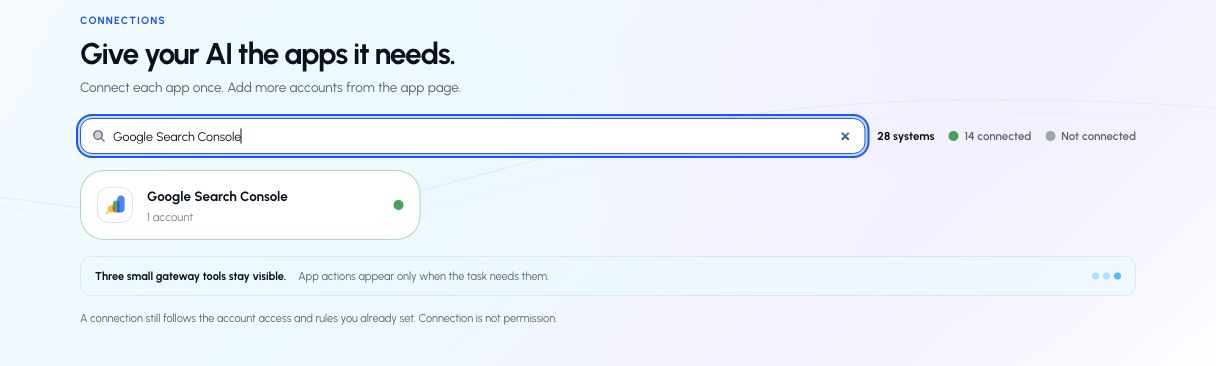
Sign in to ApexGenius, open Connections, and choose Google Search Console. Select Connect to begin Google authorization.
Search Connections for Google Search Console. This captured account already has a saved connection; a new account starts with Connect.
2
Choose the right Google account
Use the account that can already access your site in Search Console. Review the Google consent screen and continue back to ApexGenius.
3
Enable your Search Console property
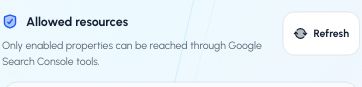
Find Allowed resources on the connection page or its Tools tab and choose Refresh. Turn on the exact property you want to use. A Domain property and a URL-prefix property are separate choices.
Choose Refresh under Allowed resources to discover properties the authorized Google account can access.
Turn on the exact property you want your AI to use. This real capture shows our own apexgenius.ai Domain property; choose your property in your account.
4
Check the connection and tools
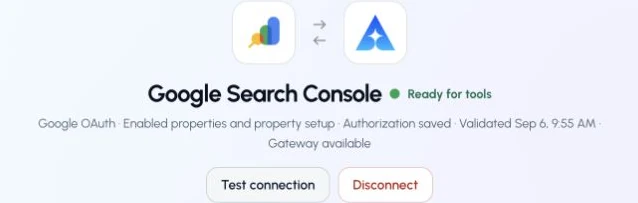
Use Test connection and review the Read tools. Search performance, property details, sitemap details, and URL inspection are reads. Keep property and sitemap changes off if you only need reporting.
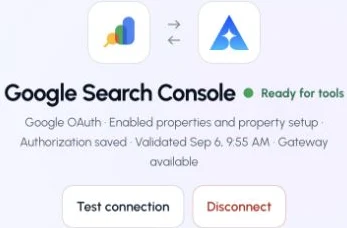
This captured Google Search Console connection reports ready. Check your own connection and its latest validation before using tools.
Try a first question with your AI agent
List the Google Search Console properties enabled for me in ApexGenius. Do not change anything.
Confirm that the returned property matches the one you enabled. Then ask for its ten pages with the most clicks over a specific date range. Compare the property, dates, search type, clicks, and impressions with the Search Console Performance report.The Google authorization requests the Search Console read/write scope because the connector includes property and sitemap changes. For reporting, choose Read only when authorizing your AI agent in ApexGenius, or Custom to allow specific tools. That tool selection does not change the underlying Google OAuth scope.
Follow the ChatGPT setup walkthrough to add ApexGenius, authorize the intended connections, and choose Read only for the first test. ChatGPT developer mode must be available to your account and allowed by your workspace.Start a new conversation, select ApexGenius, and ask:
List the Google Search Console properties enabled for me in ApexGenius. Do not change anything.
Confirm the property matches the one you enabled. Then ask for its top ten pages by clicks over a specific date range. Compare the property, dates, search type, clicks, and impressions with Search Console’s Performance report.
Confirm the connected Google account and the exact property, such as sc-domain:example.com or https://www.example.com/. These are separate properties.
Allow the Add Search Console property write tool for your AI client. Ask it to add that exact property. Review any approval request before continuing.
Complete ownership verification in Google Search Console if required. Adding a property does not verify ownership, edit the website, or request indexing.
Return to Connections → Google Search Console → Allowed resources. Choose Refresh, then enable the new property explicitly.
Ask your AI to list enabled properties and read the new property’s permission level. Confirm the result before requesting a report.
The add operation does not change your existing ApexGenius resource selections. Removing a property is a separate write: confirm the exact target first. It removes the property from the connected Google user’s Search Console account and disables that saved ApexGenius resource. It does not delete the website. Adding it again and enabling it are separate recovery steps.
The connector provides named tools for all ten methods in Google’s Search Console API:
Task
Tool
Access
List current enabled properties
google_search_console_list_properties
Read
Get a property’s permission level
google_search_console_get_property
Read
Add a property
google_search_console_add_property
Write
Remove a property
google_search_console_delete_property
Write, destructive
Query search performance
google_search_console_query
Read
List sitemaps, optionally in an index
google_search_console_list_sitemaps
Read
Get sitemap status and content counts
google_search_console_get_sitemap
Read
Submit a sitemap
google_search_console_submit_sitemap
Write
Remove a submitted sitemap
google_search_console_delete_sitemap
Write, destructive
Inspect Google’s indexed URL
google_search_console_inspect_url
Read
Search analytics supports dates, dimensions, filters, search type, pagination, aggregation, and final, fresh, or hourly data. Recent results can be incomplete, and the API returns top rows rather than every query. Keep the returned data-state metadata when reporting results. URL inspection reads Google’s indexed version; sitemap submission does not guarantee indexing.The existing google_search_console_request tool remains available for property-relative calls. It requires an enabled property. Use the named Add property tool for a new property and the URL Inspection tool for inspection.
Connection requirements.The shared ApexGenius Google OAuth path is configured for this connector. Search Console property permissions, granted scopes, and API quotas still apply.