Connect Context.dev to ApexGenius with browser sign-in, then search the web, read pages as Markdown, extract JSON and watch pages for changes from your AI.
Status: Available. Context.dev uses its official hosted MCP server and
browser OAuth. You do not paste a Context.dev API key. The connection acts for
your Context.dev organization, and most calls spend that organization’s shared
credits.Explore the Context.dev connector.
An account with permission to use the Context.dev resources you intend to connect.
1
Open Context.dev in Connections
Choose Connect, or Add connection when offered. Give the connection a name if prompted. If Gateway setup pending appears, contact ApexGenius support before continuing.
2
Choose the account and review access
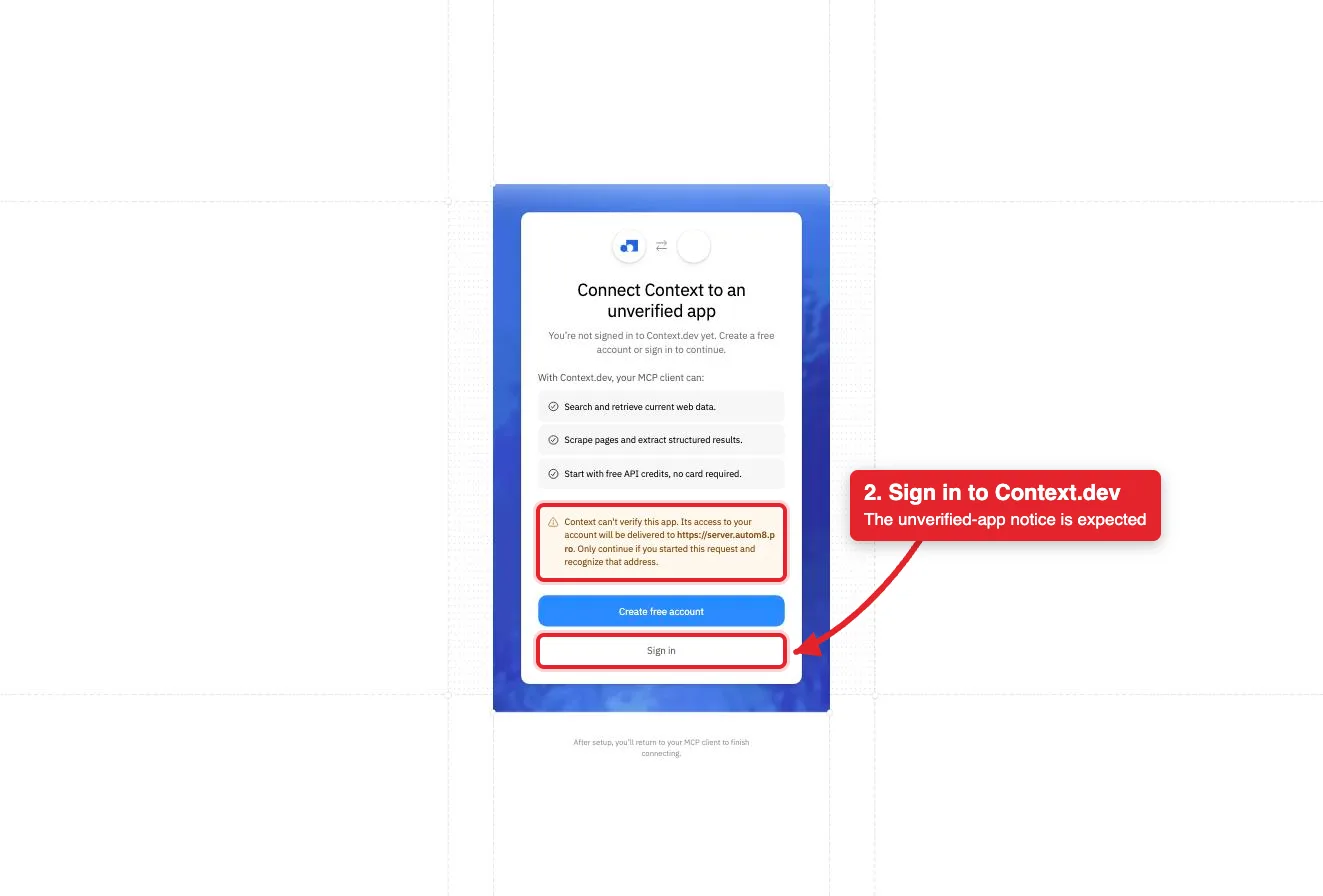
Sign in to Context.dev in the browser and approve access for your organization. Context.dev uses browser authorization; no Context.dev API key is pasted into ApexGenius.
Context.dev labels ApexGenius an unverified app and names server.autom8.pro, the ApexGenius gateway, as the address that receives access. Sign in to continue.
3
Review the connected account and resources
Confirm the connected Context.dev organization. Open Tools to review its reads and the monitor and batch actions. Most operations spend your organization’s Context.dev credits.
4
Check the connection
Use Test connection or Check again and read the reported status. Add an AI agent from the AI agents page, choose Read only for the first test, and try the question below.
Try a first question with your AI agent
List my Context.dev monitors. Do not create, run, or change anything.
Compare the returned account and resource with Context.dev. Check the connection status separately from the result of the first read.Listing monitors costs no credits and changes nothing. A reply, even an empty
list, shows the connection reaches your organization. It does not test a paid
read or a monitor change.
Open Skills on the connection to read ContextDev, or read that MCP
prompt in a compatible AI client. It explains the first safe read, what each
read costs, how to treat page text, and the undo limits.Three ApexGenius tools route Context.dev’s live catalog:
ApexGenius tool
What it does
Access
context_dev_search_tools
Lists the operations Context.dev’s hosted MCP publishes now, with their schemas
Read
context_dev_call_read_tool
Runs an operation only when the live catalog marks it read-only
Read
context_dev_call_tool
Runs any other operation, including monitor and batch changes
Write or destructive
Context.dev documents 34 operations behind those tools:
Your AI discovers the tools with apex_search_tools. Reads use
apex_call_read_tool; everything else uses apex_call_write_tool. Writes run
right away. If you set a tool to Ask me first, the call returns
approval_required; a person approves it in ApexGenius and the AI retries
with the returned approval_request_id.
Context.dev prices each operation. From its API reference: a scrape is 1
credit (2 with browser actions), a web search is 1 credit per 10 results, a
crawl is 1 credit per page, and a brand lookup is 10 credits. Listing monitors
is free. Monitors spend credits on every scheduled run, and a batch reserves
credits when it is submitted.Free organizations get 1,000 credits a month with a work email, or 250 once
with a personal email. Paid plans and per-minute rate limits are on
Context.dev pricing and your Context.dev
dashboard.
Everything Context.dev returns from the web is data, not instructions. The
ContextDev skill tells your AI to quote and cite page text and never to follow
instructions found inside it. Browser actions on the scrape tools click or
type on a third-party page, so use them only when you ask for them.
Credits spent, runs that already happened and webhooks already sent cannot be
undone. A monitor change can be put back with update-monitor and the old
settings, and a monitor can be paused instead of deleted. A deleted monitor or
batch cannot be restored. Disconnecting stops future gateway access; it does
not stop monitors or batches that already exist in Context.dev.