Authorize a ClickUp workspace through ClickUp’s official hosted MCP, read tasks, lists, comments and docs from your AI, and update work.
Status: Available. ClickUp uses its official hosted MCP server and browser
OAuth. You do not paste a ClickUp API key. The signed-in ClickUp user, the
authorized workspace and ClickUp’s plan limits define what the route can reach.Explore the ClickUp connector.
An account with permission to use the ClickUp resources you intend to connect.
1
Open ClickUp in Connections
Choose Connect, or Add connection when offered. Give the connection a name if prompted. If Gateway setup pending appears, contact ApexGenius support before continuing.
2
Choose the account and review access
Sign in to ClickUp in the browser and choose the workspace to allow if ClickUp asks. ClickUp uses browser authorization; no API key is pasted into ApexGenius.
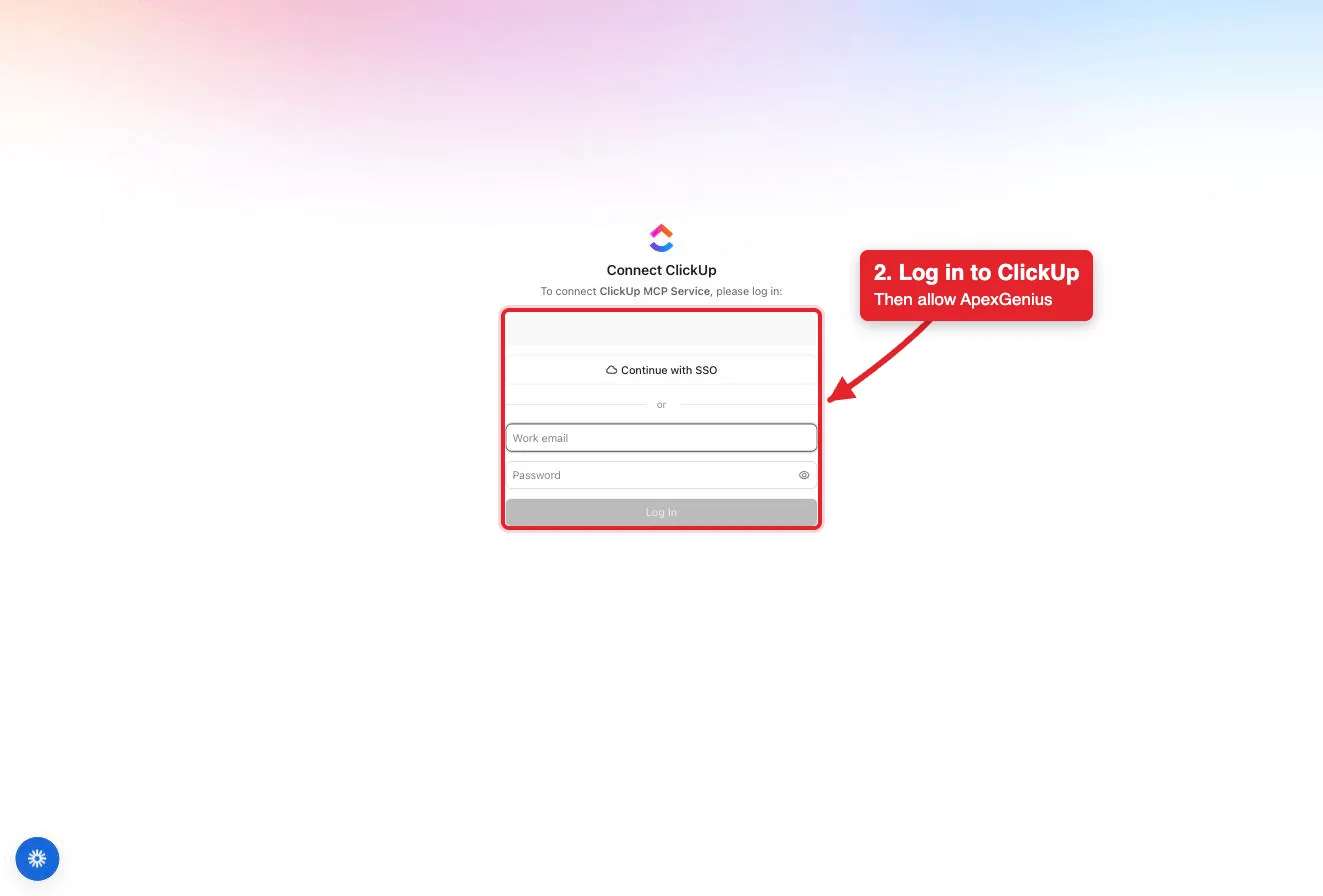
Connect opens ClickUp's login for the ClickUp MCP Service. Log in with SSO or your work email, then allow ApexGenius.
3
Review the connected account and resources
Confirm the connected ClickUp account and workspace. Open Tools to review the task, list, doc, chat and time tools. ClickUp limits MCP calls per day by plan.
4
Check the connection
Use Test connection or Check again and read the reported status. Add an AI agent from the AI agents page, choose Read only for the first test, and try the question below.
Try a first question with your AI agent
Show the spaces, folders and lists in my connected ClickUp workspace. Do not create or change anything.
Compare the returned account and resource with ClickUp. Check the connection status separately from the result of the first read.
Open Skills on the connection to read ClickUp, or read that MCP prompt
in a compatible AI client. It explains how to find the exact tool, the first
safe read, the change rules and the undo limits.Three ApexGenius tools route ClickUp’s live catalog:
ApexGenius tool
What it does
Access
clickup_search_tools
Searches the live ClickUp catalog and returns exact tool names and schemas
Read
clickup_call_read_tool
Runs a tool that ClickUp’s live catalog marks read-only, such as the workspace hierarchy, a task or its comments
Read
clickup_call_tool
Runs every other tool: tasks, lists, folders, docs, comments, Chat messages, time tracking and Delete task
Write
Your AI discovers the tools with apex_search_tools. Reads use
apex_call_read_tool; changes use apex_call_write_tool.Writes run right away. If the owner set a tool to Ask me first (approval mode always), the call returns approval_required; a person approves it in ApexGenius and you retry with the returned approval_request_id.ClickUp documents 48 tools on its
Supported Tools
page: 20 reads, 27 writes and Delete task. The
connector page lists them by job.
ClickUp’s MCP server is in public beta. Without the Everything AI add-on,
ClickUp allows 50 MCP calls per 24 hours on the Free Forever plan and 300 on
Unlimited and above. With the add-on, ClickUp’s Public API limits apply.
There is no one-step undo. Reverse an update by setting the old values back,
and remove a tag, link or dependency you added.
Comments and Chat messages notify people as soon as they are posted.
A deleted task is restored in ClickUp itself, not through ApexGenius.
Disconnecting stops future gateway access. It does not undo work that already
ran.