

Supported connections
apex_search_tools to find the exact Google operation, then run it through the matching read or write call tool. This keeps the public ApexGenius surface at three tools without freezing Google’s changing catalog into ApexGenius code.
Connect a product
- In ApexGenius, open Connections.
- Select the Google Workspace product you want.
- Choose Connect and authorize the requested Google scopes.
- Return to the connection details and refresh resources.
- Confirm the connected Google account and leave the resource enabled.
- Run a read-only smoke test before using any write-capable tool.
Google Cloud setup
The developer app must enable both layers for each selected product:- Base APIs: Gmail, Drive, Docs, Sheets, Slides, Calendar, Chat, and People.
- MCP services: Gmail MCP, Drive MCP, Docs MCP, Sheets MCP, Slides MCP, Calendar MCP, Chat MCP, and People MCP.
- Direct APIs when selected: Google Tasks API, Google Forms API, and Google Meet REST API.
Review and security
Gmail, Drive, Forms, and some Meet scopes can be sensitive or restricted. Public production access can require Google verification, and storing or transmitting restricted-scope data can require an annual security assessment. Meet access must also fit Google’s approved use cases. Provider approval is separate from ApexGenius deployment. Google warns that content read through an MCP server can contain indirect prompt injection. ApexGenius therefore treats remote content as untrusted, review-gates the generic call tool, and records write attempts without putting credentials into audit payloads.Setup by product
How to connect Gmail
How to connect Gmail
- An account with permission to use the Gmail resources you intend to connect.
Open Gmail in Connections
Choose the account and review access
Review the connected account and resources
Check the connection

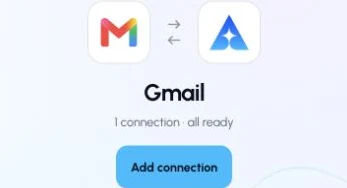
This captured Gmail connection reports ready. Check your own connection and its latest validation before using tools.
How to connect Google Drive
How to connect Google Drive
- An account with permission to use the Google Drive resources you intend to connect.
Open Google Drive in Connections
Choose the account and review access
Review the connected account and resources
Check the connection
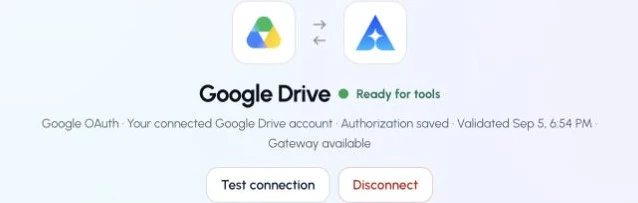
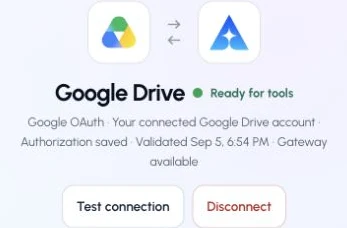
This captured Google Drive connection reports ready. Check your own connection and its latest validation before using tools.
How to connect Google Docs
How to connect Google Docs
- An account with permission to use the Google Docs resources you intend to connect.
Open Google Docs in Connections

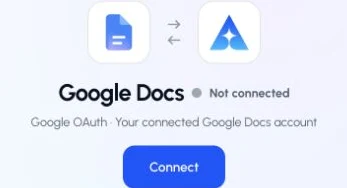
Open Google Docs in Connections and choose Connect to start setup.
Choose the account and review access
Review the connected account and resources
Check the connection
How to connect Google Sheets
How to connect Google Sheets
- An account with permission to use the Google Sheets resources you intend to connect.
Open Google Sheets in Connections
Choose the account and review access
Review the connected account and resources
Check the connection
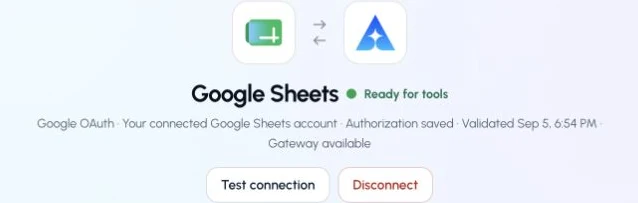
This captured Google Sheets connection reports ready. Check your own connection and its latest validation before using tools.
How to connect Google Slides
How to connect Google Slides
- An account with permission to use the Google Slides resources you intend to connect.
Open Google Slides in Connections
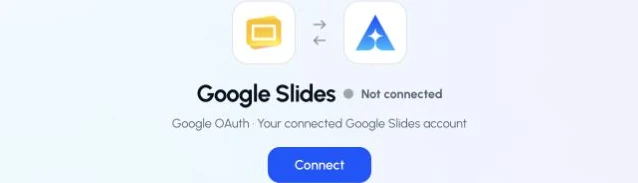
Open Google Slides in Connections and choose Connect to start setup.
Choose the account and review access
Review the connected account and resources
Check the connection
How to connect Google Calendar
How to connect Google Calendar
- An account with permission to use the Google Calendar resources you intend to connect.
Open Google Calendar in Connections
Choose the account and review access
Review the connected account and resources
Check the connection
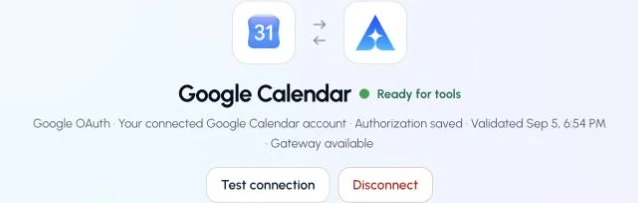
This captured Google Calendar connection reports ready. Check your own connection and its latest validation before using tools.
How to connect Google Chat
How to connect Google Chat
- An account with permission to use the Google Chat resources you intend to connect.
Open Google Chat in Connections

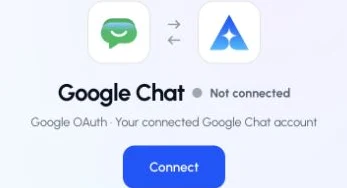
Open Google Chat in Connections and choose Connect to start setup.
Choose the account and review access
Review the connected account and resources
Check the connection
How to connect Google People
How to connect Google People
- An account with permission to use the Google People resources you intend to connect.
Open Google People in Connections
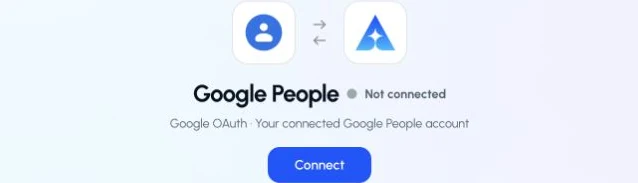
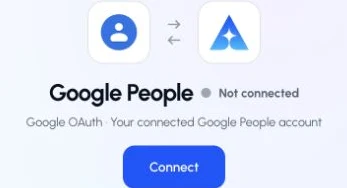
Open Google People in Connections and choose Connect to start setup.
Choose the account and review access
Review the connected account and resources
Check the connection
How to connect Google Tasks
How to connect Google Tasks
- An account with permission to use the Google Tasks resources you intend to connect.
Open Google Tasks in Connections

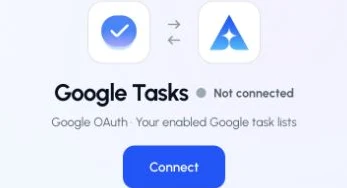
Open Google Tasks in Connections and choose Connect to start setup.
Choose the account and review access
Review the connected account and resources
Check the connection
How to connect Google Forms
How to connect Google Forms
- An account with permission to use the Google Forms resources you intend to connect.
Open Google Forms in Connections

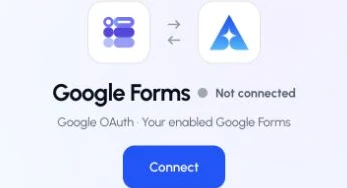
Open Google Forms in Connections and choose Connect to start setup.
Choose the account and review access
Review the connected account and resources
Check the connection
How to connect Google Meet
How to connect Google Meet
- An account with permission to use the Google Meet resources you intend to connect.
Open Google Meet in Connections

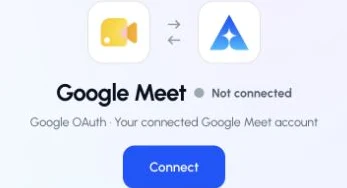
Open Google Meet in Connections and choose Connect to start setup.
Choose the account and review access
Review the connected account and resources
Check the connection
Official Google documentation
- Configure Google Workspace MCP servers
- Google Tasks API
- Google Forms API
- Google Meet REST API
- OAuth app verification
- Restricted-scope security assessment