Connect your ElevenLabs workspace to ApexGenius through ElevenLabs’ official hosted MCP, review voice agents from your AI, and generate speech.
Status: Available. ElevenLabs uses its official hosted MCP server and browser OAuth. You do not paste an API key. The connection acts as the ElevenLabs user who signs in, for the one workspace that user chooses. That user’s permissions set what your AI can change.Explore the ElevenLabs connector.
An ElevenLabs account with access to the workspace you want to use
Credits on your ElevenLabs plan if you want your AI to generate speech, images or video
An ApexGenius account
How to connect ElevenLabs
Before you start
An account with permission to use the ElevenLabs resources you intend to connect.
1
Open ElevenLabs in Connections
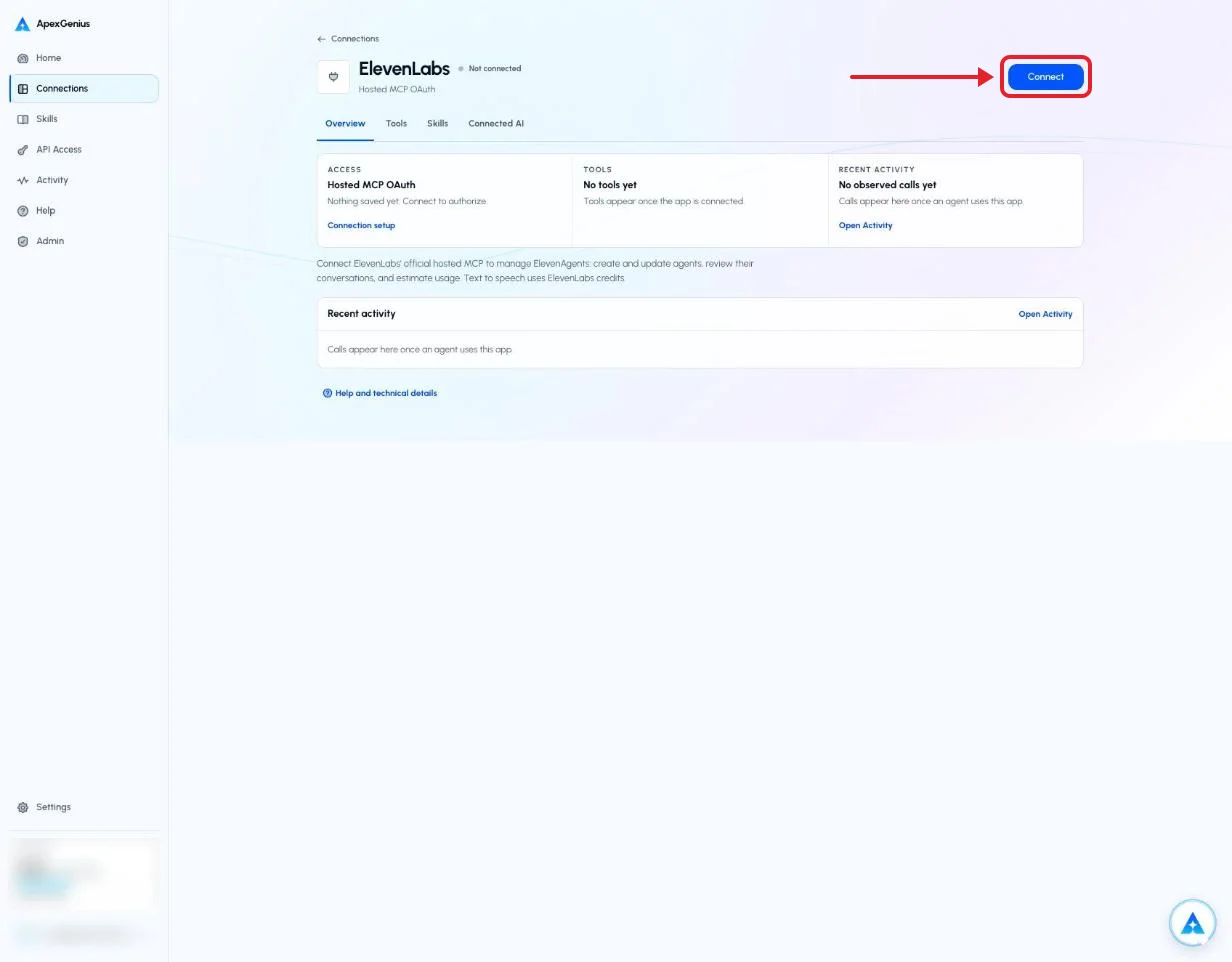
Choose Connect, or Add connection when offered. Give the connection a name if prompted. If Gateway setup pending appears, contact ApexGenius support before continuing.
Open ElevenLabs in Connections and choose Connect. ElevenLabs then asks you to sign in and approve access.
2
Choose the account and review access
Sign in to ElevenLabs in the browser, choose the workspace, review the permissions, and allow access. ElevenLabs uses browser authorization; no API key is pasted into ApexGenius.
3
Review the connected account and resources
Confirm the workspace you chose. Open Tools to review the agent, conversation, knowledge base and generation actions, and turn off any your AI should not use. Generation spends ElevenLabs credits.
4
Check the connection
Use Test connection or Check again and read the reported status. Add an AI agent from the AI agents page, choose Read only for the first test, and try the question below.
Try a first question with your AI agent
Use agents_list to show which ElevenLabs agents are in this workspace, then agents_get on one of them. Do not change anything.
Open Skills on the connection to read ElevenLabs, or read that MCP prompt in a compatible AI client with prompts/get. It covers the first safe read, the read and write routes, what spends credits, and what cannot be undone.Three ApexGenius tools route ElevenLabs’ live catalog:
ApexGenius tool
What it does
Access
elevenlabs_search_tools
Lists ElevenLabs’ current operations with their schemas
Read
elevenlabs_call_read_tool
Runs an operation only when ElevenLabs’ live catalog marks it read-only, such as agents_list, agents_get_conversation or creative_list_voices
Read
elevenlabs_call_tool
Runs changes such as agents_update, agents_duplicate, agents_create_kb_url, creative_generate_speech and agents_delete
Destructive
ElevenLabs does not publish a full tool list. The connector page shows the 40 operations named in ElevenLabs’ official plugin skills: 18 reads, 12 writes and 10 destructive. Your live catalog is the final word, and it may hold more.Your AI discovers the tools with apex_search_tools. Reads use apex_call_read_tool; changes use apex_call_write_tool. Enabled writes run immediately. Turn a tool off to block calls.
creative_generate_speech, creative_generate_image, creative_generate_video, creative_edit_image and creative_transcribe_audio spend credits from your ElevenLabs plan. A second call starts a second charge.
agents_update publishes to the live agent by default (the main branch). Live callers can see the change at once. Ask your AI to work on a branch when a change needs review.
Unavailable to this account: check that you are signed in to the intended ApexGenius account and refresh Connections.
Reconnect required: use the connection page to renew the saved authorization.
Wrong workspace: disconnect, then connect again and pick the workspace you want at sign-in.
EU, India or Singapore workspace: only US-region workspaces (api.us.elevenlabs.io) are supported. Workspaces in those residency regions are not.
A change is refused: your ElevenLabs permissions may not allow it. Check your role in the workspace.
A generation fails or credits run out: check the credits on your ElevenLabs plan. Do not repeat the call until you have checked, because a repeat can be charged again.
Tool disabled: the owner has turned the tool off. Review tool access on the connection page.
{"docsConfig":{"theme":"maple","$schema":"https://mintlify.com/docs.json","name":"ApexGenius","description":"Connect one app to a supported AI client, then keep the account, available operations, and observed Activity clear.","colors":{"primary":"#0055FF","light":"#4C7FE5","dark":"#4C7FE5"},"logo":{"light":"https://mintcdn.com/apexgenius/PL1VOuYeZtypECmH/logo/apexgenius.svg?fit=max\u0026auto=format\u0026n=PL1VOuYeZtypECmH\u0026q=85\u0026s=ef6a088897a39f3ddbf23122743577fe","dark":"https://mintcdn.com/apexgenius/PL1VOuYeZtypECmH/logo/apexgenius-dark.svg?fit=max\u0026auto=format\u0026n=PL1VOuYeZtypECmH\u0026q=85\u0026s=90a72ff0da22baa182d13aa1ab8398d9","href":"https://www.apexgenius.ai"},"favicon":{"light":"https://mintcdn.com/apexgenius/PL1VOuYeZtypECmH/logo/apexgenius.svg?fit=max\u0026auto=format\u0026n=PL1VOuYeZtypECmH\u0026q=85\u0026s=ef6a088897a39f3ddbf23122743577fe","dark":"https://mintcdn.com/apexgenius/PL1VOuYeZtypECmH/logo/apexgenius-dark.svg?fit=max\u0026auto=format\u0026n=PL1VOuYeZtypECmH\u0026q=85\u0026s=90a72ff0da22baa182d13aa1ab8398d9"},"appearance":{"default":"system","strict":false},"background":{"color":{"light":"#FAF9F6","dark":"#15171B"}},"navbar":{"links":[{"icon":"blocks","href":"https://www.apexgenius.ai/connectors","label":"Connectors"},{"icon":"workflow","href":"https://www.gatechsolutionsllc.com/services/agentforce-consulting","label":"Implementation help"}],"primary":{"type":"button","label":"Connect it free","href":"https://www.apexgenius.ai/auth"}},"footer":{"socials":{"x":"https://x.com/ApexGeniusAI","linkedin":"https://www.linkedin.com/company/apexgenius","youtube":"https://www.youtube.com/@ApexGeniusAI"},"links":[{"header":"ApexGenius","items":[{"label":"Product","href":"https://www.apexgenius.ai/mcp"},{"label":"Connector catalog","href":"https://www.apexgenius.ai/connectors"},{"label":"Security","href":"https://www.apexgenius.ai/security"}]},{"header":"Implementation","items":[{"label":"GAT Solutions services","href":"https://www.gatechsolutionsllc.com/services"},{"label":"AI and Agentforce consulting","href":"https://www.gatechsolutionsllc.com/services/agentforce-consulting"},{"label":"Salesforce integrations","href":"https://www.gatechsolutionsllc.com/services/salesforce-integrations"}]},{"header":"Legal","items":[{"label":"Privacy","href":"https://www.apexgenius.ai/privacy"},{"label":"Terms","href":"https://www.apexgenius.ai/terms"}]}]},"fonts":{"family":"Urbanist"},"icons":{"library":"lucide"},"styling":{"eyebrows":"breadcrumbs","codeblocks":"system","latex":false},"errors":{"404":{"redirect":false,"title":"This route is not in the gateway docs","description":"Check the address or return to the [ApexGenius introduction](/getting-started/introduction)."}},"contextual":{"options":["copy","view","chatgpt","claude"],"display":"header"},"metadata":{"timestamp":true},"navigation":{"pages":[]}},"deployment":{"deploymentMetadataValue":{"subdomain":"apexgenius","hasAudioNarration":false,"actualSubdomain":"apexgenius","customDomains":["docs.apexgenius.ai"],"gitSource":{"type":"github","owner":"ezscore","repo":"apexai","deployBranch":"main","contentDirectory":"content/docs","isPrivate":true,"mountPath":"","label":""},"chroma":{"latestBuiltDeploymentHistoryId":"6ad566445c7ed1fc8e179c6d","collectionId":"e41ecc49-ff16-4258-b12e-e463affc21a9","liveDeploymentHistoryId":"6ad566445c7ed1fc8e179c6d","schemaVersion":"v3"},"entitlements":{},"buildId":"6ad58ac653bf1fc59b2b3f44","clientVersion":"0.0.3883","searchFilterCounts":[{"language":"default","tag":"Connect apps","count":37},{"language":"default","tag":"Additional connector guides","count":27},{"language":"default","tag":"Salesforce","count":5},{"language":"default","tag":"Connect an AI client","count":5},{"language":"default","tag":"Reference and support","count":4},{"language":"default","tag":"Governance and concepts","count":3},{"language":"default","tag":"Start here","count":3}]},"assistantConfig":{"enableAskAiButton":false,"enableStarterQuestions":false,"enableContextualStarterQuestions":false,"enableAskAiSearchBar":true},"hasChatPermissions":false,"hasWebMcpPermissions":false,"toggles":[{"name":"kill-isr","enabled":true,"variant":{"name":"disabled","enabled":false,"feature_enabled":true},"impressionData":false},{"name":"agent-mintlify-slack","enabled":true,"variant":{"name":"disabled","enabled":false,"feature_enabled":true},"impressionData":false},{"name":"editor-v7-file-tree","enabled":true,"variant":{"name":"disabled","enabled":false,"feature_enabled":true},"impressionData":false},{"name":"agent-integrations-settings","enabled":true,"variant":{"name":"disabled","enabled":false,"feature_enabled":true},"impressionData":false},{"name":"automations-pr-grouping","enabled":true,"variant":{"name":"disabled","enabled":false,"feature_enabled":true},"impressionData":false},{"name":"custom-prefix","enabled":true,"variant":{"name":"disabled","enabled":false,"feature_enabled":true},"impressionData":false},{"name":"analytics-v7","enabled":true,"variant":{"name":"disabled","enabled":false,"feature_enabled":true},"impressionData":false},{"name":"user-flows-analytics","enabled":true,"variant":{"name":"disabled","enabled":false,"feature_enabled":true},"impressionData":false},{"name":"no-publish-flow","enabled":true,"variant":{"name":"disabled","enabled":false,"feature_enabled":true},"impressionData":false},{"name":"llms-txt-v2","enabled":true,"variant":{"name":"disabled","enabled":false,"feature_enabled":true},"impressionData":false},{"name":"pause-universal-search-reconcile","enabled":true,"variant":{"name":"disabled","enabled":false,"feature_enabled":true},"impressionData":false},{"name":"snapshot-serving-live","enabled":true,"variant":{"name":"disabled","enabled":false,"feature_enabled":true},"impressionData":false},{"name":"stripTemperatureMiddleware","enabled":true,"variant":{"name":"disabled","enabled":false,"feature_enabled":true},"impressionData":false},{"name":"per-site-search-delta","enabled":true,"variant":{"name":"disabled","enabled":false,"feature_enabled":true},"impressionData":false},{"name":"support-platform-pylon-zendesk","enabled":true,"variant":{"name":"disabled","enabled":false,"feature_enabled":true},"impressionData":false},{"name":"editor-branches-v2-autocommit","enabled":true,"variant":{"name":"disabled","enabled":false,"feature_enabled":true},"impressionData":false},{"name":"editor-branches-v2","enabled":true,"variant":{"name":"disabled","enabled":false,"feature_enabled":true},"impressionData":false},{"name":"snapshot-serving","enabled":true,"variant":{"name":"disabled","enabled":false,"feature_enabled":true},"impressionData":false},{"name":"instant-rollback","enabled":true,"variant":{"name":"disabled","enabled":false,"feature_enabled":true},"impressionData":false},{"name":"granular-notifications-server","enabled":true,"variant":{"name":"disabled","enabled":false,"feature_enabled":true},"impressionData":false},{"name":"granular-notifications","enabled":true,"variant":{"name":"disabled","enabled":false,"feature_enabled":true},"impressionData":false},{"name":"editor-private-page-search","enabled":true,"variant":{"name":"disabled","enabled":false,"feature_enabled":true},"impressionData":false},{"name":"automations-fable","enabled":true,"variant":{"name":"disabled","enabled":false,"feature_enabled":true},"impressionData":false},{"name":"fixed-ai-action-pricing","enabled":true,"variant":{"name":"disabled","enabled":false,"feature_enabled":true},"impressionData":false},{"name":"automation-resolve-merge-conflict","enabled":true,"variant":{"name":"disabled","enabled":false,"feature_enabled":true},"impressionData":false},{"name":"scoped-publishing","enabled":true,"variant":{"name":"disabled","enabled":false,"feature_enabled":true},"impressionData":false},{"name":"mintql","enabled":true,"variant":{"name":"disabled","enabled":false,"feature_enabled":true},"impressionData":false},{"name":"page-level-analytics","enabled":true,"variant":{"name":"disabled","enabled":false,"feature_enabled":true},"impressionData":false},{"name":"teamspace","enabled":true,"variant":{"name":"disabled","enabled":false,"feature_enabled":true},"impressionData":false},{"name":"editor-version-history-v2","enabled":true,"variant":{"name":"disabled","enabled":false,"feature_enabled":true},"impressionData":false},{"name":"vite-origin","enabled":true,"variant":{"name":"disabled","enabled":false,"feature_enabled":true},"impressionData":false},{"name":"editor-nav-generations","enabled":true,"variant":{"name":"disabled","enabled":false,"feature_enabled":true},"impressionData":false},{"name":"workspace-projects","enabled":true,"variant":{"name":"disabled","enabled":false,"feature_enabled":true},"impressionData":false},{"name":"assistant-v5","enabled":true,"variant":{"name":"disabled","enabled":false,"feature_enabled":true},"impressionData":false},{"name":"byok-sep-25","enabled":true,"variant":{"name":"disabled","enabled":false,"feature_enabled":true},"impressionData":false},{"name":"revalidation-jwt","enabled":true,"variant":{"name":"disabled","enabled":false,"feature_enabled":true},"impressionData":false},{"name":"editor-agent-model-picker","enabled":true,"variant":{"name":"disabled","enabled":false,"feature_enabled":true},"impressionData":false},{"name":"client-snapshot-docs-config","enabled":true,"variant":{"name":"disabled","enabled":false,"feature_enabled":true},"impressionData":false},{"name":"hobby-abuse-scan","enabled":true,"variant":{"name":"disabled","enabled":false,"feature_enabled":true},"impressionData":false}],"isAtlas":false,"googleFontsInlined":true},"customCss":[{"filePath":"style.css","content":":root{--ag-canvas:#FAF9F6;--ag-surface:#FFFFFF;--ag-ink:#1A1A18;--ag-muted:#6B6B66;--ag-border:#E8E5DF;--ag-blue:#0055FF;--ag-blue-frame:rgb(0 85 255 / 18%);--ag-clay:#D97757}.dark{--ag-blue-frame:rgb(51 119 255 / 28%)}#navbar{border-bottom:1px solid var(--ag-blue-frame)}nav[aria-label=Pages]{border-right-color:var(--ag-blue-frame)}card,code-block{border-radius:14px}callout{border-radius:12px}@media (prefers-reduced-motion:reduce){*,::after,::before{scroll-behavior:auto!important;animation-duration:.01ms!important;animation-iteration-count:1!important;transition-duration:.01ms!important}}"}],"page":{"pagePath":"integrations/elevenlabs","slug":"/integrations/elevenlabs","pageMetadata":{"title":"ElevenLabs MCP Setup","description":"Connect your ElevenLabs workspace to ApexGenius through ElevenLabs' official hosted MCP, review voice agents from your AI, and generate speech.","href":"/integrations/elevenlabs"},"description":{"compiledSource":"\"use strict\";\nconst {jsx: _jsx} = arguments[0];\nconst {useMDXComponents: _provideComponents} = arguments[0];\nfunction _createMdxContent(props) {\n const _components = {\n p: \"p\",\n ..._provideComponents(),\n ...props.components\n };\n return _jsx(_components.p, {\n children: \"Connect your ElevenLabs workspace to ApexGenius through ElevenLabs’ official hosted MCP, review voice agents from your AI, and generate speech.\"\n });\n}\nfunction MDXContent(props = {}) {\n const {wrapper: MDXLayout} = {\n ..._provideComponents(),\n ...props.components\n };\n return MDXLayout ? _jsx(MDXLayout, {\n ...props,\n children: _jsx(_createMdxContent, {\n ...props\n })\n }) : _createMdxContent(props);\n}\nreturn {\n default: MDXContent\n};\n","frontmatter":{},"scope":{}},"pageType":"default","mdx":{"mdxSource":{"compiledSource":"\"use strict\";const{Fragment:_Fragment,jsx:_jsx,jsxs:_jsxs}=arguments[0];const{useMDXComponents:_provideComponents}=arguments[0];function _createMdxContent(props){const _components={a:`a`,code:`code`,li:`li`,p:`p`,pre:`pre`,span:`span`,strong:`strong`,tbody:`tbody`,td:`td`,th:`th`,thead:`thead`,tr:`tr`,ul:`ul`,..._provideComponents(),...props.components},{Accordion,CodeBlock,Frame,Heading,OptimizedImage,Step,Steps,Table}=_components;if(!Accordion)_missingMdxReference(`Accordion`,true);if(!CodeBlock)_missingMdxReference(`CodeBlock`,true);if(!Frame)_missingMdxReference(`Frame`,true);if(!Heading)_missingMdxReference(`Heading`,true);if(!OptimizedImage)_missingMdxReference(`OptimizedImage`,true);if(!Step)_missingMdxReference(`Step`,true);if(!Steps)_missingMdxReference(`Steps`,true);if(!Table)_missingMdxReference(`Table`,true);return _jsxs(_Fragment,{children:[_jsxs(_components.p,{children:[_jsx(_components.strong,{children:`Status: Available.`}),` ElevenLabs uses its official hosted MCP server and browser OAuth. You do not paste an API key. The connection acts as the ElevenLabs user who signs in, for the one workspace that user chooses. That user’s permissions set what your AI can change.`]}),`\n`,_jsxs(_components.p,{children:[_jsx(_components.a,{href:`https://www.apexgenius.ai/connectors/elevenlabs`,children:`Explore the ElevenLabs connector`}),`.`]}),`\n`,_jsx(Heading,{level:`2`,id:`what-you-need`,children:`What you need`}),`\n`,_jsxs(_components.ul,{children:[`\n`,_jsx(_components.li,{children:`An ElevenLabs account with access to the workspace you want to use`}),`\n`,_jsx(_components.li,{children:`Credits on your ElevenLabs plan if you want your AI to generate speech, images or video`}),`\n`,_jsx(_components.li,{children:`An ApexGenius account`}),`\n`]}),`\n`,_jsxs(Accordion,{title:`How to connect ElevenLabs`,id:`how-to-connect-elevenlabs`,children:[_jsx(_components.p,{children:_jsx(_components.strong,{children:`Before you start`})}),_jsxs(_components.ul,{children:[`\n`,_jsx(_components.li,{children:`An account with permission to use the ElevenLabs resources you intend to connect.`}),`\n`]}),_jsxs(Steps,{children:[_jsxs(Step,{title:`Open ElevenLabs in Connections`,children:[_jsx(_components.p,{children:`Choose Connect, or Add connection when offered. Give the connection a name if prompted. If Gateway setup pending appears, contact ApexGenius support before continuing.`}),_jsx(Frame,{caption:`Open ElevenLabs in Connections and choose Connect. ElevenLabs then asks you to sign in and approve access.`,children:_jsx(OptimizedImage,{src:`https://www.apexgenius.ai/images/integration-guides/elevenlabs/20261018-connect.webp`,alt:`The ElevenLabs connection page in ApexGenius, account details blurred, with a red box around the Connect button.`,width:`1232`,height:`962`,style:{width:`100%`,height:`auto`}})})]}),_jsx(Step,{title:`Choose the account and review access`,children:_jsx(_components.p,{children:`Sign in to ElevenLabs in the browser, choose the workspace, review the permissions, and allow access. ElevenLabs uses browser authorization; no API key is pasted into ApexGenius.`})}),_jsx(Step,{title:`Review the connected account and resources`,children:_jsx(_components.p,{children:`Confirm the workspace you chose. Open Tools to review the agent, conversation, knowledge base and generation actions, and turn off any your AI should not use. Generation spends ElevenLabs credits.`})}),_jsx(Step,{title:`Check the connection`,children:_jsx(_components.p,{children:`Use Test connection or Check again and read the reported status. Add an AI agent from the AI agents page, choose Read only for the first test, and try the question below.`})})]}),_jsx(_components.p,{children:_jsx(_components.strong,{children:`Try a first question with your AI agent`})}),_jsx(CodeBlock,{filename:``,numberOfLines:`2`,language:`text`,children:_jsx(_components.pre,{className:`shiki shiki-themes github-light-default dark-plus`,style:{backgroundColor:`#ffffff`,\"--shiki-dark-bg\":`#0B0C0E`,color:`#1f2328`,\"--shiki-dark\":`#D4D4D4`},language:`text`,children:_jsxs(_components.code,{language:`text`,numberOfLines:`2`,children:[_jsx(_components.span,{className:`line`,children:_jsx(_components.span,{children:`Use agents_list to show which ElevenLabs agents are in this workspace, then agents_get on one of them. Do not change anything.`})}),`\n`,_jsx(_components.span,{className:`line`,children:_jsx(_components.span,{})})]})})}),_jsx(_components.p,{children:`Compare the returned account and resource with ElevenLabs. Check the connection status separately from the result of the first read.`}),_jsxs(_components.p,{children:[_jsx(_components.a,{href:`/guides/mcp-setup`,children:`Add your AI agent`}),` · `,_jsx(_components.a,{href:`https://elevenlabs.io/docs/eleven-agents/operate/hosted-mcp`,children:`Official ElevenLabs instructions`})]})]}),`\n`,_jsx(Heading,{level:`2`,id:`tools-and-the-elevenlabs-skill`,children:`Tools and the ElevenLabs skill`}),`\n`,_jsxs(_components.p,{children:[`Open `,_jsx(_components.strong,{children:`Skills`}),` on the connection to read `,_jsx(_components.strong,{children:`ElevenLabs`}),`, or read that MCP prompt in a compatible AI client with `,_jsx(_components.code,{children:`prompts/get`}),`. It covers the first safe read, the read and write routes, what spends credits, and what cannot be undone.`]}),`\n`,_jsx(_components.p,{children:`Three ApexGenius tools route ElevenLabs’ live catalog:`}),`\n`,_jsxs(Table,{children:[_jsx(_components.thead,{children:_jsxs(_components.tr,{children:[_jsx(_components.th,{children:`ApexGenius tool`}),_jsx(_components.th,{children:`What it does`}),_jsx(_components.th,{children:`Access`})]})}),_jsxs(_components.tbody,{children:[_jsxs(_components.tr,{children:[_jsx(_components.td,{children:_jsx(_components.code,{children:`elevenlabs_search_tools`})}),_jsx(_components.td,{children:`Lists ElevenLabs’ current operations with their schemas`}),_jsx(_components.td,{children:`Read`})]}),_jsxs(_components.tr,{children:[_jsx(_components.td,{children:_jsx(_components.code,{children:`elevenlabs_call_read_tool`})}),_jsxs(_components.td,{children:[`Runs an operation only when ElevenLabs’ live catalog marks it read-only, such as `,_jsx(_components.code,{children:`agents_list`}),`, `,_jsx(_components.code,{children:`agents_get_conversation`}),` or `,_jsx(_components.code,{children:`creative_list_voices`})]}),_jsx(_components.td,{children:`Read`})]}),_jsxs(_components.tr,{children:[_jsx(_components.td,{children:_jsx(_components.code,{children:`elevenlabs_call_tool`})}),_jsxs(_components.td,{children:[`Runs changes such as `,_jsx(_components.code,{children:`agents_update`}),`, `,_jsx(_components.code,{children:`agents_duplicate`}),`, `,_jsx(_components.code,{children:`agents_create_kb_url`}),`, `,_jsx(_components.code,{children:`creative_generate_speech`}),` and `,_jsx(_components.code,{children:`agents_delete`})]}),_jsx(_components.td,{children:`Destructive`})]})]})]}),`\n`,_jsx(_components.p,{children:`ElevenLabs does not publish a full tool list. The connector page shows the 40 operations named in ElevenLabs’ official plugin skills: 18 reads, 12 writes and 10 destructive. Your live catalog is the final word, and it may hold more.`}),`\n`,_jsxs(_components.p,{children:[`Your AI discovers the tools with `,_jsx(_components.code,{children:`apex_search_tools`}),`. Reads use `,_jsx(_components.code,{children:`apex_call_read_tool`}),`; changes use `,_jsx(_components.code,{children:`apex_call_write_tool`}),`. Enabled writes run immediately. Turn a tool off to block calls.`]}),`\n`,_jsx(Heading,{level:`2`,id:`credits-and-live-changes`,children:`Credits and live changes`}),`\n`,_jsxs(_components.ul,{children:[`\n`,_jsxs(_components.li,{children:[_jsx(_components.code,{children:`creative_generate_speech`}),`, `,_jsx(_components.code,{children:`creative_generate_image`}),`, `,_jsx(_components.code,{children:`creative_generate_video`}),`, `,_jsx(_components.code,{children:`creative_edit_image`}),` and `,_jsx(_components.code,{children:`creative_transcribe_audio`}),` spend credits from your ElevenLabs plan. A second call starts a second charge.`]}),`\n`,_jsxs(_components.li,{children:[_jsx(_components.code,{children:`agents_update`}),` publishes to the live agent by default (the main branch). Live callers can see the change at once. Ask your AI to work on a branch when a change needs review.`]}),`\n`]}),`\n`,_jsx(Heading,{level:`2`,id:`what-cannot-be-undone`,children:`What cannot be undone`}),`\n`,_jsxs(_components.ul,{children:[`\n`,_jsxs(_components.li,{children:[_jsx(_components.code,{children:`agents_delete`}),`, `,_jsx(_components.code,{children:`agents_delete_tool`}),`, `,_jsx(_components.code,{children:`agents_delete_phone_number`}),` and `,_jsx(_components.code,{children:`agents_bulk_delete_knowledge_base`}),` remove data. They cannot be undone here.`]}),`\n`,_jsxs(_components.li,{children:[_jsx(_components.code,{children:`agents_merge_branch`}),` publishes a branch into its parent. Live callers can see the merged version at once.`]}),`\n`,_jsx(_components.li,{children:`Spent credits are not refunded by ApexGenius.`}),`\n`]}),`\n`,_jsx(_components.p,{children:`Disconnecting stops future access. It does not undo a change that already ran.`}),`\n`,_jsx(Heading,{level:`2`,id:`connector-tools-and-skill`,children:`Connector, tools, and skill`}),`\n`,_jsxs(Table,{children:[_jsx(_components.thead,{children:_jsxs(_components.tr,{children:[_jsx(_components.th,{children:`Layer`}),_jsx(_components.th,{children:`What must work`})]})}),_jsxs(_components.tbody,{children:[_jsxs(_components.tr,{children:[_jsx(_components.td,{children:`Connector`}),_jsx(_components.td,{children:`OAuth completes, the connected ElevenLabs workspace is shown, and health is current.`})]}),_jsxs(_components.tr,{children:[_jsx(_components.td,{children:`Tools`}),_jsxs(_components.td,{children:[_jsx(_components.code,{children:`elevenlabs_search_tools`}),`, `,_jsx(_components.code,{children:`elevenlabs_call_read_tool`}),` and `,_jsx(_components.code,{children:`elevenlabs_call_tool`}),` are discoverable and a real read such as `,_jsx(_components.code,{children:`agents_list`}),` succeeds.`]})]}),_jsxs(_components.tr,{children:[_jsx(_components.td,{children:`Skill`}),_jsxs(_components.td,{children:[`The `,_jsx(_components.code,{children:`ElevenLabs`}),` MCP prompt is readable and routes the agent through discovery, the read route, credits and the undo limits.`]})]})]})]}),`\n`,_jsxs(_components.p,{children:[`If any row fails, ElevenLabs is `,_jsx(_components.strong,{children:`partially ready`}),`. A saved OAuth record by itself is not a fully ready connection.`]}),`\n`,_jsx(Heading,{level:`2`,id:`troubleshooting`,children:`Troubleshooting`}),`\n`,_jsxs(_components.ul,{children:[`\n`,_jsxs(_components.li,{children:[_jsx(_components.strong,{children:`Unavailable to this account:`}),` check that you are signed in to the intended ApexGenius account and refresh Connections.`]}),`\n`,_jsxs(_components.li,{children:[_jsx(_components.strong,{children:`Reconnect required:`}),` use the connection page to renew the saved authorization.`]}),`\n`,_jsxs(_components.li,{children:[_jsx(_components.strong,{children:`Wrong workspace:`}),` disconnect, then connect again and pick the workspace you want at sign-in.`]}),`\n`,_jsxs(_components.li,{children:[_jsx(_components.strong,{children:`EU, India or Singapore workspace:`}),` only US-region workspaces (api.us.elevenlabs.io) are supported. Workspaces in those residency regions are not.`]}),`\n`,_jsxs(_components.li,{children:[_jsx(_components.strong,{children:`A change is refused:`}),` your ElevenLabs permissions may not allow it. Check your role in the workspace.`]}),`\n`,_jsxs(_components.li,{children:[_jsx(_components.strong,{children:`A generation fails or credits run out:`}),` check the credits on your ElevenLabs plan. Do not repeat the call until you have checked, because a repeat can be charged again.`]}),`\n`,_jsxs(_components.li,{children:[_jsx(_components.strong,{children:`Tool disabled:`}),` the owner has turned the tool off. Review tool access on the connection page.`]}),`\n`]}),`\n`,_jsxs(_components.p,{children:[_jsx(_components.a,{href:`https://www.apexgenius.ai/connectors/elevenlabs`,children:`Explore the ElevenLabs connector`}),` · `,_jsx(_components.a,{href:`https://www.apexgenius.ai/connections/elevenlabs`,children:`Open ElevenLabs Connections`})]})]})}function MDXContent(props={}){const{wrapper:MDXLayout}={..._provideComponents(),...props.components};return MDXLayout?_jsx(MDXLayout,{...props,children:_jsx(_createMdxContent,{...props})}):_createMdxContent(props)}return{default:MDXContent};function _missingMdxReference(id,component){throw new Error(`Expected `+(component?`component`:`object`)+\" `\"+id+\"` to be defined: you likely forgot to import, pass, or provide it.\")}","frontmatter":{},"scope":{"codeStyling":"system","config":{},"pageMetadata":{"title":"ElevenLabs MCP Setup","description":"Connect your ElevenLabs workspace to ApexGenius through ElevenLabs' official hosted MCP, review voice agents from your AI, and generate speech.","href":"/integrations/elevenlabs"}}},"mdxSourceWithNoJs":null},"mdxExtracts":{"tableOfContents":[{"title":"What you need","slug":"what-you-need","depth":2,"children":[]},{"title":"Tools and the ElevenLabs skill","slug":"tools-and-the-elevenlabs-skill","depth":2,"children":[]},{"title":"Credits and live changes","slug":"credits-and-live-changes","depth":2,"children":[]},{"title":"What cannot be undone","slug":"what-cannot-be-undone","depth":2,"children":[]},{"title":"Connector, tools, and skill","slug":"connector-tools-and-skill","depth":2,"children":[]},{"title":"Troubleshooting","slug":"troubleshooting","depth":2,"children":[]}],"codeExamples":{}},"jsLinks":[],"subdomain":"apexgenius","siteName":"ApexGenius","title":"ElevenLabs MCP Setup - ApexGenius","navMaps":{"firstHrefInVersion":{},"firstHrefInLanguage":{}},"lastModified":"2026-10-19T03:13:14.915Z","gitLastModified":"2026-10-19T03:03:48.000Z","originalFileLocation":"integrations/elevenlabs.mdx"},"headHtml":"\u003cmeta data-mint-head name=\"description\" content=\"Connect your ElevenLabs workspace to ApexGenius through ElevenLabs\u0026#x27; official hosted MCP, review voice agents from your AI, and generate speech.\">\u003cmeta data-mint-head name=\"application-name\" content=\"ApexGenius\">\u003cmeta data-mint-head name=\"generator\" content=\"Mintlify\">\u003clink data-mint-head rel=\"icon\" type=\"image/png\" sizes=\"192x192\" href=\"/mintlify-assets/_mintlify/favicons/apexgenius/of2iO4EQJQd_LzS2/_generated/favicon/android-chrome-192x192.png\" media=\"(prefers-color-scheme: light)\">\u003clink data-mint-head rel=\"apple-touch-icon\" type=\"image/png\" sizes=\"180x180\" href=\"/mintlify-assets/_mintlify/favicons/apexgenius/of2iO4EQJQd_LzS2/_generated/favicon/apple-touch-icon.png\">\u003clink data-mint-head rel=\"icon\" type=\"image/png\" sizes=\"16x16\" href=\"/mintlify-assets/_mintlify/favicons/apexgenius/of2iO4EQJQd_LzS2/_generated/favicon/favicon-16x16.png\" media=\"(prefers-color-scheme: light)\">\u003clink data-mint-head rel=\"icon\" type=\"image/png\" sizes=\"32x32\" href=\"/mintlify-assets/_mintlify/favicons/apexgenius/of2iO4EQJQd_LzS2/_generated/favicon/favicon-32x32.png\" media=\"(prefers-color-scheme: light)\">\u003clink data-mint-head rel=\"shortcut icon\" type=\"image/x-icon\" href=\"/mintlify-assets/_mintlify/favicons/apexgenius/of2iO4EQJQd_LzS2/_generated/favicon/favicon.ico\" media=\"(prefers-color-scheme: light)\">\u003clink data-mint-head rel=\"icon\" type=\"image/png\" sizes=\"192x192\" href=\"/mintlify-assets/_mintlify/favicons/apexgenius/of2iO4EQJQd_LzS2/_generated/favicon-dark/android-chrome-192x192.png\" media=\"(prefers-color-scheme: dark)\">\u003clink data-mint-head rel=\"icon\" type=\"image/png\" sizes=\"16x16\" href=\"/mintlify-assets/_mintlify/favicons/apexgenius/of2iO4EQJQd_LzS2/_generated/favicon-dark/favicon-16x16.png\" media=\"(prefers-color-scheme: dark)\">\u003clink data-mint-head rel=\"icon\" type=\"image/png\" sizes=\"32x32\" href=\"/mintlify-assets/_mintlify/favicons/apexgenius/of2iO4EQJQd_LzS2/_generated/favicon-dark/favicon-32x32.png\" media=\"(prefers-color-scheme: dark)\">\u003clink data-mint-head rel=\"shortcut icon\" type=\"image/x-icon\" href=\"/mintlify-assets/_mintlify/favicons/apexgenius/of2iO4EQJQd_LzS2/_generated/favicon-dark/favicon.ico\" media=\"(prefers-color-scheme: dark)\">\u003cmeta data-mint-head property=\"og:title\" content=\"ElevenLabs MCP Setup - ApexGenius\">\u003cmeta data-mint-head property=\"og:description\" content=\"Connect your ElevenLabs workspace to ApexGenius through ElevenLabs\u0026#x27; official hosted MCP, review voice agents from your AI, and generate speech.\">\u003cmeta data-mint-head property=\"og:site_name\" content=\"ApexGenius\">\u003cmeta data-mint-head property=\"og:url\" content=\"https://docs.apexgenius.ai/integrations/elevenlabs\">\u003cmeta data-mint-head property=\"og:type\" content=\"website\">\u003cmeta data-mint-head name=\"twitter:card\" content=\"summary_large_image\">\u003cmeta data-mint-head name=\"twitter:title\" content=\"ElevenLabs MCP Setup - ApexGenius\">\u003cmeta data-mint-head name=\"twitter:description\" content=\"Connect your ElevenLabs workspace to ApexGenius through ElevenLabs\u0026#x27; official hosted MCP, review voice agents from your AI, and generate speech.\">\u003cmeta data-mint-head name=\"msapplication-config\" content=\"/mintlify-assets/_mintlify/favicons/apexgenius/of2iO4EQJQd_LzS2/_generated/favicon/browserconfig.xml\">\u003cmeta data-mint-head name=\"apple-mobile-web-app-title\" content=\"ApexGenius\">\u003cmeta data-mint-head name=\"msapplication-TileColor\" content=\"#0055FF\">\u003clink data-mint-head rel=\"canonical\" href=\"https://docs.apexgenius.ai/integrations/elevenlabs\">\u003clink data-mint-head rel=\"alternate\" type=\"application/xml\" href=\"/sitemap.xml\">\u003clink data-mint-head rel=\"alternate\" type=\"text/markdown\" href=\"/integrations/elevenlabs.md\">\u003cscript data-mint-head type=\"application/ld+json\">{\"@context\":\"https://schema.org\",\"@graph\":[{\"@type\":\"Organization\",\"@id\":\"https://docs.apexgenius.ai/#organization\",\"name\":\"ApexGenius\",\"url\":\"https://docs.apexgenius.ai\",\"logo\":{\"@type\":\"ImageObject\",\"url\":\"https://mintcdn.com/apexgenius/PL1VOuYeZtypECmH/logo/apexgenius.svg?fit=max\u0026auto=format\u0026n=PL1VOuYeZtypECmH\u0026q=85\u0026s=ef6a088897a39f3ddbf23122743577fe\"}},{\"@type\":\"WebSite\",\"@id\":\"https://docs.apexgenius.ai#website\",\"name\":\"ApexGenius\",\"url\":\"https://docs.apexgenius.ai\",\"publisher\":{\"@id\":\"https://docs.apexgenius.ai/#organization\"}},{\"@type\":\"WebPage\",\"@id\":\"https://docs.apexgenius.ai/integrations/elevenlabs#webpage\",\"url\":\"https://docs.apexgenius.ai/integrations/elevenlabs\",\"name\":\"ElevenLabs MCP Setup\",\"description\":\"Connect your ElevenLabs workspace to ApexGenius through ElevenLabs' official hosted MCP, review voice agents from your AI, and generate speech.\",\"dateModified\":\"2026-10-19T03:03:48.000Z\",\"isPartOf\":{\"@id\":\"https://docs.apexgenius.ai#website\"},\"breadcrumb\":{\"@id\":\"https://docs.apexgenius.ai/integrations/elevenlabs#breadcrumb\"}},{\"@type\":\"BreadcrumbList\",\"@id\":\"https://docs.apexgenius.ai/integrations/elevenlabs#breadcrumb\",\"itemListElement\":[{\"@type\":\"ListItem\",\"position\":1,\"name\":\"Connect apps\",\"item\":\"https://docs.apexgenius.ai/integrations/provider-connections\"},{\"@type\":\"ListItem\",\"position\":2,\"name\":\"Additional connector guides\",\"item\":\"https://docs.apexgenius.ai/integrations/hq-rental\"},{\"@type\":\"ListItem\",\"position\":3,\"name\":\"ElevenLabs MCP Setup\",\"item\":\"https://docs.apexgenius.ai/integrations/elevenlabs\"}]},{\"@type\":[\"Article\",\"TechArticle\"],\"@id\":\"https://docs.apexgenius.ai/integrations/elevenlabs#article\",\"headline\":\"ElevenLabs MCP Setup\",\"name\":\"ElevenLabs MCP Setup\",\"description\":\"Connect your ElevenLabs workspace to ApexGenius through ElevenLabs' official hosted MCP, review voice agents from your AI, and generate speech.\",\"url\":\"https://docs.apexgenius.ai/integrations/elevenlabs\",\"mainEntityOfPage\":{\"@id\":\"https://docs.apexgenius.ai/integrations/elevenlabs#webpage\"},\"dateModified\":\"2026-10-19T03:03:48.000Z\",\"publisher\":{\"@id\":\"https://docs.apexgenius.ai/#organization\"},\"isPartOf\":{\"@id\":\"https://docs.apexgenius.ai#website\"}}]}\u003c/script>\u003cscript data-mint-head type=\"application/ld+json\">{\"@context\":\"https://schema.org\",\"@type\":\"WebSite\",\"name\":\"ApexGenius\",\"creator\":{\"@type\":\"Organization\",\"name\":\"Mintlify\",\"url\":\"https://mintlify.com\"}}\u003c/script>","siteName":"ApexGenius","nav":{"global":null,"groups":[{"group":"Start here","icon":"route","pages":[{"title":"Connect one app to the AI you already use","href":"/getting-started/introduction"},{"title":"Connect an AI client","href":"/guides/mcp-setup"},{"title":"Send the first safe request","href":"/guides/first-safe-request"}]},{"group":"Connect an AI client","icon":"message-square-code","pages":[{"title":"Connect Claude","href":"/guides/connect-claude"},{"title":"Connect ChatGPT","href":"/guides/connect-chatgpt"},{"title":"Connect Codex","href":"/guides/connect-codex"},{"title":"Connect Cursor","href":"/guides/connect-cursor"},{"title":"Connect VS Code","href":"/guides/connect-vscode"}]},{"group":"Salesforce","icon":"cloud","pages":[{"title":"Connect Salesforce","href":"/getting-started/connect-salesforce"},{"title":"Loading Metadata","href":"/getting-started/load-metadata"},{"title":"Using the Account App","href":"/getting-started/using-chat"},{"title":"Reports and Dashboards: Current Availability","href":"/guides/reports-and-dashboards"},{"title":"Salesforce connection model","href":"/integrations/salesforce-connection"}]},{"group":"Connect apps","icon":"plug-zap","pages":[{"title":"App connection guides","href":"/integrations/provider-connections"},{"title":"YouTube MCP Setup","href":"/integrations/youtube"},{"title":"YouTube Analytics MCP Setup","href":"/integrations/youtube-analytics"},{"title":"n8n MCP Setup","href":"/integrations/n8n"},{"title":"Confluence MCP Setup","href":"/integrations/confluence"},{"title":"Discord MCP Setup","href":"/integrations/discord"},{"title":"Jira MCP Setup","href":"/integrations/jira"},{"group":"Additional connector guides","icon":"flask-conical","pages":[{"title":"HQ Rental MCP Setup","href":"/integrations/hq-rental"},{"title":"Google Ads MCP Setup","href":"/integrations/google-ads"},{"title":"Google Search Console MCP Setup","href":"/integrations/google-search-console"},{"title":"Google Analytics MCP Setup","href":"/integrations/google-analytics"},{"title":"Google Workspace MCP Setup","href":"/integrations/google-workspace"},{"title":"Upwork MCP Setup","href":"/integrations/upwork"},{"title":"Apollo MCP Setup","href":"/integrations/apollo"},{"title":"Notion MCP Setup","href":"/integrations/notion"},{"title":"Connect Slack accounts","href":"/integrations/slack"},{"title":"ClickUp MCP Setup","href":"/integrations/clickup"},{"title":"Connect Blotato","href":"/integrations/blotato"},{"title":"Connect HighLevel","href":"/integrations/gohighlevel"},{"title":"ChatGPT Ads MCP Setup","href":"/integrations/chatgpt-ads"},{"title":"Semrush MCP Setup","href":"/integrations/semrush"},{"title":"Bing Webmaster MCP Setup","href":"/integrations/bing-webmaster"},{"title":"Apify MCP Setup","href":"/integrations/apify"},{"title":"Linear MCP Setup","href":"/integrations/linear"},{"title":"Attio MCP Setup","href":"/integrations/attio"},{"title":"Calendly MCP Setup","href":"/integrations/calendly"},{"title":"Connect Cal.com to your AI","href":"/integrations/cal-com"},{"title":"Mobbin MCP Setup","href":"/integrations/mobbin"},{"title":"Supabase MCP Setup","href":"/integrations/supabase"},{"title":"Context.dev MCP Setup","href":"/integrations/context-dev"},{"title":"Stripe MCP Setup","href":"/integrations/stripe"},{"title":"GitHub MCP Setup","href":"/integrations/github"},{"title":"monday.com MCP Setup","href":"/integrations/monday"},{"title":"Atlassian Rovo MCP Setup","description":"Connect Atlassian's Rovo MCP server to ApexGenius, read only: search Jira, Confluence and connected apps, read issues and pages and follow Teamwork Graph links.","href":"/integrations/atlassian-rovo"},{"title":"ElevenLabs MCP Setup","href":"/integrations/elevenlabs"}]},{"title":"Connect Speedrun Alpha","description":"Read current Speedrun Alpha requirements and prepare a reviewed application with your AI. Applicant access is enabled separately.","href":"/integrations/speedrun"},{"title":"Connect OP.GG to your AI","href":"/integrations/opgg"},{"title":"Read Polymarket information with your AI","href":"/integrations/polymarket"}]},{"group":"Governance and concepts","icon":"shield-check","pages":[{"title":"How the MCP Connection Works","href":"/concepts/how-mcp-works"},{"title":"Orgs, Projects \u0026 Workspaces","href":"/concepts/orgs-and-projects"},{"title":"The Soul Doc","href":"/concepts/soul-doc"}]},{"group":"Reference and support","icon":"book-open-check","pages":[{"title":"MCP Tool Reference","href":"/reference/mcp-tools"},{"title":"Pricing and Account Limits","href":"/reference/plans-and-limits"},{"title":"Common Issues","href":"/troubleshooting/common-issues"},{"title":"How we record your signup source","href":"/reference/signup-source"}]}]},"title":"ElevenLabs MCP Setup - ApexGenius","buildId":"dpl_37ZDLJcyt8yhrTVF6LiYvX7LvmXB","deploymentId":"dpl_37ZDLJcyt8yhrTVF6LiYvX7LvmXB","dynamics":["07c022d89b","a74be98ba7"],"chunks":["Frame-4Xk_13JM.js","DynamicMarkdown-CfHSxJMP.js","zoom-image-lightbox-BwiTMkfx.js","PlusIcon-DJ4_zRc8.js","lightbox-handle-r17bVUz3.js"]}