How to connect Supabase’s hosted MCP to ApexGenius: sign in, turn on one project, review the 20 tools and test with a read-only question.
Status: Available. Supabase uses its official hosted MCP server and browser OAuth. You do not paste a Supabase API key, access token or database password. Each connection reaches one project: the one you turn on.Explore the Supabase connector.
A Supabase account that can open the project you want your AI to use
An ApexGenius account
How to connect Supabase
Before you start
An account with permission to use the Supabase resources you intend to connect.
1
Open Supabase in Connections
Choose Connect, or Add connection when offered. Give the connection a name if prompted. If Gateway setup pending appears, contact ApexGenius support before continuing.
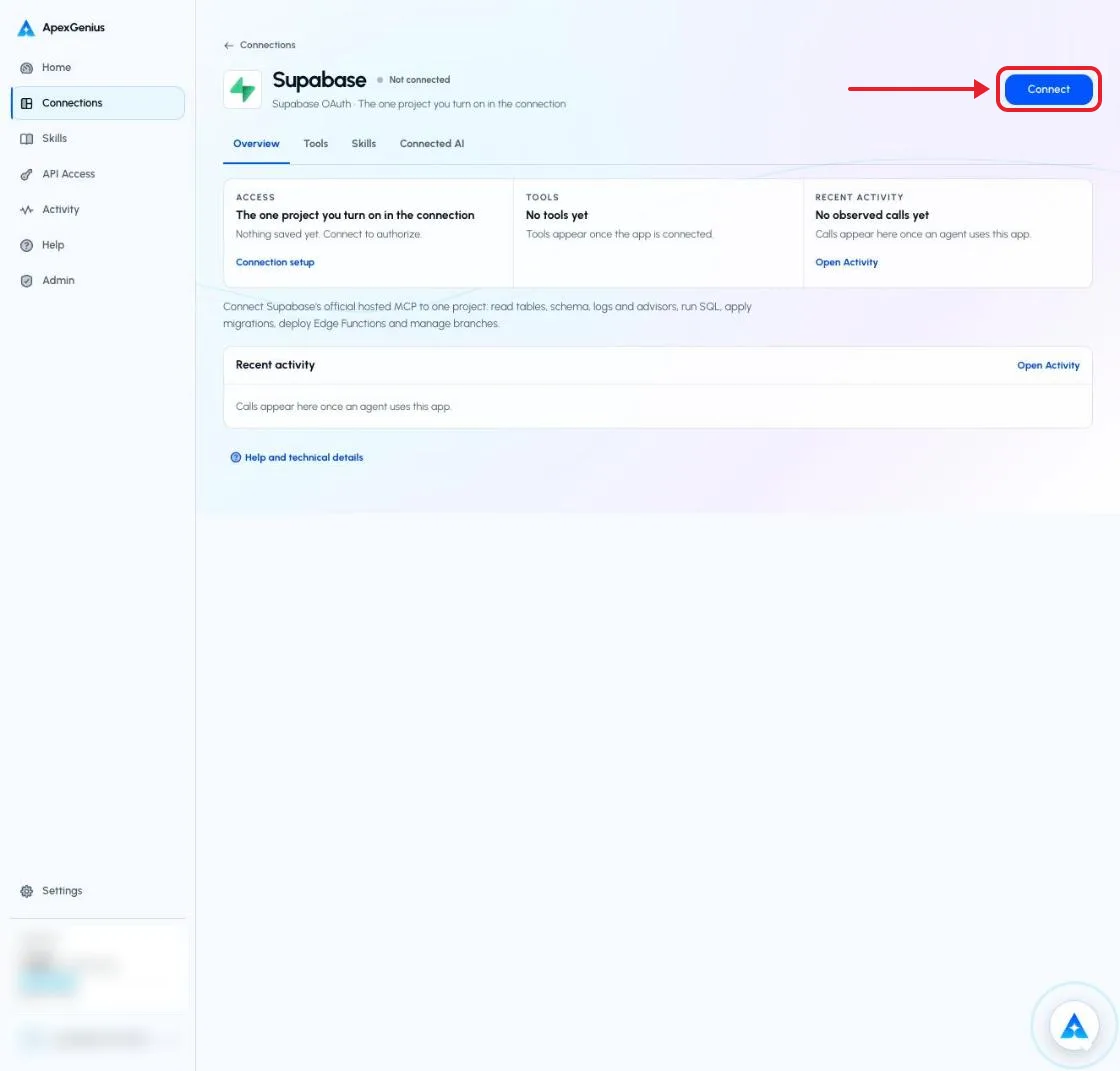
The Supabase connection page before you connect. Choose Connect to open Supabase's own sign-in. The account email and credits are blurred in this capture.
2
Choose the account and review access
Sign in on Supabase’s page, choose the organization that owns your project, and approve the access ApexGenius asks for. Supabase uses browser authorization; no API key or database password.
3
Review the connected account and resources
On the connection page Overview, turn on the one project your AI may use. Turning one on turns the others off, and with none on, Supabase tools do nothing. Enabled writes run when called: SQL and migrations can change or delete data.
4
Check the connection
Use Test connection or Check again and read the reported status. Add an AI agent from the AI agents page, choose Read only for the first test, and try the question below.
Try a first question with your AI agent
List the tables in my Supabase project. Do not run SQL or change anything.
Open Skills on the connection to read Supabase, or read that MCP prompt in a compatible AI client with prompts/get. It explains the first safe read, how to change things safely, and what cannot be undone.Three ApexGenius tools reach Supabase’s live catalog for the project you turned on:
ApexGenius tool
What it does
Access
supabase_search_tools
Lists the tools Supabase publishes right now, with their schemas
Read
supabase_call_read_tool
Runs a tool only when Supabase’s live catalog marks it read-only
Read
supabase_call_tool
Runs any other Supabase tool, including the ones that change or delete data
Write
Supabase documents these tools for a connection limited to one project. Your AI finds the exact current list with supabase_search_tools, and Supabase may add tools.
Job
Reads
Changes
Database
list_tables, list_extensions, list_migrations
execute_sql runs any SQL and can change or delete rows. apply_migration changes the schema and records it.
deploy_edge_function publishes code that runs at once
Branches (paid plans)
list_branches
create_branch is billed by the hour. rebase_branch brings newer migrations into a branch. merge_branch applies a branch to the project. reset_branch and delete_branch throw a branch’s changes away.
Docs
search_docs
None
Tools that list, create, pause or restore projects are not available here, because the connection is limited to one project. Supabase’s Storage tools are off by default.Your AI discovers the tools with apex_search_tools, runs reads with apex_call_read_tool, and runs changes with apex_call_write_tool.
There is no undo for execute_sql, apply_migration, merge_branch, reset_branch or delete_branch. A migration can only be reversed by another migration, and deleted rows come back only from a backup, which depends on your Supabase plan. A deployed Edge Function can be replaced by deploying the earlier code again.Writes run when called unless you set a tool to Ask me first on the connection’s Tools tab. For agents that should only look, give them a Read only key.If a layer fails (the connection, the tools, or the skill), Supabase is partially ready. A saved sign-in by itself does not make the connector usable.