Connect Atlassian’s Rovo MCP server to ApexGenius, read only: search Jira, Confluence and connected apps, read issues and pages and follow Teamwork Graph links.
Status: Available. Atlassian Rovo uses Atlassian’s official Rovo MCP server
and browser OAuth. You do not paste an Atlassian API token. The connection reads
only. Your Atlassian account and the site you choose set what it can reach.Explore the Atlassian Rovo connector.
Atlassian sends Rovo MCP sign-ins only to domains your organization allows, and
its default list does not include ApexGenius. An organization admin does this
once for the whole organization:
Go to Atlassian Administration and select the organization.
Select Connectors, then Atlassian MCP server.
Select Add domain and enter https://server.autom8.pro/**.
Until the domain is added, Atlassian stops the sign-in. Removing the domain
blocks new connections.
How to connect Atlassian Rovo
Before you start
An Atlassian Cloud site with Jira or Confluence, and an Atlassian account that can read the work you need.
An Atlassian organization admin who can change the Atlassian MCP server settings.
Rovo credits in your Atlassian organization. Rovo search and Teamwork Graph reads can spend up to 10 Rovo credits a call from the shared pool.
1
Ask an admin to allow ApexGenius
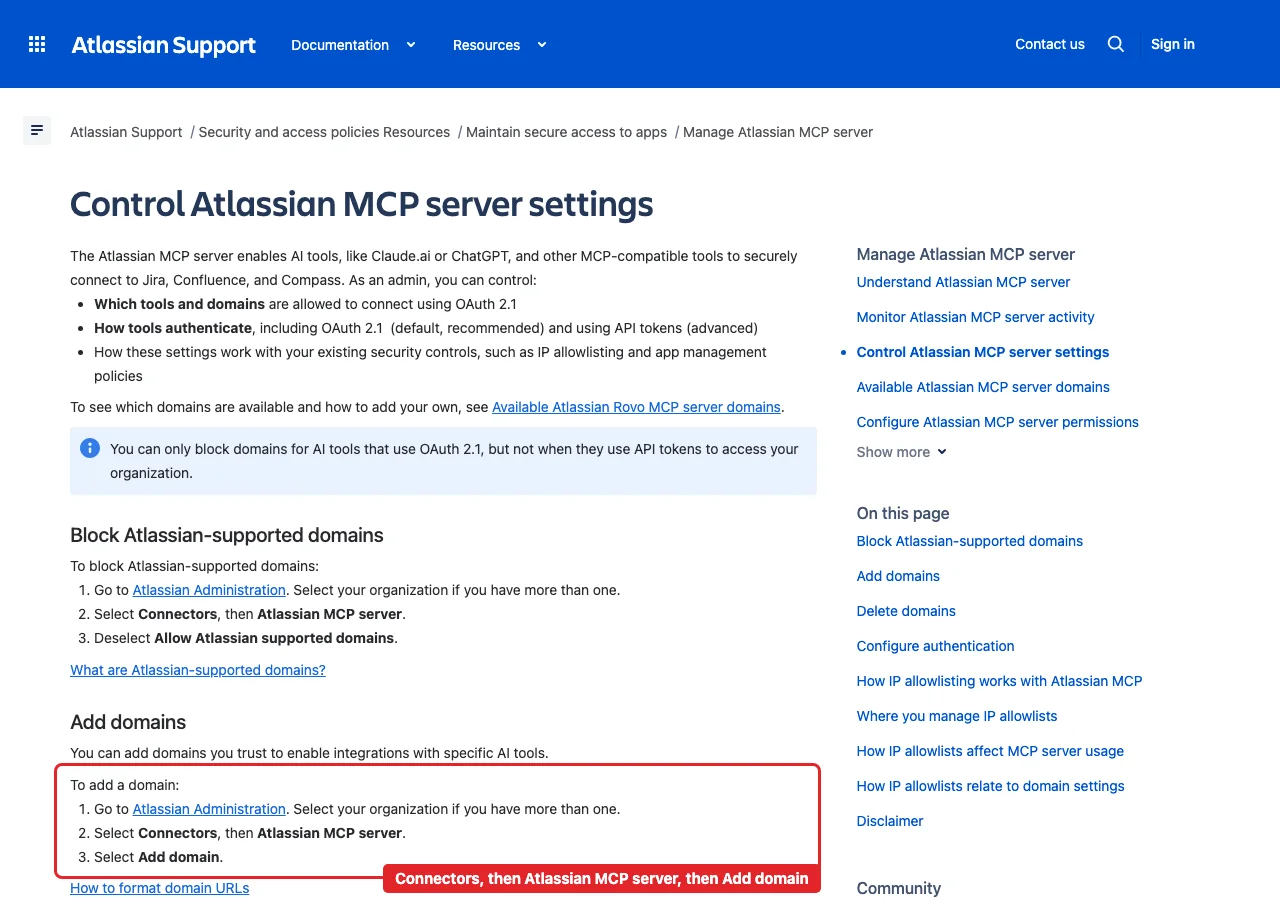
In Atlassian Administration, an organization admin selects Connectors, then Atlassian MCP server, chooses Add domain, and enters https://server.autom8.pro/**. Atlassian stops the sign-in until this is done. If your organization uses an IP allowlist, ask ApexGenius support for the address to add.
Atlassian's own admin guide: Atlassian Administration, Connectors, Atlassian MCP server, then Add domain. Enter https://server.autom8.pro/**. This is Atlassian's public support page, so no account appears in it.
2
Open Atlassian Rovo in Connections
Choose Connect, or Add connection when offered. Give the connection a name if prompted.
3
Choose the site and review access
Sign in to Atlassian in the browser, choose the site, and approve read access to Jira, Confluence, Rovo search and Teamwork Graph. No Atlassian API token is pasted into ApexGenius.
4
Check the connection
Use Test connection and read the status. Add an AI agent from the AI agents page, choose Read only for the first test, and try the question below.
Try a first question with your AI agent
Which Atlassian sites can my Atlassian Rovo connection reach? List each site and its apps. Do not search or change anything.
Open Skills on the connection to read AtlassianRovo, or read that MCP
prompt in a compatible AI client. It explains when to use Rovo and when to use
the Jira and Confluence connectors, the first safe read, and the credit rules.Three ApexGenius tools route Atlassian’s live catalog:
ApexGenius tool
What it does
Access
atlassian_rovo_search_tools
Searches the live Atlassian catalog and returns exact tool names and schemas
Read
atlassian_rovo_call_read_tool
Runs a tool that Atlassian’s live catalog marks read-only, such as listing your sites, reading an issue or searching with Rovo
Read
atlassian_rovo_call_tool
Runs a tool the live catalog does not mark read-only. The connection has no write scopes, so Atlassian refuses changes
Write
Your AI discovers the tools with apex_search_tools. Reads use
apex_call_read_tool.The connection asks Atlassian for read and search access only: Jira and
Confluence reads and search, Rovo search, and Teamwork Graph reads. The
connector page lists the
59 read tools by job.
Rovo search (search) and the two Teamwork Graph reads
(getTeamworkGraphContext and getTeamworkGraphObject) can spend up to 10 Rovo
credits a call from your organization’s shared pool. Spent credits cannot be
returned. Listing sites spends none. When you know the exact filter, ask for a
JQL search (searchJiraIssuesUsingJql) or a CQL search (searchConfluence)
instead.
An Atlassian organization admin must allow https://server.autom8.pro/** in
Atlassian Administration under Connectors, then Atlassian MCP server,
before anyone can connect.
If your organization uses an Atlassian IP allowlist, calls from an address it
does not list fail with a permission error.
A refresh token that goes unused for 90 days expires. Connect again to keep
using Rovo.
Bitbucket, Loom, Goals and Projects tools are not part of this connection.
Atlassian stops the sign-in. The ApexGenius domain is not allowed yet. Ask
an organization admin to add https://server.autom8.pro/** under
Connectors, then Atlassian MCP server.
A site is missing. The connection reaches the site you chose at sign-in.
Connect again and choose the other site.
An issue or page is missing. The connection sees only what your Atlassian
account can open. Check that you can open it in Jira or Confluence.
A change was refused. This connection reads only. Use the Jira or
Confluence connector for changes.
{"docsConfig":{"theme":"maple","$schema":"https://mintlify.com/docs.json","name":"ApexGenius","description":"Connect one app to a supported AI client, then keep the account, available operations, and observed Activity clear.","colors":{"primary":"#0055FF","light":"#4C7FE5","dark":"#4C7FE5"},"logo":{"light":"https://mintcdn.com/apexgenius/PL1VOuYeZtypECmH/logo/apexgenius.svg?fit=max\u0026auto=format\u0026n=PL1VOuYeZtypECmH\u0026q=85\u0026s=ef6a088897a39f3ddbf23122743577fe","dark":"https://mintcdn.com/apexgenius/PL1VOuYeZtypECmH/logo/apexgenius-dark.svg?fit=max\u0026auto=format\u0026n=PL1VOuYeZtypECmH\u0026q=85\u0026s=90a72ff0da22baa182d13aa1ab8398d9","href":"https://www.apexgenius.ai"},"favicon":{"light":"https://mintcdn.com/apexgenius/PL1VOuYeZtypECmH/logo/apexgenius.svg?fit=max\u0026auto=format\u0026n=PL1VOuYeZtypECmH\u0026q=85\u0026s=ef6a088897a39f3ddbf23122743577fe","dark":"https://mintcdn.com/apexgenius/PL1VOuYeZtypECmH/logo/apexgenius-dark.svg?fit=max\u0026auto=format\u0026n=PL1VOuYeZtypECmH\u0026q=85\u0026s=90a72ff0da22baa182d13aa1ab8398d9"},"appearance":{"default":"system","strict":false},"background":{"color":{"light":"#FAF9F6","dark":"#15171B"}},"navbar":{"links":[{"icon":"blocks","href":"https://www.apexgenius.ai/connectors","label":"Connectors"},{"icon":"workflow","href":"https://www.gatechsolutionsllc.com/services/agentforce-consulting","label":"Implementation help"}],"primary":{"type":"button","label":"Connect it free","href":"https://www.apexgenius.ai/auth"}},"footer":{"socials":{"x":"https://x.com/ApexGeniusAI","linkedin":"https://www.linkedin.com/company/apexgenius","youtube":"https://www.youtube.com/@ApexGeniusAI"},"links":[{"header":"ApexGenius","items":[{"label":"Product","href":"https://www.apexgenius.ai/mcp"},{"label":"Connector catalog","href":"https://www.apexgenius.ai/connectors"},{"label":"Security","href":"https://www.apexgenius.ai/security"}]},{"header":"Implementation","items":[{"label":"GAT Solutions services","href":"https://www.gatechsolutionsllc.com/services"},{"label":"AI and Agentforce consulting","href":"https://www.gatechsolutionsllc.com/services/agentforce-consulting"},{"label":"Salesforce integrations","href":"https://www.gatechsolutionsllc.com/services/salesforce-integrations"}]},{"header":"Legal","items":[{"label":"Privacy","href":"https://www.apexgenius.ai/privacy"},{"label":"Terms","href":"https://www.apexgenius.ai/terms"}]}]},"fonts":{"family":"Urbanist"},"icons":{"library":"lucide"},"styling":{"eyebrows":"breadcrumbs","codeblocks":"system","latex":false},"errors":{"404":{"redirect":false,"title":"This route is not in the gateway docs","description":"Check the address or return to the [ApexGenius introduction](/getting-started/introduction)."}},"contextual":{"options":["copy","view","chatgpt","claude"],"display":"header"},"metadata":{"timestamp":true},"navigation":{"pages":[]}},"deployment":{"deploymentMetadataValue":{"subdomain":"apexgenius","hasAudioNarration":false,"actualSubdomain":"apexgenius","customDomains":["docs.apexgenius.ai"],"gitSource":{"type":"github","owner":"ezscore","repo":"apexai","deployBranch":"main","contentDirectory":"content/docs","isPrivate":true,"mountPath":"","label":""},"chroma":{"latestBuiltDeploymentHistoryId":"6ad28a227e9410de86678ac0","collectionId":"97be3301-c32c-43ba-bece-625ab0bdc906","liveDeploymentHistoryId":"6ad28a227e9410de86678ac0","schemaVersion":"v3"},"entitlements":{},"buildId":"6ad294b385c6c5f877fd7f3b","clientVersion":"0.0.3869","searchFilterCounts":[{"language":"default","tag":"Connect apps","count":34},{"language":"default","tag":"Additional connector guides","count":26},{"language":"default","tag":"Salesforce","count":5},{"language":"default","tag":"Connect an AI client","count":5},{"language":"default","tag":"Reference and support","count":4},{"language":"default","tag":"Governance and concepts","count":3},{"language":"default","tag":"Start here","count":3}]},"assistantConfig":{"enableAskAiButton":false,"enableStarterQuestions":false,"enableContextualStarterQuestions":false,"enableAskAiSearchBar":true},"hasChatPermissions":false,"hasWebMcpPermissions":false,"toggles":[{"name":"kill-isr","enabled":true,"variant":{"name":"disabled","enabled":false,"feature_enabled":true},"impressionData":false},{"name":"agent-mintlify-slack","enabled":true,"variant":{"name":"disabled","enabled":false,"feature_enabled":true},"impressionData":false},{"name":"editor-v7-file-tree","enabled":true,"variant":{"name":"disabled","enabled":false,"feature_enabled":true},"impressionData":false},{"name":"agent-integrations-settings","enabled":true,"variant":{"name":"disabled","enabled":false,"feature_enabled":true},"impressionData":false},{"name":"automations-pr-grouping","enabled":true,"variant":{"name":"disabled","enabled":false,"feature_enabled":true},"impressionData":false},{"name":"custom-prefix","enabled":true,"variant":{"name":"disabled","enabled":false,"feature_enabled":true},"impressionData":false},{"name":"analytics-v7","enabled":true,"variant":{"name":"disabled","enabled":false,"feature_enabled":true},"impressionData":false},{"name":"user-flows-analytics","enabled":true,"variant":{"name":"disabled","enabled":false,"feature_enabled":true},"impressionData":false},{"name":"no-publish-flow","enabled":true,"variant":{"name":"disabled","enabled":false,"feature_enabled":true},"impressionData":false},{"name":"llms-txt-v2","enabled":true,"variant":{"name":"disabled","enabled":false,"feature_enabled":true},"impressionData":false},{"name":"pause-universal-search-reconcile","enabled":true,"variant":{"name":"disabled","enabled":false,"feature_enabled":true},"impressionData":false},{"name":"snapshot-serving-live","enabled":true,"variant":{"name":"disabled","enabled":false,"feature_enabled":true},"impressionData":false},{"name":"stripTemperatureMiddleware","enabled":true,"variant":{"name":"disabled","enabled":false,"feature_enabled":true},"impressionData":false},{"name":"per-site-search-delta","enabled":true,"variant":{"name":"disabled","enabled":false,"feature_enabled":true},"impressionData":false},{"name":"support-platform-pylon-zendesk","enabled":true,"variant":{"name":"disabled","enabled":false,"feature_enabled":true},"impressionData":false},{"name":"editor-branches-v2-autocommit","enabled":true,"variant":{"name":"disabled","enabled":false,"feature_enabled":true},"impressionData":false},{"name":"editor-branches-v2","enabled":true,"variant":{"name":"disabled","enabled":false,"feature_enabled":true},"impressionData":false},{"name":"snapshot-serving","enabled":true,"variant":{"name":"disabled","enabled":false,"feature_enabled":true},"impressionData":false},{"name":"instant-rollback","enabled":true,"variant":{"name":"disabled","enabled":false,"feature_enabled":true},"impressionData":false},{"name":"granular-notifications-server","enabled":true,"variant":{"name":"disabled","enabled":false,"feature_enabled":true},"impressionData":false},{"name":"granular-notifications","enabled":true,"variant":{"name":"disabled","enabled":false,"feature_enabled":true},"impressionData":false},{"name":"editor-private-page-search","enabled":true,"variant":{"name":"disabled","enabled":false,"feature_enabled":true},"impressionData":false},{"name":"automations-fable","enabled":true,"variant":{"name":"disabled","enabled":false,"feature_enabled":true},"impressionData":false},{"name":"fixed-ai-action-pricing","enabled":true,"variant":{"name":"disabled","enabled":false,"feature_enabled":true},"impressionData":false},{"name":"automation-resolve-merge-conflict","enabled":true,"variant":{"name":"disabled","enabled":false,"feature_enabled":true},"impressionData":false},{"name":"scoped-publishing","enabled":true,"variant":{"name":"disabled","enabled":false,"feature_enabled":true},"impressionData":false},{"name":"mintql","enabled":true,"variant":{"name":"disabled","enabled":false,"feature_enabled":true},"impressionData":false},{"name":"page-level-analytics","enabled":true,"variant":{"name":"disabled","enabled":false,"feature_enabled":true},"impressionData":false},{"name":"teamspace","enabled":true,"variant":{"name":"disabled","enabled":false,"feature_enabled":true},"impressionData":false},{"name":"editor-version-history-v2","enabled":true,"variant":{"name":"disabled","enabled":false,"feature_enabled":true},"impressionData":false},{"name":"vite-origin","enabled":true,"variant":{"name":"disabled","enabled":false,"feature_enabled":true},"impressionData":false},{"name":"editor-nav-generations","enabled":true,"variant":{"name":"disabled","enabled":false,"feature_enabled":true},"impressionData":false},{"name":"workspace-projects","enabled":true,"variant":{"name":"disabled","enabled":false,"feature_enabled":true},"impressionData":false},{"name":"assistant-v5","enabled":true,"variant":{"name":"disabled","enabled":false,"feature_enabled":true},"impressionData":false},{"name":"byok-sep-25","enabled":true,"variant":{"name":"disabled","enabled":false,"feature_enabled":true},"impressionData":false},{"name":"revalidation-jwt","enabled":true,"variant":{"name":"disabled","enabled":false,"feature_enabled":true},"impressionData":false},{"name":"editor-agent-model-picker","enabled":true,"variant":{"name":"disabled","enabled":false,"feature_enabled":true},"impressionData":false},{"name":"client-snapshot-docs-config","enabled":true,"variant":{"name":"disabled","enabled":false,"feature_enabled":true},"impressionData":false},{"name":"hobby-abuse-scan","enabled":true,"variant":{"name":"disabled","enabled":false,"feature_enabled":true},"impressionData":false}],"isAtlas":false,"googleFontsInlined":false},"customCss":[{"filePath":"style.css","content":":root{--ag-canvas:#FAF9F6;--ag-surface:#FFFFFF;--ag-ink:#1A1A18;--ag-muted:#6B6B66;--ag-border:#E8E5DF;--ag-blue:#0055FF;--ag-blue-frame:rgb(0 85 255 / 18%);--ag-clay:#D97757}.dark{--ag-blue-frame:rgb(51 119 255 / 28%)}#navbar{border-bottom:1px solid var(--ag-blue-frame)}nav[aria-label=Pages]{border-right-color:var(--ag-blue-frame)}card,code-block{border-radius:14px}callout{border-radius:12px}@media (prefers-reduced-motion:reduce){*,::after,::before{scroll-behavior:auto!important;animation-duration:.01ms!important;animation-iteration-count:1!important;transition-duration:.01ms!important}}"}],"page":{"pagePath":"integrations/atlassian-rovo","slug":"/integrations/atlassian-rovo","pageMetadata":{"title":"Atlassian Rovo MCP Setup","description":"Connect Atlassian's Rovo MCP server to ApexGenius, read only: search Jira, Confluence and connected apps, read issues and pages and follow Teamwork Graph links.","category":"integrations","order":108,"lastVerified":"2026-10-16","href":"/integrations/atlassian-rovo"},"description":{"compiledSource":"\"use strict\";\nconst {jsx: _jsx} = arguments[0];\nconst {useMDXComponents: _provideComponents} = arguments[0];\nfunction _createMdxContent(props) {\n const _components = {\n p: \"p\",\n ..._provideComponents(),\n ...props.components\n };\n return _jsx(_components.p, {\n children: \"Connect Atlassian’s Rovo MCP server to ApexGenius, read only: search Jira, Confluence and connected apps, read issues and pages and follow Teamwork Graph links.\"\n });\n}\nfunction MDXContent(props = {}) {\n const {wrapper: MDXLayout} = {\n ..._provideComponents(),\n ...props.components\n };\n return MDXLayout ? _jsx(MDXLayout, {\n ...props,\n children: _jsx(_createMdxContent, {\n ...props\n })\n }) : _createMdxContent(props);\n}\nreturn {\n default: MDXContent\n};\n","frontmatter":{},"scope":{}},"pageType":"default","mdx":{"mdxSource":{"compiledSource":"\"use strict\";const{Fragment:_Fragment,jsx:_jsx,jsxs:_jsxs}=arguments[0];const{useMDXComponents:_provideComponents}=arguments[0];function _createMdxContent(props){const _components={a:`a`,code:`code`,li:`li`,ol:`ol`,p:`p`,pre:`pre`,span:`span`,strong:`strong`,tbody:`tbody`,td:`td`,th:`th`,thead:`thead`,tr:`tr`,ul:`ul`,..._provideComponents(),...props.components},{Accordion,CodeBlock,Frame,Heading,OptimizedImage,Step,Steps,Table}=_components;if(!Accordion)_missingMdxReference(`Accordion`,true);if(!CodeBlock)_missingMdxReference(`CodeBlock`,true);if(!Frame)_missingMdxReference(`Frame`,true);if(!Heading)_missingMdxReference(`Heading`,true);if(!OptimizedImage)_missingMdxReference(`OptimizedImage`,true);if(!Step)_missingMdxReference(`Step`,true);if(!Steps)_missingMdxReference(`Steps`,true);if(!Table)_missingMdxReference(`Table`,true);return _jsxs(_Fragment,{children:[_jsxs(_components.p,{children:[_jsx(_components.strong,{children:`Status: Available.`}),` Atlassian Rovo uses Atlassian’s official Rovo MCP server\nand browser OAuth. You do not paste an Atlassian API token. The connection reads\nonly. Your Atlassian account and the site you choose set what it can reach.`]}),`\n`,_jsxs(_components.p,{children:[_jsx(_components.a,{href:`https://www.apexgenius.ai/connectors/atlassian-rovo`,children:`Explore the Atlassian Rovo connector`}),`.`]}),`\n`,_jsx(Heading,{level:`2`,id:`what-you-need`,children:`What you need`}),`\n`,_jsxs(_components.ul,{children:[`\n`,_jsx(_components.li,{children:`An Atlassian Cloud site with Jira or Confluence`}),`\n`,_jsxs(_components.li,{children:[`An Atlassian organization admin who can add a domain under `,_jsx(_components.strong,{children:`Connectors`}),`,\nthen `,_jsx(_components.strong,{children:`Atlassian MCP server`}),`, in Atlassian Administration`]}),`\n`,_jsx(_components.li,{children:`Rovo credits in your Atlassian organization for Rovo search and Teamwork Graph\nreads`}),`\n`,_jsx(_components.li,{children:`An ApexGenius account`}),`\n`]}),`\n`,_jsx(Heading,{level:`2`,id:`allow-apexgenius-in-atlassian-first`,children:`Allow ApexGenius in Atlassian first`}),`\n`,_jsx(_components.p,{children:`Atlassian sends Rovo MCP sign-ins only to domains your organization allows, and\nits default list does not include ApexGenius. An organization admin does this\nonce for the whole organization:`}),`\n`,_jsxs(_components.ol,{children:[`\n`,_jsxs(_components.li,{children:[`Go to `,_jsx(_components.strong,{children:`Atlassian Administration`}),` and select the organization.`]}),`\n`,_jsxs(_components.li,{children:[`Select `,_jsx(_components.strong,{children:`Connectors`}),`, then `,_jsx(_components.strong,{children:`Atlassian MCP server`}),`.`]}),`\n`,_jsxs(_components.li,{children:[`Select `,_jsx(_components.strong,{children:`Add domain`}),` and enter `,_jsx(_components.code,{children:`https://server.autom8.pro/**`}),`.`]}),`\n`]}),`\n`,_jsx(_components.p,{children:`Until the domain is added, Atlassian stops the sign-in. Removing the domain\nblocks new connections.`}),`\n`,_jsxs(Accordion,{title:`How to connect Atlassian Rovo`,id:`how-to-connect-atlassian-rovo`,children:[_jsx(_components.p,{children:_jsx(_components.strong,{children:`Before you start`})}),_jsxs(_components.ul,{children:[`\n`,_jsx(_components.li,{children:`An Atlassian Cloud site with Jira or Confluence, and an Atlassian account that can read the work you need.`}),`\n`,_jsx(_components.li,{children:`An Atlassian organization admin who can change the Atlassian MCP server settings.`}),`\n`,_jsx(_components.li,{children:`Rovo credits in your Atlassian organization. Rovo search and Teamwork Graph reads can spend up to 10 Rovo credits a call from the shared pool.`}),`\n`]}),_jsxs(Steps,{children:[_jsxs(Step,{title:`Ask an admin to allow ApexGenius`,children:[_jsxs(_components.p,{children:[`In Atlassian Administration, an organization admin selects Connectors, then Atlassian MCP server, chooses Add domain, and enters `,_jsx(_components.a,{href:`https://server.autom8.pro/`,children:`https://server.autom8.pro/`}),`**. Atlassian stops the sign-in until this is done. If your organization uses an IP allowlist, ask ApexGenius support for the address to add.`]}),_jsx(Frame,{caption:`Atlassian's own admin guide: Atlassian Administration, Connectors, Atlassian MCP server, then Add domain. Enter https://server.autom8.pro/**. This is Atlassian's public support page, so no account appears in it.`,children:_jsx(OptimizedImage,{src:`https://www.apexgenius.ai/images/integration-guides/atlassian-rovo/20261016-add-domain.webp`,alt:`Atlassian's public support page Control Atlassian MCP server settings, with a red box around the three Add domains steps: Atlassian Administration, Connectors then Atlassian MCP server, and Add domain.`,width:`1280`,height:`907`,style:{width:`100%`,height:`auto`}})})]}),_jsx(Step,{title:`Open Atlassian Rovo in Connections`,children:_jsx(_components.p,{children:`Choose Connect, or Add connection when offered. Give the connection a name if prompted.`})}),_jsx(Step,{title:`Choose the site and review access`,children:_jsx(_components.p,{children:`Sign in to Atlassian in the browser, choose the site, and approve read access to Jira, Confluence, Rovo search and Teamwork Graph. No Atlassian API token is pasted into ApexGenius.`})}),_jsx(Step,{title:`Check the connection`,children:_jsx(_components.p,{children:`Use Test connection and read the status. Add an AI agent from the AI agents page, choose Read only for the first test, and try the question below.`})})]}),_jsx(_components.p,{children:_jsx(_components.strong,{children:`Try a first question with your AI agent`})}),_jsx(CodeBlock,{filename:``,numberOfLines:`2`,language:`text`,children:_jsx(_components.pre,{className:`shiki shiki-themes github-light-default dark-plus`,style:{backgroundColor:`#ffffff`,\"--shiki-dark-bg\":`#0B0C0E`,color:`#1f2328`,\"--shiki-dark\":`#D4D4D4`},language:`text`,children:_jsxs(_components.code,{language:`text`,numberOfLines:`2`,children:[_jsx(_components.span,{className:`line`,children:_jsx(_components.span,{children:`Which Atlassian sites can my Atlassian Rovo connection reach? List each site and its apps. Do not search or change anything.`})}),`\n`,_jsx(_components.span,{className:`line`,children:_jsx(_components.span,{})})]})})}),_jsx(_components.p,{children:`Compare the sites with the one you chose on Atlassian’s screen. Listing sites spends no Rovo credits and changes nothing.`}),_jsxs(_components.p,{children:[_jsx(_components.a,{href:`/guides/mcp-setup`,children:`Add your AI agent`}),` · `,_jsx(_components.a,{href:`https://developer.atlassian.com/cloud/rovo-mcp/`,children:`Official Atlassian Rovo instructions`})]})]}),`\n`,_jsx(Heading,{level:`2`,id:`tools-and-the-atlassianrovo-skill`,children:`Tools and the AtlassianRovo skill`}),`\n`,_jsxs(_components.p,{children:[`Open `,_jsx(_components.strong,{children:`Skills`}),` on the connection to read `,_jsx(_components.strong,{children:`AtlassianRovo`}),`, or read that MCP\nprompt in a compatible AI client. It explains when to use Rovo and when to use\nthe Jira and Confluence connectors, the first safe read, and the credit rules.`]}),`\n`,_jsx(_components.p,{children:`Three ApexGenius tools route Atlassian’s live catalog:`}),`\n`,_jsxs(Table,{children:[_jsx(_components.thead,{children:_jsxs(_components.tr,{children:[_jsx(_components.th,{children:`ApexGenius tool`}),_jsx(_components.th,{children:`What it does`}),_jsx(_components.th,{children:`Access`})]})}),_jsxs(_components.tbody,{children:[_jsxs(_components.tr,{children:[_jsx(_components.td,{children:_jsx(_components.code,{children:`atlassian_rovo_search_tools`})}),_jsx(_components.td,{children:`Searches the live Atlassian catalog and returns exact tool names and schemas`}),_jsx(_components.td,{children:`Read`})]}),_jsxs(_components.tr,{children:[_jsx(_components.td,{children:_jsx(_components.code,{children:`atlassian_rovo_call_read_tool`})}),_jsx(_components.td,{children:`Runs a tool that Atlassian’s live catalog marks read-only, such as listing your sites, reading an issue or searching with Rovo`}),_jsx(_components.td,{children:`Read`})]}),_jsxs(_components.tr,{children:[_jsx(_components.td,{children:_jsx(_components.code,{children:`atlassian_rovo_call_tool`})}),_jsx(_components.td,{children:`Runs a tool the live catalog does not mark read-only. The connection has no write scopes, so Atlassian refuses changes`}),_jsx(_components.td,{children:`Write`})]})]})]}),`\n`,_jsxs(_components.p,{children:[`Your AI discovers the tools with `,_jsx(_components.code,{children:`apex_search_tools`}),`. Reads use\n`,_jsx(_components.code,{children:`apex_call_read_tool`}),`.`]}),`\n`,_jsxs(_components.p,{children:[`The connection asks Atlassian for read and search access only: Jira and\nConfluence reads and search, Rovo search, and Teamwork Graph reads. The\n`,_jsx(_components.a,{href:`https://www.apexgenius.ai/connectors/atlassian-rovo`,children:`connector page`}),` lists the\n59 read tools by job.`]}),`\n`,_jsx(Heading,{level:`2`,id:`rovo-credits`,children:`Rovo credits`}),`\n`,_jsxs(_components.p,{children:[`Rovo search (`,_jsx(_components.code,{children:`search`}),`) and the two Teamwork Graph reads\n(`,_jsx(_components.code,{children:`getTeamworkGraphContext`}),` and `,_jsx(_components.code,{children:`getTeamworkGraphObject`}),`) can spend up to 10 Rovo\ncredits a call from your organization’s shared pool. Spent credits cannot be\nreturned. Listing sites spends none. When you know the exact filter, ask for a\nJQL search (`,_jsx(_components.code,{children:`searchJiraIssuesUsingJql`}),`) or a CQL search (`,_jsx(_components.code,{children:`searchConfluence`}),`)\ninstead.`]}),`\n`,_jsx(Heading,{level:`2`,id:`rovo-or-the-jira-and-confluence-connectors`,children:`Rovo or the Jira and Confluence connectors`}),`\n`,_jsxs(_components.ul,{children:[`\n`,_jsx(_components.li,{children:`Use Rovo to search across Jira, Confluence and connected apps in plain words.`}),`\n`,_jsx(_components.li,{children:`Use Rovo to follow Teamwork Graph links between work items, pages, people,\nteams, goals, projects and Compass components.`}),`\n`,_jsx(_components.li,{children:`Use Rovo to read history, worklogs, boards, versions, comments, tasks and\nattachments.`}),`\n`,_jsxs(_components.li,{children:[`Use the `,_jsx(_components.a,{href:`/integrations/jira`,children:`Jira`}),` and `,_jsx(_components.a,{href:`/integrations/confluence`,children:`Confluence`}),`\nconnectors to create or change issues and pages.`]}),`\n`]}),`\n`,_jsx(Heading,{level:`2`,id:`limits`,children:`Limits`}),`\n`,_jsxs(_components.ul,{children:[`\n`,_jsxs(_components.li,{children:[`An Atlassian organization admin must allow `,_jsx(_components.code,{children:`https://server.autom8.pro/**`}),` in\nAtlassian Administration under `,_jsx(_components.strong,{children:`Connectors`}),`, then `,_jsx(_components.strong,{children:`Atlassian MCP server`}),`,\nbefore anyone can connect.`]}),`\n`,_jsx(_components.li,{children:`If your organization uses an Atlassian IP allowlist, calls from an address it\ndoes not list fail with a permission error.`}),`\n`,_jsx(_components.li,{children:`A refresh token that goes unused for 90 days expires. Connect again to keep\nusing Rovo.`}),`\n`,_jsx(_components.li,{children:`Bitbucket, Loom, Goals and Projects tools are not part of this connection.`}),`\n`,_jsx(_components.li,{children:`Disconnecting stops future gateway access.`}),`\n`]}),`\n`,_jsx(Heading,{level:`2`,id:`troubleshooting`,children:`Troubleshooting`}),`\n`,_jsxs(_components.ul,{children:[`\n`,_jsxs(_components.li,{children:[_jsx(_components.strong,{children:`Atlassian stops the sign-in.`}),` The ApexGenius domain is not allowed yet. Ask\nan organization admin to add `,_jsx(_components.code,{children:`https://server.autom8.pro/**`}),` under\n`,_jsx(_components.strong,{children:`Connectors`}),`, then `,_jsx(_components.strong,{children:`Atlassian MCP server`}),`.`]}),`\n`,_jsxs(_components.li,{children:[_jsx(_components.strong,{children:`A site is missing.`}),` The connection reaches the site you chose at sign-in.\nConnect again and choose the other site.`]}),`\n`,_jsxs(_components.li,{children:[_jsx(_components.strong,{children:`An issue or page is missing.`}),` The connection sees only what your Atlassian\naccount can open. Check that you can open it in Jira or Confluence.`]}),`\n`,_jsxs(_components.li,{children:[_jsx(_components.strong,{children:`A change was refused.`}),` This connection reads only. Use the Jira or\nConfluence connector for changes.`]}),`\n`]}),`\n`,_jsx(Heading,{level:`2`,id:`official-atlassian-documentation`,children:`Official Atlassian documentation`}),`\n`,_jsxs(_components.ul,{children:[`\n`,_jsxs(_components.li,{children:[`\n`,_jsx(`a`,{href:`https://developer.atlassian.com/cloud/rovo-mcp/`,target:`_blank`,rel:`noreferrer`,children:`Atlassian Rovo MCP`}),`\n`]}),`\n`,_jsxs(_components.li,{children:[`\n`,_jsx(`a`,{href:`https://developer.atlassian.com/cloud/rovo-mcp/guides/supported-tools/`,target:`_blank`,rel:`noreferrer`,children:`Supported tools`}),`\n`]}),`\n`,_jsxs(_components.li,{children:[`\n`,_jsx(`a`,{href:`https://support.atlassian.com/security-and-access-policies/docs/control-atlassian-mcp-server-settings/`,target:`_blank`,rel:`noreferrer`,children:`Control Atlassian MCP server settings`}),`\n`]}),`\n`,_jsxs(_components.li,{children:[`\n`,_jsx(`a`,{href:`https://support.atlassian.com/security-and-access-policies/docs/available-atlassian-mcp-server-domains/`,target:`_blank`,rel:`noreferrer`,children:`Available Atlassian MCP server domains`}),`\n`]}),`\n`]})]})}function MDXContent(props={}){const{wrapper:MDXLayout}={..._provideComponents(),...props.components};return MDXLayout?_jsx(MDXLayout,{...props,children:_jsx(_createMdxContent,{...props})}):_createMdxContent(props)}return{default:MDXContent};function _missingMdxReference(id,component){throw new Error(`Expected `+(component?`component`:`object`)+\" `\"+id+\"` to be defined: you likely forgot to import, pass, or provide it.\")}","frontmatter":{},"scope":{"codeStyling":"system","config":{},"pageMetadata":{"title":"Atlassian Rovo MCP Setup","description":"Connect Atlassian's Rovo MCP server to ApexGenius, read only: search Jira, Confluence and connected apps, read issues and pages and follow Teamwork Graph links.","category":"integrations","order":108,"lastVerified":"2026-10-16","href":"/integrations/atlassian-rovo"}}},"mdxSourceWithNoJs":null},"mdxExtracts":{"tableOfContents":[{"title":"What you need","slug":"what-you-need","depth":2,"children":[]},{"title":"Allow ApexGenius in Atlassian first","slug":"allow-apexgenius-in-atlassian-first","depth":2,"children":[]},{"title":"Tools and the AtlassianRovo skill","slug":"tools-and-the-atlassianrovo-skill","depth":2,"children":[]},{"title":"Rovo credits","slug":"rovo-credits","depth":2,"children":[]},{"title":"Rovo or the Jira and Confluence connectors","slug":"rovo-or-the-jira-and-confluence-connectors","depth":2,"children":[]},{"title":"Limits","slug":"limits","depth":2,"children":[]},{"title":"Troubleshooting","slug":"troubleshooting","depth":2,"children":[]},{"title":"Official Atlassian documentation","slug":"official-atlassian-documentation","depth":2,"children":[]}],"codeExamples":{}},"jsLinks":[],"subdomain":"apexgenius","siteName":"ApexGenius","title":"Atlassian Rovo MCP Setup - ApexGenius","navMaps":{"firstHrefInVersion":{},"firstHrefInLanguage":{}},"lastModified":"2026-10-16T21:18:48.524Z","gitLastModified":"2026-10-16T21:05:38.000Z","originalFileLocation":"integrations/atlassian-rovo.mdx"},"headHtml":"\u003cmeta data-mint-head name=\"description\" content=\"Connect Atlassian\u0026#x27;s Rovo MCP server to ApexGenius, read only: search Jira, Confluence and connected apps, read issues and pages and follow Teamwork Graph links.\">\u003cmeta data-mint-head name=\"application-name\" content=\"ApexGenius\">\u003cmeta data-mint-head name=\"generator\" content=\"Mintlify\">\u003clink data-mint-head rel=\"icon\" type=\"image/png\" sizes=\"192x192\" href=\"/mintlify-assets/_mintlify/favicons/apexgenius/of2iO4EQJQd_LzS2/_generated/favicon/android-chrome-192x192.png\" media=\"(prefers-color-scheme: light)\">\u003clink data-mint-head rel=\"apple-touch-icon\" type=\"image/png\" sizes=\"180x180\" href=\"/mintlify-assets/_mintlify/favicons/apexgenius/of2iO4EQJQd_LzS2/_generated/favicon/apple-touch-icon.png\">\u003clink data-mint-head rel=\"icon\" type=\"image/png\" sizes=\"16x16\" href=\"/mintlify-assets/_mintlify/favicons/apexgenius/of2iO4EQJQd_LzS2/_generated/favicon/favicon-16x16.png\" media=\"(prefers-color-scheme: light)\">\u003clink data-mint-head rel=\"icon\" type=\"image/png\" sizes=\"32x32\" href=\"/mintlify-assets/_mintlify/favicons/apexgenius/of2iO4EQJQd_LzS2/_generated/favicon/favicon-32x32.png\" media=\"(prefers-color-scheme: light)\">\u003clink data-mint-head rel=\"shortcut icon\" type=\"image/x-icon\" href=\"/mintlify-assets/_mintlify/favicons/apexgenius/of2iO4EQJQd_LzS2/_generated/favicon/favicon.ico\" media=\"(prefers-color-scheme: light)\">\u003clink data-mint-head rel=\"icon\" type=\"image/png\" sizes=\"192x192\" href=\"/mintlify-assets/_mintlify/favicons/apexgenius/of2iO4EQJQd_LzS2/_generated/favicon-dark/android-chrome-192x192.png\" media=\"(prefers-color-scheme: dark)\">\u003clink data-mint-head rel=\"icon\" type=\"image/png\" sizes=\"16x16\" href=\"/mintlify-assets/_mintlify/favicons/apexgenius/of2iO4EQJQd_LzS2/_generated/favicon-dark/favicon-16x16.png\" media=\"(prefers-color-scheme: dark)\">\u003clink data-mint-head rel=\"icon\" type=\"image/png\" sizes=\"32x32\" href=\"/mintlify-assets/_mintlify/favicons/apexgenius/of2iO4EQJQd_LzS2/_generated/favicon-dark/favicon-32x32.png\" media=\"(prefers-color-scheme: dark)\">\u003clink data-mint-head rel=\"shortcut icon\" type=\"image/x-icon\" href=\"/mintlify-assets/_mintlify/favicons/apexgenius/of2iO4EQJQd_LzS2/_generated/favicon-dark/favicon.ico\" media=\"(prefers-color-scheme: dark)\">\u003cmeta data-mint-head property=\"og:title\" content=\"Atlassian Rovo MCP Setup - ApexGenius\">\u003cmeta data-mint-head property=\"og:description\" content=\"Connect Atlassian\u0026#x27;s Rovo MCP server to ApexGenius, read only: search Jira, Confluence and connected apps, read issues and pages and follow Teamwork Graph links.\">\u003cmeta data-mint-head property=\"og:site_name\" content=\"ApexGenius\">\u003cmeta data-mint-head property=\"og:url\" content=\"https://docs.apexgenius.ai/integrations/atlassian-rovo\">\u003cmeta data-mint-head property=\"og:type\" content=\"website\">\u003cmeta data-mint-head name=\"twitter:card\" content=\"summary_large_image\">\u003cmeta data-mint-head name=\"twitter:title\" content=\"Atlassian Rovo MCP Setup - ApexGenius\">\u003cmeta data-mint-head name=\"twitter:description\" content=\"Connect Atlassian\u0026#x27;s Rovo MCP server to ApexGenius, read only: search Jira, Confluence and connected apps, read issues and pages and follow Teamwork Graph links.\">\u003cmeta data-mint-head name=\"msapplication-config\" content=\"/mintlify-assets/_mintlify/favicons/apexgenius/of2iO4EQJQd_LzS2/_generated/favicon/browserconfig.xml\">\u003cmeta data-mint-head name=\"apple-mobile-web-app-title\" content=\"ApexGenius\">\u003cmeta data-mint-head name=\"msapplication-TileColor\" content=\"#0055FF\">\u003clink data-mint-head rel=\"canonical\" href=\"https://docs.apexgenius.ai/integrations/atlassian-rovo\">\u003clink data-mint-head rel=\"alternate\" type=\"application/xml\" href=\"/sitemap.xml\">\u003clink data-mint-head rel=\"alternate\" type=\"text/markdown\" href=\"/integrations/atlassian-rovo.md\">\u003cscript data-mint-head type=\"application/ld+json\">{\"@context\":\"https://schema.org\",\"@graph\":[{\"@type\":\"Organization\",\"@id\":\"https://docs.apexgenius.ai/#organization\",\"name\":\"ApexGenius\",\"url\":\"https://docs.apexgenius.ai\",\"logo\":{\"@type\":\"ImageObject\",\"url\":\"https://mintcdn.com/apexgenius/PL1VOuYeZtypECmH/logo/apexgenius.svg?fit=max\u0026auto=format\u0026n=PL1VOuYeZtypECmH\u0026q=85\u0026s=ef6a088897a39f3ddbf23122743577fe\"}},{\"@type\":\"WebSite\",\"@id\":\"https://docs.apexgenius.ai#website\",\"name\":\"ApexGenius\",\"url\":\"https://docs.apexgenius.ai\",\"publisher\":{\"@id\":\"https://docs.apexgenius.ai/#organization\"}},{\"@type\":\"WebPage\",\"@id\":\"https://docs.apexgenius.ai/integrations/atlassian-rovo#webpage\",\"url\":\"https://docs.apexgenius.ai/integrations/atlassian-rovo\",\"name\":\"Atlassian Rovo MCP Setup\",\"description\":\"Connect Atlassian's Rovo MCP server to ApexGenius, read only: search Jira, Confluence and connected apps, read issues and pages and follow Teamwork Graph links.\",\"dateModified\":\"2026-10-16T21:05:38.000Z\",\"isPartOf\":{\"@id\":\"https://docs.apexgenius.ai#website\"},\"breadcrumb\":{\"@id\":\"https://docs.apexgenius.ai/integrations/atlassian-rovo#breadcrumb\"}},{\"@type\":\"BreadcrumbList\",\"@id\":\"https://docs.apexgenius.ai/integrations/atlassian-rovo#breadcrumb\",\"itemListElement\":[{\"@type\":\"ListItem\",\"position\":1,\"name\":\"Connect apps\",\"item\":\"https://docs.apexgenius.ai/integrations/provider-connections\"},{\"@type\":\"ListItem\",\"position\":2,\"name\":\"Additional connector guides\",\"item\":\"https://docs.apexgenius.ai/integrations/hq-rental\"},{\"@type\":\"ListItem\",\"position\":3,\"name\":\"Atlassian Rovo MCP Setup\",\"item\":\"https://docs.apexgenius.ai/integrations/atlassian-rovo\"}]},{\"@type\":[\"Article\",\"TechArticle\"],\"@id\":\"https://docs.apexgenius.ai/integrations/atlassian-rovo#article\",\"headline\":\"Atlassian Rovo MCP Setup\",\"name\":\"Atlassian Rovo MCP Setup\",\"description\":\"Connect Atlassian's Rovo MCP server to ApexGenius, read only: search Jira, Confluence and connected apps, read issues and pages and follow Teamwork Graph links.\",\"url\":\"https://docs.apexgenius.ai/integrations/atlassian-rovo\",\"mainEntityOfPage\":{\"@id\":\"https://docs.apexgenius.ai/integrations/atlassian-rovo#webpage\"},\"dateModified\":\"2026-10-16T21:05:38.000Z\",\"publisher\":{\"@id\":\"https://docs.apexgenius.ai/#organization\"},\"isPartOf\":{\"@id\":\"https://docs.apexgenius.ai#website\"}}]}\u003c/script>\u003cscript data-mint-head type=\"application/ld+json\">{\"@context\":\"https://schema.org\",\"@type\":\"WebSite\",\"name\":\"ApexGenius\",\"creator\":{\"@type\":\"Organization\",\"name\":\"Mintlify\",\"url\":\"https://mintlify.com\"}}\u003c/script>","siteName":"ApexGenius","nav":{"global":null,"groups":[{"group":"Start here","icon":"route","pages":[{"title":"Connect one app to the AI you already use","description":"Get started with ApexGenius: choose the AI client you already use, authorize one app account, and prove the route with a safe read before any write.","category":"getting-started","order":10,"status":"stable","lastVerified":"2026-08-28","href":"/getting-started/introduction"},{"title":"Connect an AI client","description":"Connect a compatible AI agent to ApexGenius with OAuth or a scoped API key, then verify a real read. Guides for Claude, ChatGPT, Codex, Cursor and VS Code.","category":"guides","order":10,"status":"stable","lastVerified":"2026-09-19","href":"/guides/mcp-setup"},{"title":"Send the first safe request","description":"Send a first request that changes nothing: prove the AI client, ApexGenius account, Salesforce project and read path work before you attempt a write.","category":"guides","order":20,"status":"stable","lastVerified":"2026-08-28","href":"/guides/first-safe-request"}]},{"group":"Connect an AI client","icon":"message-square-code","pages":[{"title":"Connect Claude","description":"Add ApexGenius to Claude as a custom connector with one hosted MCP URL, authorize it in your browser, and verify a safe read. Team and Enterprise steps too.","category":"guides","order":11,"status":"stable","lastVerified":"2026-08-28","href":"/guides/connect-claude"},{"title":"Connect ChatGPT","description":"Open Plugins in ChatGPT, add ApexGenius, connect when prompted and authorize the apps it may use. Then verify one safe read in Chat or Work.","category":"guides","order":12,"status":"stable","lastVerified":"2026-09-07","href":"/guides/connect-chatgpt"},{"title":"Connect Codex","description":"Add ApexGenius through Plugins in the ChatGPT desktop app, authorize the apps Codex may use, and ask from a Codex task. Desktop settings work if no plugin.","category":"guides","order":13,"status":"stable","lastVerified":"2026-09-07","href":"/guides/connect-codex"},{"title":"Connect Cursor","description":"How to add an MCP server to Cursor: put ApexGenius in ~/.cursor/mcp.json or .cursor/mcp.json, authorize your account, and verify one safe read.","category":"guides","order":14,"status":"stable","lastVerified":"2026-08-28","href":"/guides/connect-cursor"},{"title":"Connect VS Code","description":"Add ApexGenius to VS Code as an HTTP MCP server from the Command Palette or mcp.json, authorize it, and verify a safe request in Chat.","category":"guides","order":15,"status":"stable","lastVerified":"2026-08-28","href":"/guides/connect-vscode"}]},{"group":"Salesforce","icon":"cloud","pages":[{"title":"Connect Salesforce","description":"Connect a Salesforce org to ApexGenius: choose Production or Sandbox, sign in with Salesforce OAuth and check the connected org, with real screenshots.","category":"getting-started","order":20,"status":"stable","href":"/getting-started/connect-salesforce"},{"title":"Loading Metadata","description":"Sync your Salesforce org's metadata into ApexGenius: open Metadata, choose Sync with Salesforce, pick the types to load, and let the sync finish.","category":"getting-started","order":30,"status":"stable","href":"/getting-started/load-metadata"},{"title":"Using the Account App","description":"The ApexGenius account app manages connections, projects, metadata, staged files and activity. You ask questions and run tasks from your own AI client.","category":"getting-started","order":40,"status":"stable","lastVerified":"2026-08-29","href":"/getting-started/using-chat"},{"title":"Reports and Dashboards: Current Availability","description":"Your AI agent can create and update Salesforce reports and dashboards through the ApexGenius MCP metadata path. Here is what works today and how to run it.","category":"guides","order":20,"status":"new","lastVerified":"2026-08-29","href":"/guides/reports-and-dashboards"},{"title":"Salesforce connection model","description":"How ApexGenius connects to Salesforce for MCP: OAuth on Salesforce's own screen, your user permissions as the boundary, sandboxes, and revoking access.","category":"integrations","order":15,"status":"stable","lastVerified":"2026-08-26","href":"/integrations/salesforce-connection"}]},{"group":"Connect apps","icon":"plug-zap","pages":[{"title":"App connection guides","description":"See what each ApexGenius connection requires, where it is scoped, and which vendor documentation remains authoritative.","category":"integrations","order":10,"status":"stable","lastVerified":"2026-08-31","href":"/integrations/provider-connections"},{"title":"YouTube MCP Setup","description":"Connect the intended YouTube channel, choose access, enable its resource and verify a first read from your AI. Use it from Claude, ChatGPT, Codex or Muse.","href":"/integrations/youtube"},{"title":"YouTube Analytics MCP Setup","description":"Set up read-only channel performance queries and access existing daily Reporting resources. Verify the enabled channel and a first read.","href":"/integrations/youtube-analytics"},{"title":"n8n MCP Setup","description":"Connect one n8n Cloud or reachable self-hosted instance with its URL and public API key.","category":"integrations","order":20,"status":"stable","lastVerified":"2026-08-27","href":"/integrations/n8n"},{"title":"Confluence MCP Setup","description":"Authorize an Atlassian account and keep Confluence spaces separate from Salesforce project context.","category":"integrations","order":50,"status":"stable","lastVerified":"2026-08-26","href":"/integrations/confluence"},{"title":"Discord MCP Setup","description":"Connect your Discord servers to ApexGenius, pick the channels your AI can use, then use them from Claude, ChatGPT, Codex or Muse.","category":"integrations","order":110,"lastVerified":"2026-10-10","href":"/integrations/discord"},{"title":"Jira MCP Setup","description":"Authorize an Atlassian account and understand how Jira projects remain provider-native gateway resources.","category":"integrations","order":40,"lastVerified":"2026-08-26","href":"/integrations/jira"},{"group":"Additional connector guides","icon":"flask-conical","pages":[{"title":"HQ Rental MCP Setup","description":"Gather the HQ tenant details, verify the credential pair, and connect an enabled HQ Rental tenant to ApexGenius. Use it from Claude, ChatGPT, Codex or Muse.","category":"integrations","order":30,"lastVerified":"2026-08-26","href":"/integrations/hq-rental"},{"title":"Google Ads MCP Setup","description":"Authorize a Google account and enable the specific Google Ads customer accounts that the gateway can reach.","category":"integrations","order":60,"lastVerified":"2026-08-26","href":"/integrations/google-ads"},{"title":"Google Search Console MCP Setup","description":"Connect Google Search Console to ChatGPT through ApexGenius. Follow the Google authorization steps, enable your property, and verify a read with real setup screenshots.","category":"integrations","order":70,"lastVerified":"2026-09-04","href":"/integrations/google-search-console"},{"title":"Google Analytics MCP Setup","description":"Authorize read-only GA4 access, choose properties, and query standard or realtime reports through the ApexGenius gateway. Use it from Claude, ChatGPT or Codex.","category":"integrations","order":71,"lastVerified":"2026-08-27","href":"/integrations/google-analytics"},{"title":"Google Workspace MCP Setup","description":"Connect the everyday Google suite through official hosted MCP servers and Google REST APIs. Each product is its own connection with its own scopes.","category":"integrations","order":72,"lastVerified":"2026-08-30","href":"/integrations/google-workspace"},{"title":"Upwork MCP Setup","description":"Authorize Upwork's official hosted MCP server through the ApexGenius gateway.","category":"integrations","order":80,"lastVerified":"2026-08-26","href":"/integrations/upwork"},{"title":"Apollo MCP Setup","description":"Authorize an Apollo workspace through Apollo's official MCP server and understand its credit and scope boundary.","category":"integrations","order":90,"lastVerified":"2026-08-26","href":"/integrations/apollo"},{"title":"Notion MCP Setup","description":"Authorize a Notion workspace through Notion's official hosted MCP and understand its broad workspace permission boundary. Use it from Claude, ChatGPT or Codex.","category":"integrations","order":100,"lastVerified":"2026-09-19","href":"/integrations/notion"},{"title":"Connect Slack accounts","description":"Connect separate Slack users and workspaces, choose an account for each task, and control the tools your AI can use.","href":"/integrations/slack"},{"title":"ClickUp MCP Setup","description":"Authorize a ClickUp workspace through ClickUp's official hosted MCP, read tasks, lists, comments and docs from your AI, and update work.","category":"integrations","order":105,"lastVerified":"2026-09-23","href":"/integrations/clickup"},{"title":"Connect Blotato","description":"Connect your Blotato account to ApexGenius with an API key, then publish, schedule and read analytics from your AI.","category":"integrations","order":110,"lastVerified":"2026-09-30","href":"/integrations/blotato"},{"title":"Connect HighLevel","description":"Connect HighLevel to your AI agent over MCP: choose a location, approve HighLevel's permissions, and use its read and write tools through ApexGenius.","category":"integrations","order":102,"lastVerified":"2026-09-04","href":"/integrations/gohighlevel"},{"title":"ChatGPT Ads MCP Setup","description":"Connect a ChatGPT Ads account to ApexGenius with an Ads API key, read spend and delivery from your AI, and pause or resume campaigns.","href":"/integrations/chatgpt-ads"},{"title":"Semrush MCP Setup","description":"Connect Semrush to ApexGenius with an API key and read domain, keyword, backlink, traffic and project reports from your AI. Each report spends API units.","href":"/integrations/semrush"},{"title":"Bing Webmaster MCP Setup","description":"Connect Bing Webmaster Tools with an API key. Read search, crawl and backlink data for your verified sites, and submit URLs for indexing from your AI.","href":"/integrations/bing-webmaster"},{"title":"Apify MCP Setup","description":"Connect your Apify account through Apify's official hosted MCP, find and run Actors from your AI, read results, and stop runs.","category":"integrations","order":104,"lastVerified":"2026-09-23","href":"/integrations/apify"},{"title":"Linear MCP Setup","description":"Authorize a Linear workspace through Linear's official hosted MCP, then read issues, projects and cycles and create or update work from your AI.","category":"integrations","order":105,"lastVerified":"2026-09-23","href":"/integrations/linear"},{"title":"Attio MCP Setup","description":"Connect an Attio workspace to ApexGenius through Attio's official hosted MCP, read your CRM from your AI, and create or update records, notes and tasks.","href":"/integrations/attio"},{"title":"Calendly MCP Setup","description":"Connect Calendly to ApexGenius through Calendly's hosted MCP, read meetings, invitees and open times from your AI, and book or cancel meetings.","href":"/integrations/calendly"},{"title":"Connect Cal.com to your AI","description":"Connect your Cal.com account to ApexGenius, read bookings and open slots, and choose which booking tools your AI can use.","href":"/integrations/cal-com"},{"title":"Mobbin MCP Setup","description":"Authorize your paid Mobbin account through Mobbin's official hosted MCP, then search real screens, user flows and website sections from your AI.","category":"integrations","order":106,"lastVerified":"2026-10-05","href":"/integrations/mobbin"},{"title":"Supabase MCP Setup","description":"How to connect Supabase's hosted MCP to ApexGenius: sign in, turn on one project, review the 20 tools and test with a read-only question.","category":"integrations","order":107,"lastVerified":"2026-10-16","href":"/integrations/supabase"},{"title":"Context.dev MCP Setup","description":"Connect Context.dev to ApexGenius with browser sign-in, then search the web, read pages as Markdown, extract JSON and watch pages for changes from your AI.","href":"/integrations/context-dev"},{"title":"Stripe MCP Setup","description":"Connect a Stripe account or sandbox through Stripe's official hosted MCP. Read payments and invoices from your AI, and handle refunds with care.","href":"/integrations/stripe"},{"title":"GitHub MCP Setup","description":"Connect GitHub to ApexGenius by signing in with GitHub. Read code, issues and pull requests from your AI, and turn on writes for repositories you pick.","category":"integrations","order":105,"lastVerified":"2026-10-12","href":"/integrations/github"},{"title":"monday.com MCP Setup","description":"Connect monday.com to ApexGenius with your personal API token. Find boards, read items, updates and docs, and create or update work from your AI.","category":"integrations","order":106,"lastVerified":"2026-10-10","href":"/integrations/monday"},{"title":"Atlassian Rovo MCP Setup","description":"Connect Atlassian's Rovo MCP server to ApexGenius, read only: search Jira, Confluence and connected apps, read issues and pages and follow Teamwork Graph links.","category":"integrations","order":108,"lastVerified":"2026-10-16","href":"/integrations/atlassian-rovo"}]},{"title":"Connect Speedrun Alpha","description":"Read current Speedrun Alpha requirements and prepare a reviewed application with your AI. Applicant access is enabled separately.","href":"/integrations/speedrun"}]},{"group":"Governance and concepts","icon":"shield-check","pages":[{"title":"How the MCP Connection Works","description":"What happens when your AI agent calls ApexGenius over MCP: the request path, what the agent can access, provider permissions, and what the gateway stores.","category":"concepts","order":30,"status":"new","lastVerified":"2026-09-01","href":"/concepts/how-mcp-works"},{"title":"Orgs, Projects \u0026 Workspaces","description":"How ApexGenius organizes your work, what an Organization is, what a Project is, and how they map to Salesforce orgs.","category":"concepts","order":10,"status":"new","href":"/concepts/orgs-and-projects"},{"title":"The Soul Doc","description":"A managed-workspace profile that can summarize a Salesforce org's business context, automation, data model, and risk areas.","category":"concepts","order":20,"status":"new","href":"/concepts/soul-doc"}]},{"group":"Reference and support","icon":"book-open-check","pages":[{"title":"MCP Tool Reference","description":"How ApexGenius MCP discovers and runs operations for Salesforce, Jira, Confluence, n8n and your other apps without loading every tool into context.","category":"reference","order":10,"status":"new","lastVerified":"2026-09-01","href":"/reference/mcp-tools"},{"title":"Pricing and Account Limits","description":"ApexGenius MCP starts with 1,000 free credits and no card, then $25 per user a month for 20,000 credits. See how credits work and check your access.","category":"reference","order":20,"status":"new","lastVerified":"2026-10-07","href":"/reference/plans-and-limits"},{"title":"Common Issues","description":"Troubleshoot ApexGenius: reconnect Salesforce, fix a failed or empty metadata sync, and solve AI client and MCP connection issues step by step.","category":"troubleshooting","order":10,"status":"stable","href":"/troubleshooting/common-issues"},{"title":"How we record your signup source","description":"How ApexGenius records where a signup came from: which facts are saved in your browser, how long the first visit is kept, and why we use them.","href":"/reference/signup-source"}]}]},"title":"Atlassian Rovo MCP Setup - ApexGenius","buildId":"dpl_DMQXxPZd444kjahHSuSB7FkJbKrX","deploymentId":"dpl_DMQXxPZd444kjahHSuSB7FkJbKrX","dynamics":["07c022d89b","a74be98ba7","a9bb46feb3"],"chunks":["Frame-kgCYTC6T.js","DynamicMarkdown-CmHDwzkv.js","zoom-image-lightbox-CIAN8znE.js","PlusIcon-9MUXBxAV.js","lightbox-handle-r17bVUz3.js","Markdown-2QAFOVgA.js","dist-CTkBt0uK.js","lib-B6V4jynN.js","lib-vtHBCq3V.js","clsx-CjXskvvA.js","html-void-elements-mCSPHezU.js","katex-Cnv50rb0.js","marked.esm-BKo0Hl1x.js","AssistantPageLink-BmQeqUHh.js"]}