

- Bot means the ApexGenius bot you talk to in Discord or Slack.
- Tool means one action in an app, such as Search issues or Create an issue.
- Read tools look things up. Write tools create or change things.
- The bot is read only until you change it. It looks things up and answers.
- Each person sets their own bot. The bot acts as the person who asked, with that person’s connections.
- The bot has no API key and no setup steps. You only choose what it can reach.
- Discord and Slack are set one at a time. The steps are the same for both.
Set the bot’s access
Before you start- An ApexGenius account with at least one app connected.
- The ApexGenius bot in your Discord server or Slack workspace.
Open Your agents
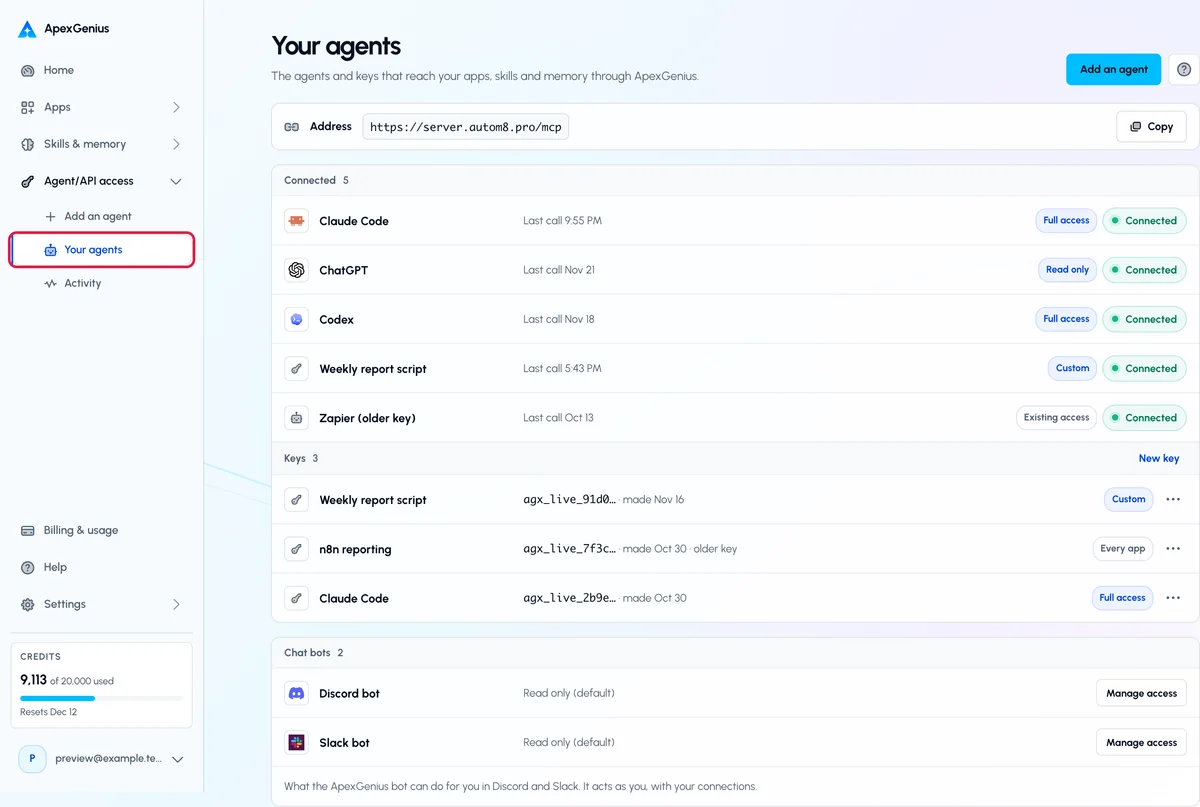
Your agents, in the side menu under Agent/API access. This capture uses a sample account.
Choose Manage access on the bot
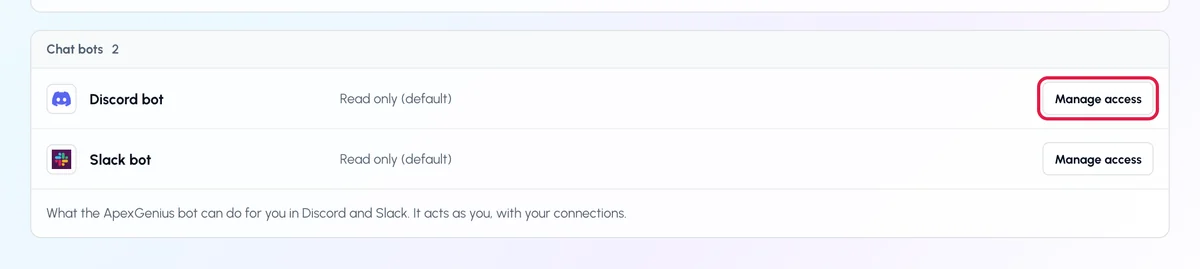
The Chat bots group. Both bots are on the default here. Manage access opens the bot's page.
Set every app at once
- Read only: the bot looks things up in every app and changes nothing.
- Full access: the bot can use every tool in every app.
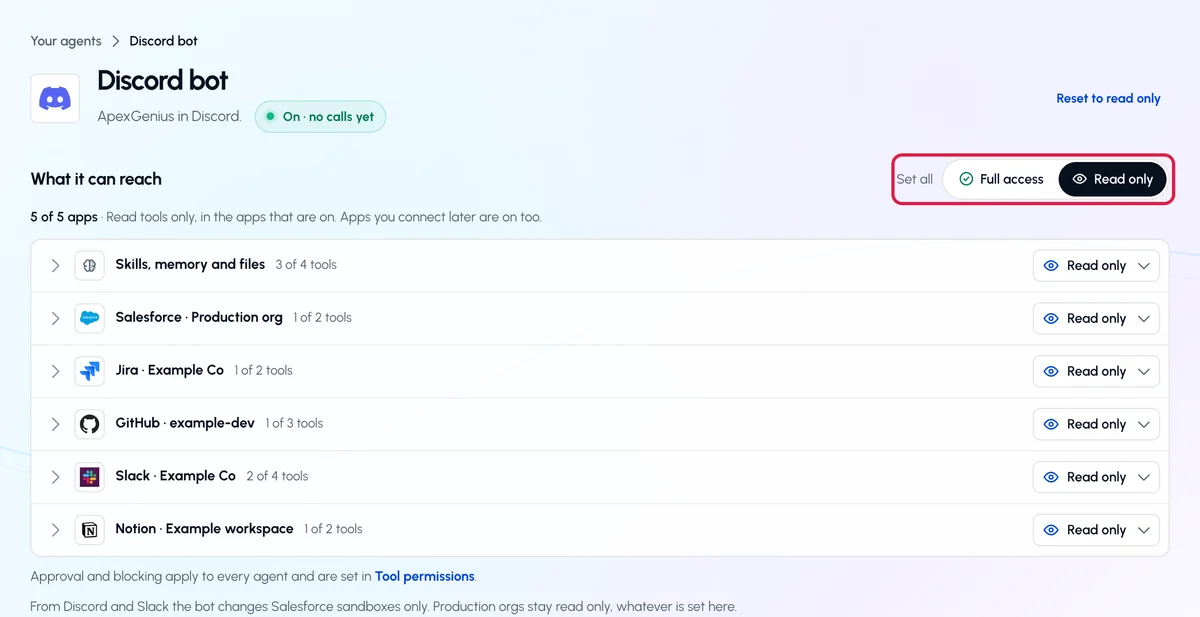
Set all sits above the list of apps. Read only is selected here, which is how a bot starts.
Set one app
- Full access: every tool in this app.
- Read only: looks things up and changes nothing.
- Off: the bot cannot reach this app.
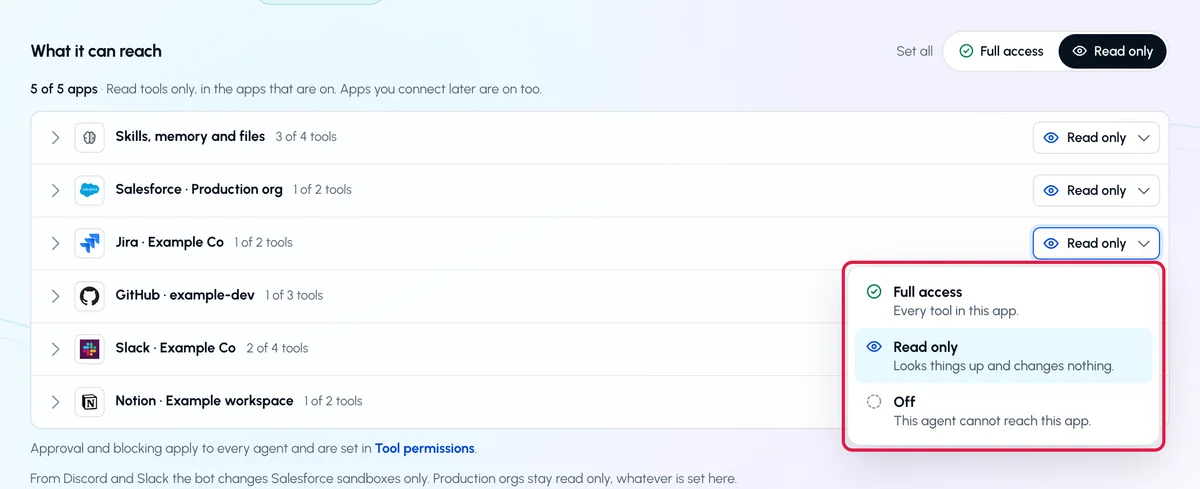
The menu on the Jira row. Each app has the same three choices.
Pick tools one by one
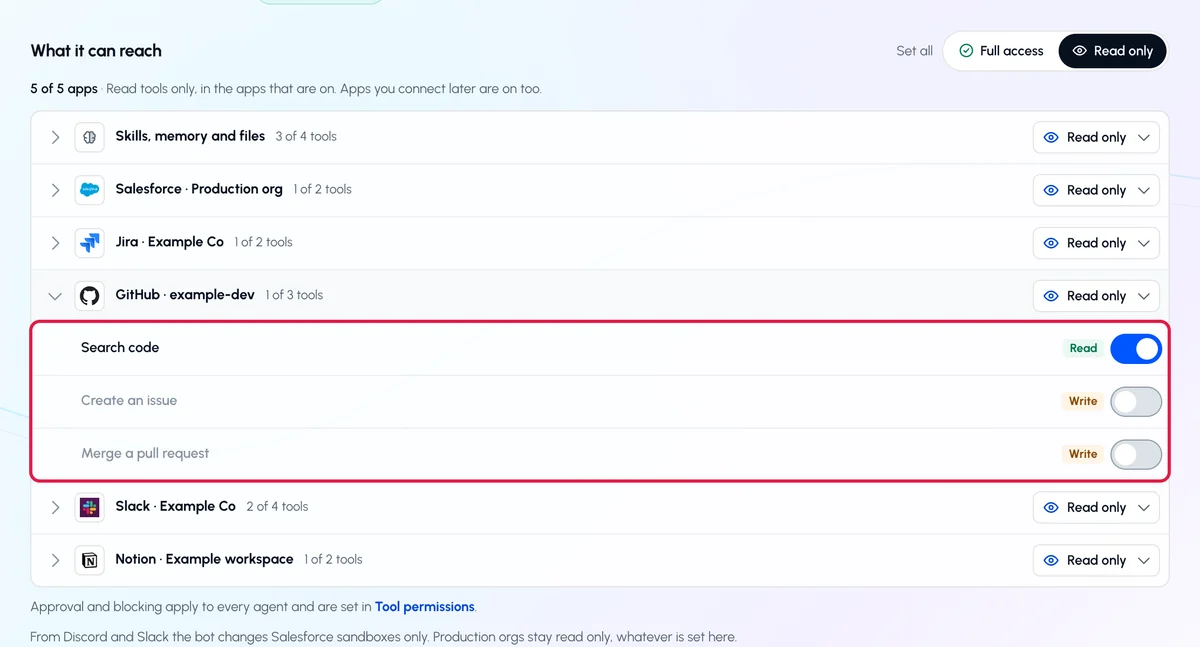
The GitHub row opened. Search code is on. The two write tools are off until you switch them on.
Check that it saved
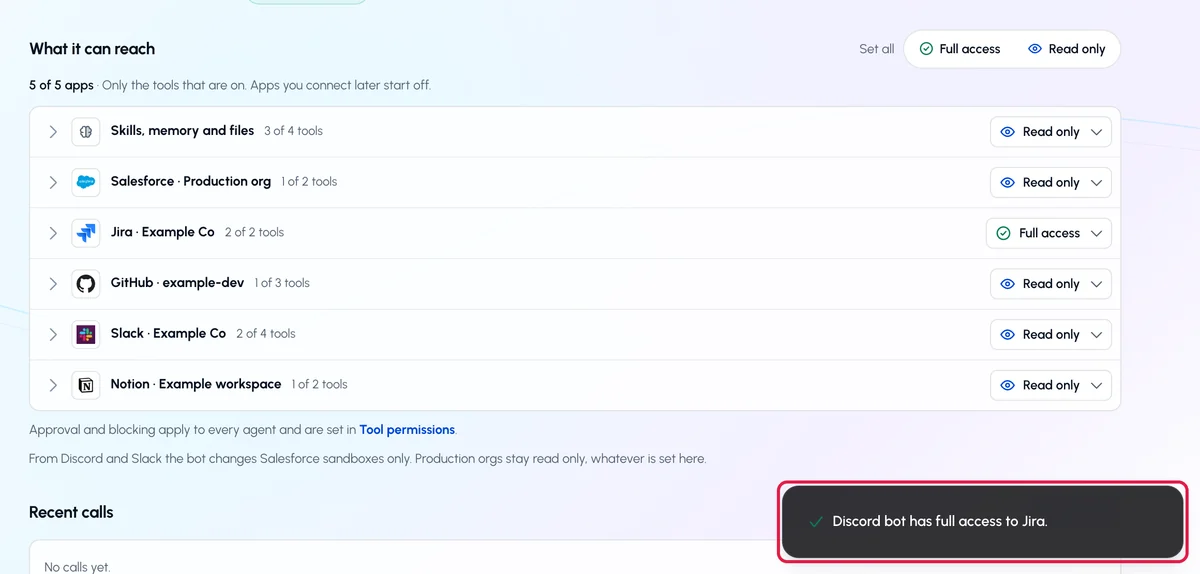
After Jira is set to Full access, its row shows the new level and a message confirms the save.
Ask the bot
/ask, or reply in a thread
the bot has already answered in. For example:Go back to read only

Reset to read only is at the top right of the bot's page.
Every setting, and where it lives
All of these are on the bot’s page: Your agents, Chat bots, then Manage access on Discord bot or Slack bot.- On Full access or Read only, apps you connect later are on too.
- On a custom pick, apps you connect later start off. Turn them on here.
What the bot can never do
- Change a Salesforce production org. From Discord and Slack the bot changes Salesforce sandboxes only. A sandbox is a test copy of a Salesforce org. Production orgs stay read only, whatever is set on the bot’s page. The page shows a note that says this.
- Go past an app’s own settings. A tool that is off on the app’s connection page stays off for the bot. So does anything the connection itself does not allow, such as a GitHub repository with writes off.
- Use an API key. The bot has none, and its page has nothing about keys.
- Use someone else’s settings. The bot acts as the person who asked, with that person’s connections and that person’s choices.
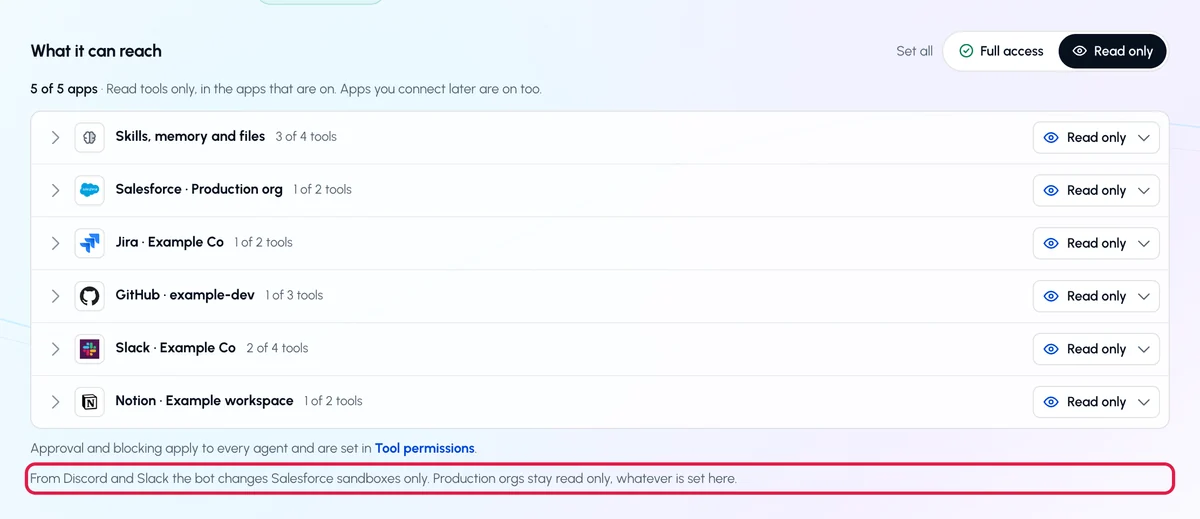
The Salesforce note under the list of apps on the bot's page.
Troubleshooting
Related guides
- Discord MCP Setup
- Connect Slack accounts
- GitHub MCP Setup, for writes on selected repositories