> ## Documentation Index
> Fetch the complete documentation index at: https://docs.apexgenius.ai/llms.txt
> Use this file to discover all available pages before exploring further.
# Connect YouTube Analytics and Reporting
> Set up channel performance queries, optional revenue access and daily Reporting. Review eligibility and verify a first read.
**Available.** This connection is live for enabled accounts and expanded tools are in testing. The walkthrough below shows the real ApexGeniusAI connection.
[Explore Analytics tools and limits](https://www.apexgenius.ai/connectors/youtube-analytics). For videos, playlists and publishing, use the separate [YouTube module](/integrations/youtube).
## Connect and verify
21-second walkthrough with captions. [Read the video transcript](https://www.apexgenius.ai/videos/youtube-analytics/connect-20260907.txt), or follow the steps below.
**Before you start**
* A Google account with access to the YouTube channel you intend to connect. Check the channel in YouTube first, especially if you use a Brand Account.
* An ApexGenius account with this module available. If setup is pending or the module is missing, contact support.
* YouTube channel access and YouTube Analytics access are separate connections. Reporting is included in YouTube Analytics.
Find the YouTube group and open YouTube Analytics. Each module has its own channel and access selection.
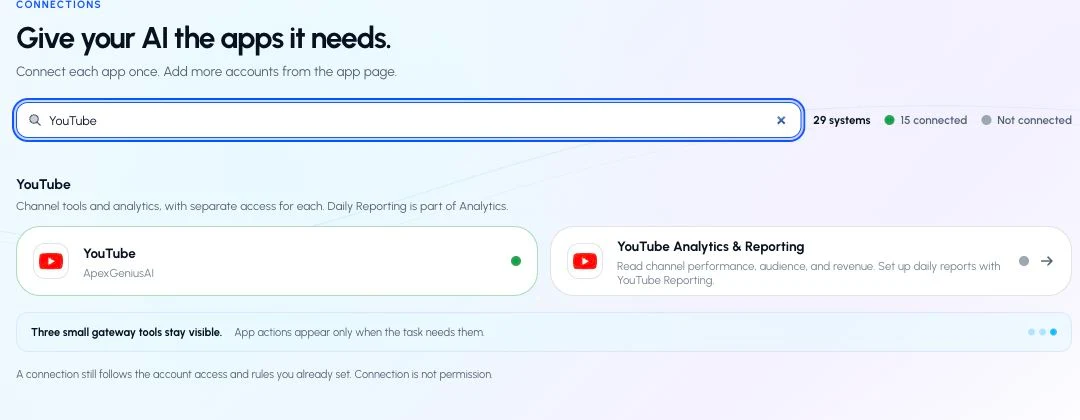
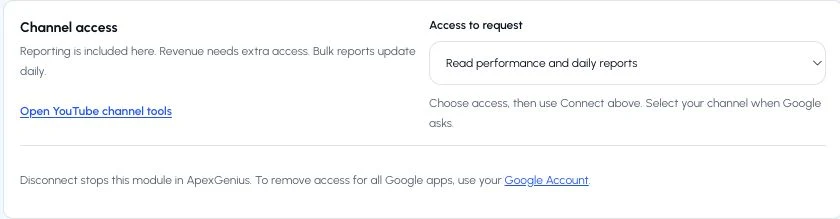
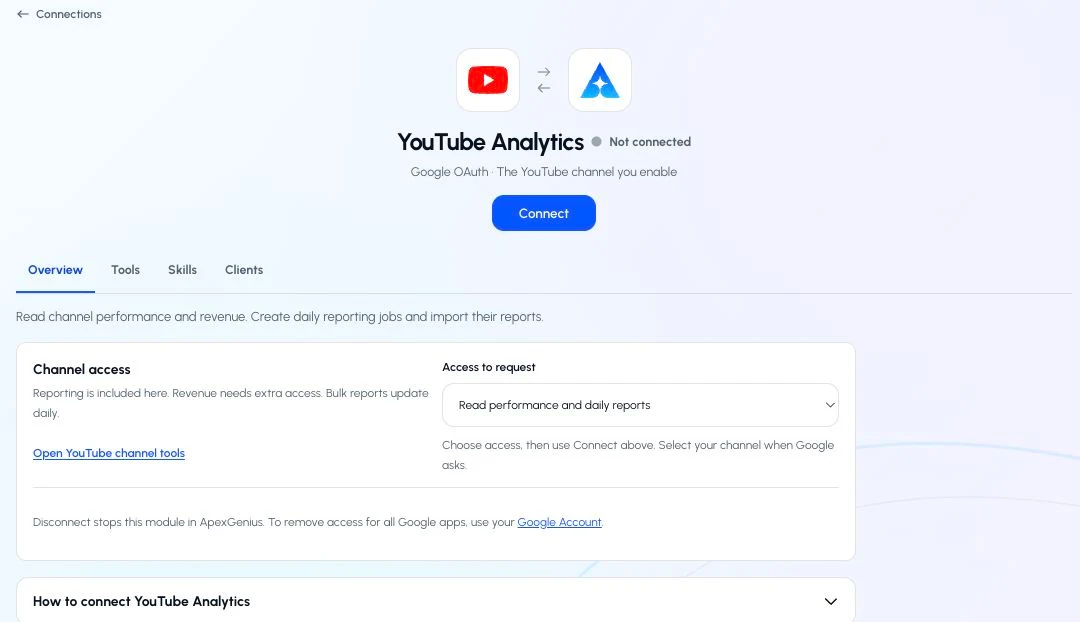 Under Channel access, start with Read performance and daily reports. Choose Include revenue reports only if you need monetary data and the channel is eligible. Then choose Connect. For an existing connection, choose Apply access with Google.
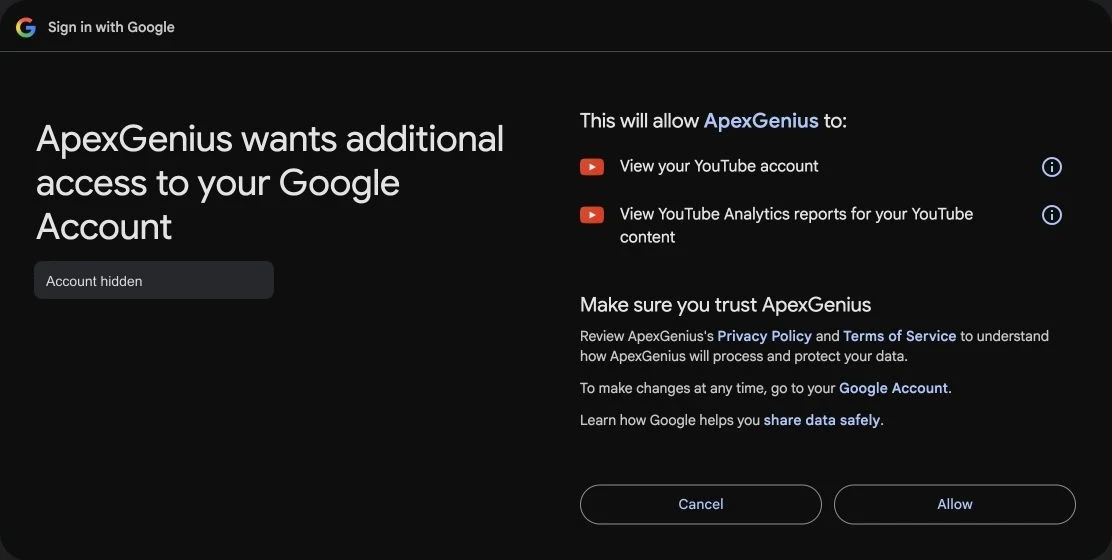
 On Google’s own page, select the account with access to your intended channel. If Google offers a channel or Brand Account choice, select the intended channel. Review the requested permissions before continuing. Already granted permissions may make these screens look different. Return to ApexGenius when Google finishes.
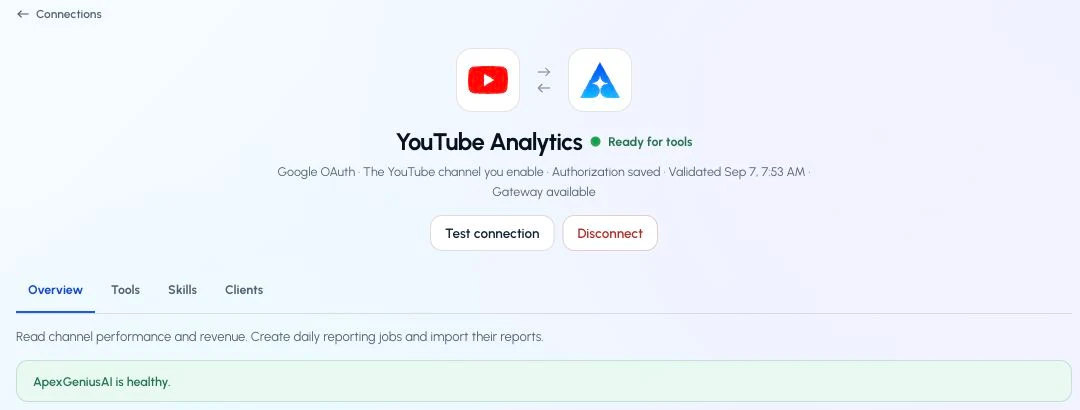
 Confirm the saved channel name. Open Tools, find Allowed resources, and choose Refresh if needed. Enable the intended channel. Enabling it allows ApexGenius to use existing access; it does not grant new YouTube permissions. If the channel is wrong, stop and connect the intended channel.
 Use Test connection or Check again when offered. Read the returned status and confirm the saved channel. A healthy connection does not yet prove that a report query or publishing action will work.
 Open AI agents and add or select your AI client. Allow this connection with Read only for the first test. Use the question below, then compare the returned channel and data with YouTube Studio. Empty recent analytics can mean data is not available yet.
**AI agents · First read**
* **Connection:** YouTube Analytics
* **Access for first test:** Read only
Copy the first question below into your connected AI client. Check the returned channel and result.
Illustrated setup guidance. Follow the controls shown in your own account. Illustrated guide by ApexGenius, not a screenshot; your screen may differ.
Discover the available channel report types. Ask your AI to create the chosen Reporting job and review its approval request. Creating a job changes the account’s reporting configuration. First output can take about 48 hours. After output appears, approve starting a sync to import daily files. Check sync status and the report dates before using imported data.
**YouTube Analytics · Daily Reporting**
* **Choose report type:** Use the report types available to your channel
* **Create job:** Review and approve the write
* **Wait for output:** First files can take about 48 hours
* **Start sync:** Approve the import, then inspect its status and dates
Targeted Analytics queries do not require a Reporting job.
Illustrated setup guidance. Follow the controls shown in your own account. Illustrated guide by ApexGenius, not a screenshot; your screen may differ.
**Try a first question with your AI agent**
```text theme={"system"}
Show views and watch time for my connected YouTube channel over the last 28 complete days. Include the channel and returned date range.
```
Check connection status, the first tool result, and the channel identity separately. If access is missing, return to Channel access and review the needed permission with Google. Disconnect stops this module in ApexGenius; Google Account access removal can affect other Google apps.
## Add your AI
Once your Analytics connection is enabled, follow the [ChatGPT](/guides/connect-chatgpt), [Claude](/guides/connect-claude) or [Codex](/guides/connect-codex) setup instructions. Select the saved Analytics connection and start with Read only. Use the first question above and compare the channel, dates and metrics with YouTube Studio.
## Understand the two reporting paths
| Path | Use it for | Boundary |
| --------------- | ----------------------------------------------------------- | ------------------------------------------------------------------------------------------ |
| Analytics query | Views, watch time, audience and traffic over selected dates | Recent data can be incomplete; revenue requires added access and eligibility. |
| Daily Reporting | Recurring bulk files and imported report queries | A job is a write. First output can take about 48 hours; imports require an enabled worker. |
Imports are capped at 16 MiB and 100,000 rows per report. Local copies expire after 30 days. Starting a sync changes the saved import configuration. Check report dates and sync status before relying on imported data.
## If setup does not work
| What you see | What to do |
| -------------------------- | ----------------------------------------------------------------------------------------------------------------------------- |
| Module unavailable | Ask support whether the test account is enabled. Repeating Google sign-in will not enable the provider. |
| Empty Analytics result | Check the channel, date range and metrics. Compare the same period in YouTube Studio. |
| Revenue denied | Review the revenue access option and channel eligibility. |
| No daily report yet | Check the job’s creation time and status. The first output is delayed; do not create duplicate jobs to make it arrive sooner. |
| Import not running | Check the sync status and ask support to verify the worker. |
| Google configuration error | Share the safe error code with support. Never share passwords, codes or tokens. |
[Check Analytics access](https://www.apexgenius.ai/connections/youtube_analytics) · [Official Analytics channel reports](https://developers.google.com/youtube/analytics/channel_reports) · [Official daily Reporting guide](https://developers.google.com/youtube/reporting/v1/reports)
Open AI agents and add or select your AI client. Allow this connection with Read only for the first test. Use the question below, then compare the returned channel and data with YouTube Studio. Empty recent analytics can mean data is not available yet.
**AI agents · First read**
* **Connection:** YouTube Analytics
* **Access for first test:** Read only
Copy the first question below into your connected AI client. Check the returned channel and result.
Illustrated setup guidance. Follow the controls shown in your own account. Illustrated guide by ApexGenius, not a screenshot; your screen may differ.
Discover the available channel report types. Ask your AI to create the chosen Reporting job and review its approval request. Creating a job changes the account’s reporting configuration. First output can take about 48 hours. After output appears, approve starting a sync to import daily files. Check sync status and the report dates before using imported data.
**YouTube Analytics · Daily Reporting**
* **Choose report type:** Use the report types available to your channel
* **Create job:** Review and approve the write
* **Wait for output:** First files can take about 48 hours
* **Start sync:** Approve the import, then inspect its status and dates
Targeted Analytics queries do not require a Reporting job.
Illustrated setup guidance. Follow the controls shown in your own account. Illustrated guide by ApexGenius, not a screenshot; your screen may differ.
**Try a first question with your AI agent**
```text theme={"system"}
Show views and watch time for my connected YouTube channel over the last 28 complete days. Include the channel and returned date range.
```
Check connection status, the first tool result, and the channel identity separately. If access is missing, return to Channel access and review the needed permission with Google. Disconnect stops this module in ApexGenius; Google Account access removal can affect other Google apps.
## Add your AI
Once your Analytics connection is enabled, follow the [ChatGPT](/guides/connect-chatgpt), [Claude](/guides/connect-claude) or [Codex](/guides/connect-codex) setup instructions. Select the saved Analytics connection and start with Read only. Use the first question above and compare the channel, dates and metrics with YouTube Studio.
## Understand the two reporting paths
| Path | Use it for | Boundary |
| --------------- | ----------------------------------------------------------- | ------------------------------------------------------------------------------------------ |
| Analytics query | Views, watch time, audience and traffic over selected dates | Recent data can be incomplete; revenue requires added access and eligibility. |
| Daily Reporting | Recurring bulk files and imported report queries | A job is a write. First output can take about 48 hours; imports require an enabled worker. |
Imports are capped at 16 MiB and 100,000 rows per report. Local copies expire after 30 days. Starting a sync changes the saved import configuration. Check report dates and sync status before relying on imported data.
## If setup does not work
| What you see | What to do |
| -------------------------- | ----------------------------------------------------------------------------------------------------------------------------- |
| Module unavailable | Ask support whether the test account is enabled. Repeating Google sign-in will not enable the provider. |
| Empty Analytics result | Check the channel, date range and metrics. Compare the same period in YouTube Studio. |
| Revenue denied | Review the revenue access option and channel eligibility. |
| No daily report yet | Check the job’s creation time and status. The first output is delayed; do not create duplicate jobs to make it arrive sooner. |
| Import not running | Check the sync status and ask support to verify the worker. |
| Google configuration error | Share the safe error code with support. Never share passwords, codes or tokens. |
[Check Analytics access](https://www.apexgenius.ai/connections/youtube_analytics) · [Official Analytics channel reports](https://developers.google.com/youtube/analytics/channel_reports) · [Official daily Reporting guide](https://developers.google.com/youtube/reporting/v1/reports)