> ## Documentation Index
> Fetch the complete documentation index at: https://docs.apexgenius.ai/llms.txt
> Use this file to discover all available pages before exploring further.
# Supabase MCP Setup
> How to connect Supabase's hosted MCP to ApexGenius: sign in, turn on one project, review the 20 tools and test with a read-only question.
**Status: Available.** Supabase uses its official hosted MCP server and browser OAuth. You do not paste a Supabase API key, access token or database password. Each connection reaches one project: the one you turn on.
[Explore the Supabase connector](https://www.apexgenius.ai/connectors/supabase).
## What you need
* A Supabase account that can open the project you want your AI to use
* An ApexGenius account
**Before you start**
* An account with permission to use the Supabase resources you intend to connect.
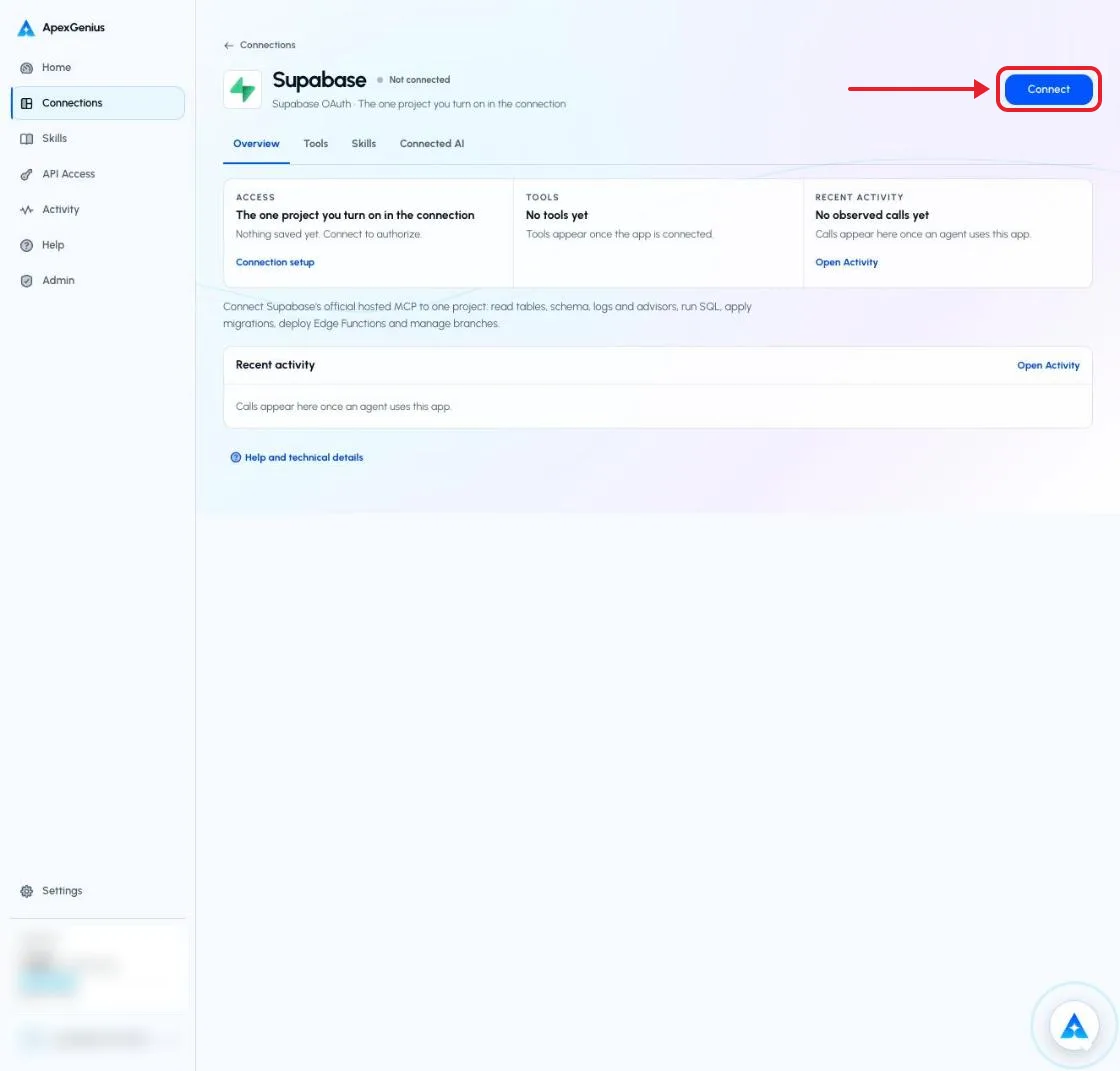
Choose Connect, or Add connection when offered. Give the connection a name if prompted. If Gateway setup pending appears, contact ApexGenius support before continuing.
 Sign in on Supabase’s page, choose the organization that owns your project, and approve the access ApexGenius asks for. Supabase uses browser authorization; no API key or database password.
On the connection page Overview, turn on the one project your AI may use. Turning one on turns the others off, and with none on, Supabase tools do nothing. Enabled writes run when called: SQL and migrations can change or delete data.
Use Test connection or Check again and read the reported status. Add an AI agent from the AI agents page, choose Read only for the first test, and try the question below.
**Try a first question with your AI agent**
```text theme={"system"}
List the tables in my Supabase project. Do not run SQL or change anything.
```
Compare the returned account and resource with Supabase. Check the connection status separately from the result of the first read.
[Add your AI agent](/guides/mcp-setup) · [Official Supabase instructions](https://supabase.com/docs/guides/getting-started/mcp)
## Tools and the Supabase skill
Open **Skills** on the connection to read **Supabase**, or read that MCP prompt in a compatible AI client with `prompts/get`. It explains the first safe read, how to change things safely, and what cannot be undone.
Three ApexGenius tools reach Supabase's live catalog for the project you turned on:
| ApexGenius tool | What it does | Access |
| - | - | - |
| `supabase_search_tools` | Lists the tools Supabase publishes right now, with their schemas | Read |
| `supabase_call_read_tool` | Runs a tool only when Supabase's live catalog marks it read-only | Read |
| `supabase_call_tool` | Runs any other Supabase tool, including the ones that change or delete data | Write |
Supabase documents these tools for a connection limited to one project. Your AI finds the exact current list with `supabase_search_tools`, and Supabase may add tools.
| Job | Reads | Changes |
| - | - | - |
| Database | `list_tables`, `list_extensions`, `list_migrations` | `execute_sql` runs any SQL and can change or delete rows. `apply_migration` changes the schema and records it. |
| Logs and advisors | `query_logs`, `get_advisors` | None |
| Project details | `get_project_url`, `get_publishable_keys`, `generate_typescript_types` | None |
| Edge Functions | `list_edge_functions`, `get_edge_function` | `deploy_edge_function` publishes code that runs at once |
| Branches (paid plans) | `list_branches` | `create_branch` is billed by the hour. `rebase_branch` brings newer migrations into a branch. `merge_branch` applies a branch to the project. `reset_branch` and `delete_branch` throw a branch's changes away. |
| Docs | `search_docs` | None |
Tools that list, create, pause or restore projects are not available here, because the connection is limited to one project. Supabase's Storage tools are off by default.
Your AI discovers the tools with `apex_search_tools`, runs reads with `apex_call_read_tool`, and runs changes with `apex_call_write_tool`.
## One project per connection
The connection page lists the projects in the organization you approved, each with a switch. All of them start off.
* Turn on the one project your AI may use. Turning one on turns the others off.
* With no project on, every Supabase tool stops and says to turn one on.
* To work in a different project, turn that one on instead.
## Undo and limits
There is no undo for `execute_sql`, `apply_migration`, `merge_branch`, `reset_branch` or `delete_branch`. A migration can only be reversed by another migration, and deleted rows come back only from a backup, which depends on your Supabase plan. A deployed Edge Function can be replaced by deploying the earlier code again.
Writes run when called unless you set a tool to **Ask me first** on the connection's Tools tab. For agents that should only look, give them a Read only key.
If a layer fails (the connection, the tools, or the skill), Supabase is **partially ready**. A saved sign-in by itself does not make the connector usable.
## Troubleshooting
* **Tools say to turn on a project:** open the connection page and turn on the one project your AI may use.
* **The project you want is not listed:** you approved a different organization. Disconnect, connect again, and pick the organization that owns the project.
* **Unavailable to this account:** check that you are signed in to the intended ApexGenius account and refresh Connections.
* **Reconnect required:** use the connection page to renew the saved authorization.
* **Tool disabled:** the owner has turned the tool off. Review tool access on the connection page.
[Explore the Supabase connector](https://www.apexgenius.ai/connectors/supabase) · [Open Supabase Connections](https://www.apexgenius.ai/connections/supabase)
## Official Supabase documentation
* Supabase MCP
Supabase documentation is authoritative for MCP availability, plan requirements, tools and limits.
This documentation is built and hosted on [Mintlify](https://mintlify.com), a developer documentation platform.
Sign in on Supabase’s page, choose the organization that owns your project, and approve the access ApexGenius asks for. Supabase uses browser authorization; no API key or database password.
On the connection page Overview, turn on the one project your AI may use. Turning one on turns the others off, and with none on, Supabase tools do nothing. Enabled writes run when called: SQL and migrations can change or delete data.
Use Test connection or Check again and read the reported status. Add an AI agent from the AI agents page, choose Read only for the first test, and try the question below.
**Try a first question with your AI agent**
```text theme={"system"}
List the tables in my Supabase project. Do not run SQL or change anything.
```
Compare the returned account and resource with Supabase. Check the connection status separately from the result of the first read.
[Add your AI agent](/guides/mcp-setup) · [Official Supabase instructions](https://supabase.com/docs/guides/getting-started/mcp)
## Tools and the Supabase skill
Open **Skills** on the connection to read **Supabase**, or read that MCP prompt in a compatible AI client with `prompts/get`. It explains the first safe read, how to change things safely, and what cannot be undone.
Three ApexGenius tools reach Supabase's live catalog for the project you turned on:
| ApexGenius tool | What it does | Access |
| - | - | - |
| `supabase_search_tools` | Lists the tools Supabase publishes right now, with their schemas | Read |
| `supabase_call_read_tool` | Runs a tool only when Supabase's live catalog marks it read-only | Read |
| `supabase_call_tool` | Runs any other Supabase tool, including the ones that change or delete data | Write |
Supabase documents these tools for a connection limited to one project. Your AI finds the exact current list with `supabase_search_tools`, and Supabase may add tools.
| Job | Reads | Changes |
| - | - | - |
| Database | `list_tables`, `list_extensions`, `list_migrations` | `execute_sql` runs any SQL and can change or delete rows. `apply_migration` changes the schema and records it. |
| Logs and advisors | `query_logs`, `get_advisors` | None |
| Project details | `get_project_url`, `get_publishable_keys`, `generate_typescript_types` | None |
| Edge Functions | `list_edge_functions`, `get_edge_function` | `deploy_edge_function` publishes code that runs at once |
| Branches (paid plans) | `list_branches` | `create_branch` is billed by the hour. `rebase_branch` brings newer migrations into a branch. `merge_branch` applies a branch to the project. `reset_branch` and `delete_branch` throw a branch's changes away. |
| Docs | `search_docs` | None |
Tools that list, create, pause or restore projects are not available here, because the connection is limited to one project. Supabase's Storage tools are off by default.
Your AI discovers the tools with `apex_search_tools`, runs reads with `apex_call_read_tool`, and runs changes with `apex_call_write_tool`.
## One project per connection
The connection page lists the projects in the organization you approved, each with a switch. All of them start off.
* Turn on the one project your AI may use. Turning one on turns the others off.
* With no project on, every Supabase tool stops and says to turn one on.
* To work in a different project, turn that one on instead.
## Undo and limits
There is no undo for `execute_sql`, `apply_migration`, `merge_branch`, `reset_branch` or `delete_branch`. A migration can only be reversed by another migration, and deleted rows come back only from a backup, which depends on your Supabase plan. A deployed Edge Function can be replaced by deploying the earlier code again.
Writes run when called unless you set a tool to **Ask me first** on the connection's Tools tab. For agents that should only look, give them a Read only key.
If a layer fails (the connection, the tools, or the skill), Supabase is **partially ready**. A saved sign-in by itself does not make the connector usable.
## Troubleshooting
* **Tools say to turn on a project:** open the connection page and turn on the one project your AI may use.
* **The project you want is not listed:** you approved a different organization. Disconnect, connect again, and pick the organization that owns the project.
* **Unavailable to this account:** check that you are signed in to the intended ApexGenius account and refresh Connections.
* **Reconnect required:** use the connection page to renew the saved authorization.
* **Tool disabled:** the owner has turned the tool off. Review tool access on the connection page.
[Explore the Supabase connector](https://www.apexgenius.ai/connectors/supabase) · [Open Supabase Connections](https://www.apexgenius.ai/connections/supabase)
## Official Supabase documentation
* Supabase MCP
Supabase documentation is authoritative for MCP availability, plan requirements, tools and limits.
This documentation is built and hosted on [Mintlify](https://mintlify.com), a developer documentation platform.