> ## Documentation Index
> Fetch the complete documentation index at: https://docs.apexgenius.ai/llms.txt
> Use this file to discover all available pages before exploring further.
# Stripe MCP Setup
> Connect a Stripe account or sandbox through Stripe's official hosted MCP. Read payments and invoices from your AI, and handle refunds with care.
**Status: Available.** Stripe uses its official hosted MCP server at
`mcp.stripe.com` and browser OAuth. You do not paste a Stripe API key. On
Stripe's consent page you pick the live mode accounts, sandboxes, or both, and
set permissions for each. The connector acts only on the Stripe account you
connect. It is separate from how ApexGenius bills you.
[Explore the Stripe connector](https://www.apexgenius.ai/connectors/stripe).
**Before you start**
* An account with permission to use the Stripe resources you intend to connect.
Choose Connect, or Add connection when offered. Give the connection a name if prompted. If Gateway setup pending appears, contact ApexGenius support before continuing.
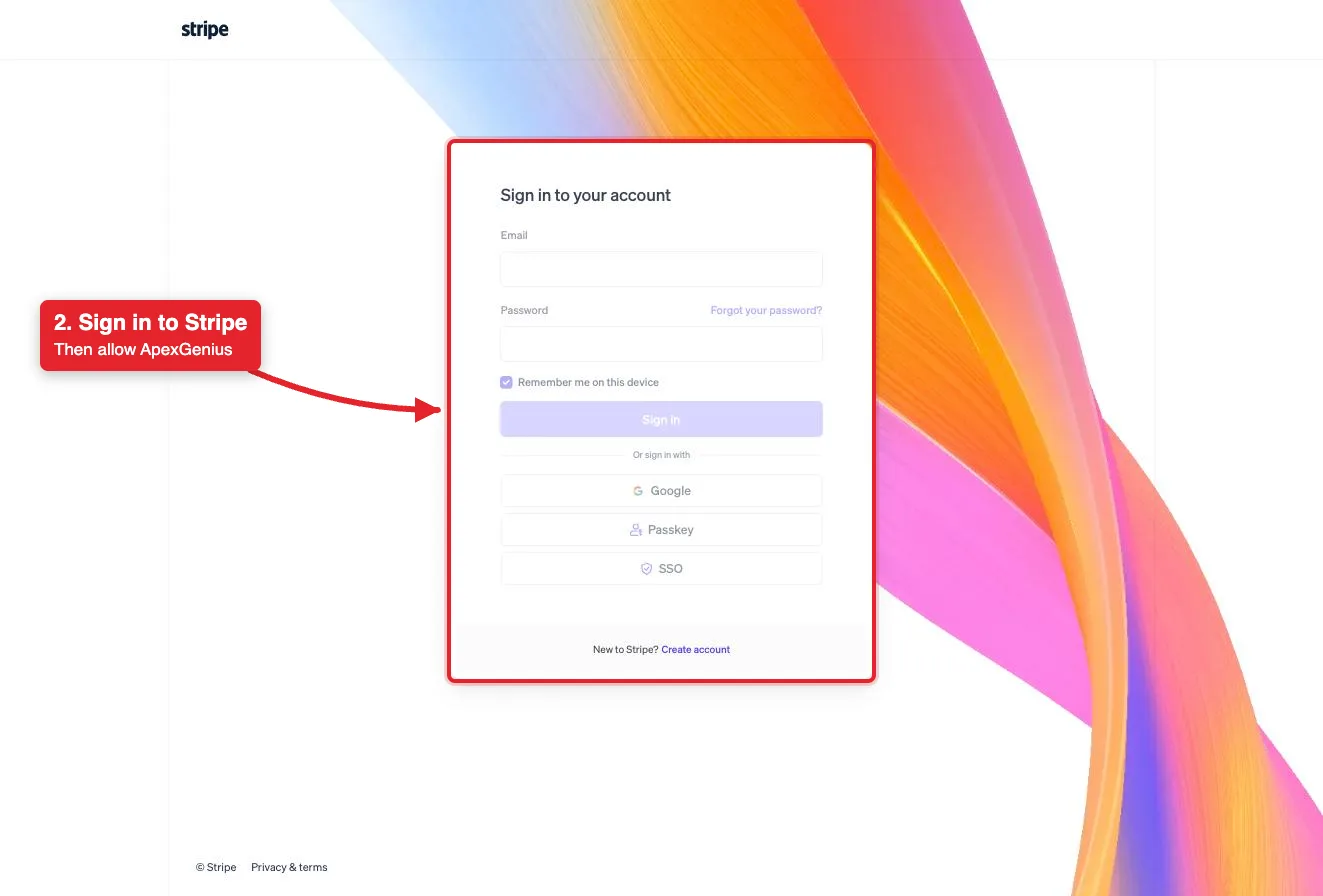
On Stripe’s page, sign in and pick the live mode accounts or sandboxes to share, with the permissions for each. To test, pick only a sandbox. No Stripe API key is pasted into ApexGenius.
 Confirm the connected Stripe account on the connection page, then open Tools. Refunds, invoices, payment links and subscription changes move real money and run right away unless set to Ask me first.
Use Test connection or Check again and read the reported status. Add an AI agent from the AI agents page, choose Read only for the first test, and try the question below.
**Try a first question with your AI agent**
```text theme={"system"}
Which Stripe account is connected, and is it live mode or a sandbox? Use the read-only route. Do not change anything.
```
Compare the returned account and resource with Stripe. Check the connection status separately from the result of the first read.
[Add your AI agent](/guides/mcp-setup) · [Official Stripe instructions](https://docs.stripe.com/mcp)
## Start in a sandbox
Refunds, invoices, payment links and subscription changes move real money. To
test, grant only a sandbox on Stripe's consent page. A Stripe administrator can
also turn MCP access on or off for live mode and sandboxes separately in the
Stripe Dashboard.
## Tools and the Stripe skill
Open **Skills** on the connection to read **Stripe**, or read that MCP prompt
in a compatible AI client. It names every tool that moves money and tells the
AI to state the exact amount, currency and customer before calling one.
Three ApexGenius tools route Stripe's ten documented MCP tools:
| ApexGenius tool | Stripe tools | Access |
| ----------------------- | --------------------------------------------------------------------------------------------------------------------------------------------------------------------------------------------------------------------------------------------------- | ----------------------------------------------- |
| `stripe_search_tools` | Lists the live Stripe catalog | Read |
| `stripe_call_read_tool` | `get_stripe_account_info`, `get_balance_summary`, `stripe_api_search`, `stripe_api_details`, `stripe_api_read`, `stripe_analytics`, `search_stripe_documentation`, `stripe_implementation_planner`, when Stripe's live catalog marks them read-only | Read |
| `stripe_call_tool` | `stripe_api_write`, `send_stripe_feedback` | Runs right away; `stripe_api_write` moves money |
Your AI discovers the tools with `apex_search_tools`. Reads use
`apex_call_read_tool`; writes use `apex_call_write_tool` and run right away. If
you set a tool to Ask me first, it returns `approval_required` until a person
approves in ApexGenius.
For some writes, such as refunds and outbound payments, Stripe itself returns a
confirmation link instead of acting. Open it, choose **Approve** on Stripe, then
ask your AI to retry. The link expires after 24 hours.
## Undo limits
* A refund cannot be undone.
* A finalized, unpaid invoice can be voided. A paid invoice needs a refund.
* A payment link can be turned off. Payments already made stay made.
* A canceled subscription cannot be restarted. Create a new one.
* Disconnecting ends ApexGenius access and asks Stripe to revoke the grant. It
does not undo a write that already ran. You can also revoke the session in
Stripe under user settings, **OAuth sessions**.
## Troubleshooting
* **Unavailable to this account:** check that you are signed in to the intended ApexGenius account and refresh Connections.
* **Reconnect required:** use the connection page to review and renew the saved authorization.
* **A read is refused:** the read route runs a Stripe tool only when Stripe's live catalog marks it read-only. Check the tool on the Tools tab.
* **Approval required:** the tool is set to Ask me first. Review the exact call in ApexGenius, then retry.
* **Connected accounts:** Stripe's MCP does not support acting for a Connect connected account over OAuth.
[Explore the Stripe connector](https://www.apexgenius.ai/connectors/stripe) · [Open Stripe Connections](https://www.apexgenius.ai/connections/stripe)
## Official Stripe documentation
* Stripe MCP
* MCP tool call logs in Workbench
Stripe documentation is authoritative for MCP tools, supported API methods, permissions and rate limits.
Confirm the connected Stripe account on the connection page, then open Tools. Refunds, invoices, payment links and subscription changes move real money and run right away unless set to Ask me first.
Use Test connection or Check again and read the reported status. Add an AI agent from the AI agents page, choose Read only for the first test, and try the question below.
**Try a first question with your AI agent**
```text theme={"system"}
Which Stripe account is connected, and is it live mode or a sandbox? Use the read-only route. Do not change anything.
```
Compare the returned account and resource with Stripe. Check the connection status separately from the result of the first read.
[Add your AI agent](/guides/mcp-setup) · [Official Stripe instructions](https://docs.stripe.com/mcp)
## Start in a sandbox
Refunds, invoices, payment links and subscription changes move real money. To
test, grant only a sandbox on Stripe's consent page. A Stripe administrator can
also turn MCP access on or off for live mode and sandboxes separately in the
Stripe Dashboard.
## Tools and the Stripe skill
Open **Skills** on the connection to read **Stripe**, or read that MCP prompt
in a compatible AI client. It names every tool that moves money and tells the
AI to state the exact amount, currency and customer before calling one.
Three ApexGenius tools route Stripe's ten documented MCP tools:
| ApexGenius tool | Stripe tools | Access |
| ----------------------- | --------------------------------------------------------------------------------------------------------------------------------------------------------------------------------------------------------------------------------------------------- | ----------------------------------------------- |
| `stripe_search_tools` | Lists the live Stripe catalog | Read |
| `stripe_call_read_tool` | `get_stripe_account_info`, `get_balance_summary`, `stripe_api_search`, `stripe_api_details`, `stripe_api_read`, `stripe_analytics`, `search_stripe_documentation`, `stripe_implementation_planner`, when Stripe's live catalog marks them read-only | Read |
| `stripe_call_tool` | `stripe_api_write`, `send_stripe_feedback` | Runs right away; `stripe_api_write` moves money |
Your AI discovers the tools with `apex_search_tools`. Reads use
`apex_call_read_tool`; writes use `apex_call_write_tool` and run right away. If
you set a tool to Ask me first, it returns `approval_required` until a person
approves in ApexGenius.
For some writes, such as refunds and outbound payments, Stripe itself returns a
confirmation link instead of acting. Open it, choose **Approve** on Stripe, then
ask your AI to retry. The link expires after 24 hours.
## Undo limits
* A refund cannot be undone.
* A finalized, unpaid invoice can be voided. A paid invoice needs a refund.
* A payment link can be turned off. Payments already made stay made.
* A canceled subscription cannot be restarted. Create a new one.
* Disconnecting ends ApexGenius access and asks Stripe to revoke the grant. It
does not undo a write that already ran. You can also revoke the session in
Stripe under user settings, **OAuth sessions**.
## Troubleshooting
* **Unavailable to this account:** check that you are signed in to the intended ApexGenius account and refresh Connections.
* **Reconnect required:** use the connection page to review and renew the saved authorization.
* **A read is refused:** the read route runs a Stripe tool only when Stripe's live catalog marks it read-only. Check the tool on the Tools tab.
* **Approval required:** the tool is set to Ask me first. Review the exact call in ApexGenius, then retry.
* **Connected accounts:** Stripe's MCP does not support acting for a Connect connected account over OAuth.
[Explore the Stripe connector](https://www.apexgenius.ai/connectors/stripe) · [Open Stripe Connections](https://www.apexgenius.ai/connections/stripe)
## Official Stripe documentation
* Stripe MCP
* MCP tool call logs in Workbench
Stripe documentation is authoritative for MCP tools, supported API methods, permissions and rate limits.