> ## Documentation Index
> Fetch the complete documentation index at: https://docs.apexgenius.ai/llms.txt
> Use this file to discover all available pages before exploring further.
# Mobbin MCP Setup
> Authorize your paid Mobbin account through Mobbin's official hosted MCP, then search real screens, user flows and website sections from your AI.
**Status: Available.** Mobbin uses its official hosted MCP server and browser OAuth. You do not paste a Mobbin API key. A paid Mobbin plan (Pro, Team or Enterprise) is required; a free account cannot authorize.
[Explore the Mobbin connector](https://www.apexgenius.ai/connectors/mobbin).
## What you need
* A Mobbin account on a paid plan (Pro, Team or Enterprise)
* An ApexGenius account
**Before you start**
* An account with permission to use the Mobbin resources you intend to connect.
Choose Connect, or Add connection when offered. Give the connection a name if prompted. If Gateway setup pending appears, contact ApexGenius support before continuing.
Sign in to Mobbin in the browser and grant the assistant access. Mobbin uses browser authorization; no API key. A paid Mobbin plan (Pro, Team or Enterprise) is required, and Mobbin allows 60 requests a minute.
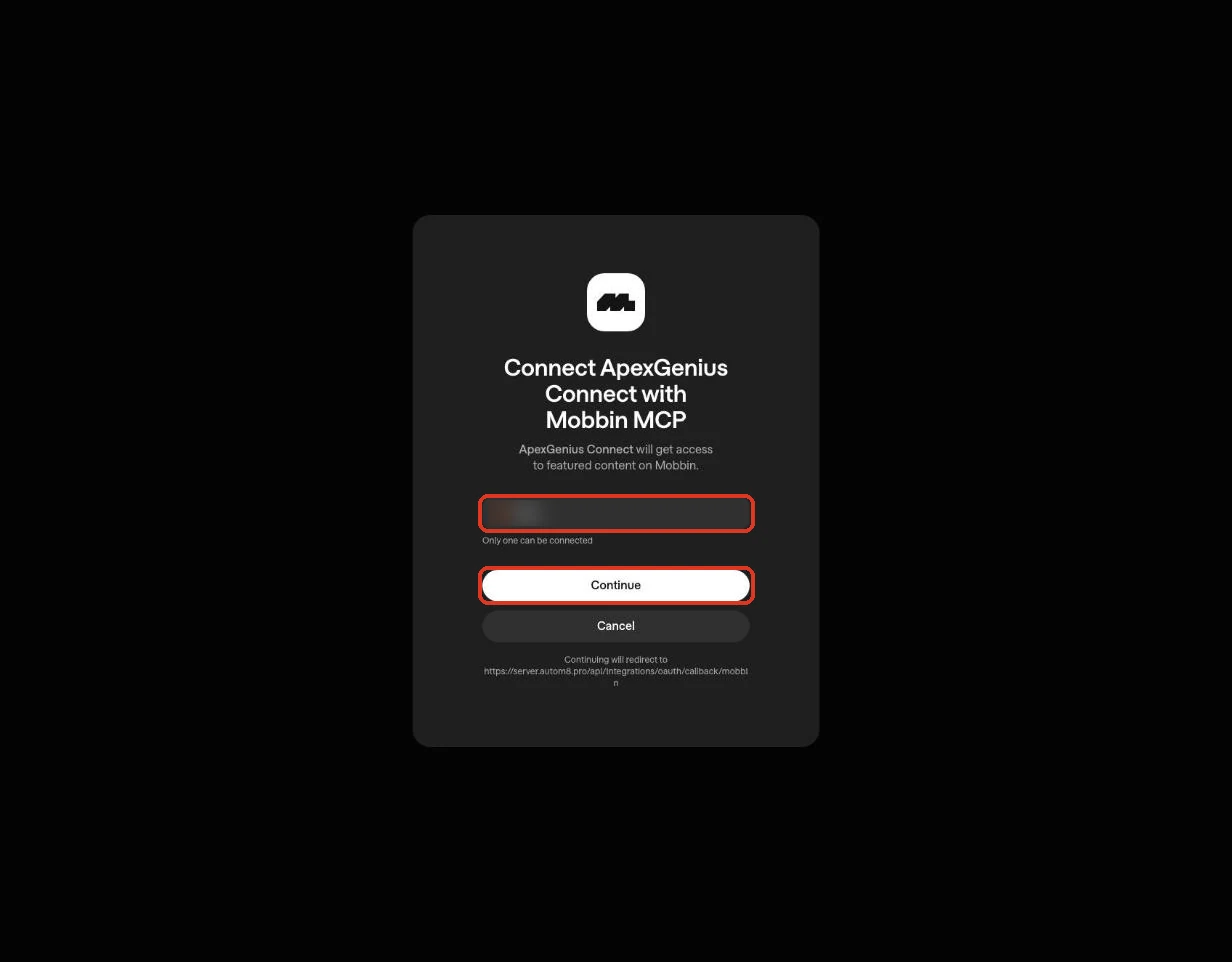 Confirm the connected Mobbin account. Open Tools to review the three search tools: screens, user flows and website sections. Results are references from shipped products, not assets to copy.
Use Test connection or Check again and read the reported status. Add an AI agent from the AI agents page, choose Read only for the first test, and try the question below.
**Try a first question with your AI agent**
```text theme={"system"}
Search Mobbin for five mobile screens that show an empty state on search results, and name the product behind each. Do not change anything.
```
Compare the returned account and resource with Mobbin. Check the connection status separately from the result of the first read.
[Add your AI agent](/guides/mcp-setup) · [Official Mobbin instructions](https://mobbin.com/mcp)
## Tools and the Mobbin skill
Open **Skills** on the connection to read **Mobbin**, or read that MCP prompt in a compatible AI client with `prompts/get`. It explains the first safe read and how to use the results.
Three ApexGenius tools reach Mobbin's live catalog:
| ApexGenius tool | What it does | Access |
| - | - | - |
| `mobbin_search_tools` | Lists the tools Mobbin publishes right now, with their schemas | Read |
| `mobbin_call_read_tool` | Runs a tool only when Mobbin's live catalog marks it read-only | Read |
| `mobbin_call_tool` | Runs any Mobbin tool the live catalog does not mark read-only; Mobbin publishes none today | Write |
Mobbin documents these operations. Your AI finds the exact current list with `mobbin_search_tools`, and Mobbin may add tools.
| Job | Reads |
| - | - |
| Screens | `search_screens`: a login screen, paywall, empty state, dialog, form or navigation treatment |
| User flows | `search_flows`: onboarding, checkout, account setup, identity verification, subscription, cancellation |
| Website sections | `search_sections`: heroes, pricing sections, testimonials, navigation, footers |
Your AI discovers the tools with `apex_search_tools` and runs them with `apex_call_read_tool`.
## Undo and limits
Nothing here changes Mobbin or any other system: every documented operation is a read, so there is nothing to undo. Results are references from shipped products; name the product behind each one and take the decisions, not the pixels. Mobbin allows 60 requests a minute per user.
If a layer fails (the connection, the tools, or the skill), Mobbin is **partially ready**. A saved sign-in by itself does not make the connector usable.
## Troubleshooting
* **Authorization fails after sign-in:** the Mobbin account is on the free plan. Mobbin requires Pro, Team or Enterprise to connect.
* **Unavailable to this account:** check that you are signed in to the intended ApexGenius account and refresh Connections.
* **Reconnect required:** use the connection page to renew the saved authorization.
* **Too many requests:** Mobbin allows 60 requests a minute per user. Wait a minute and ask fewer, broader questions.
* **Tool disabled:** the owner has turned the tool off. Review tool access on the connection page.
[Explore the Mobbin connector](https://www.apexgenius.ai/connectors/mobbin) · [Open Mobbin Connections](https://www.apexgenius.ai/connections/mobbin)
## Official Mobbin documentation
* Mobbin MCP
Mobbin documentation is authoritative for MCP availability, plan requirements, tools and rate limits.
This documentation is built and hosted on [Mintlify](https://mintlify.com), a developer documentation platform.
Confirm the connected Mobbin account. Open Tools to review the three search tools: screens, user flows and website sections. Results are references from shipped products, not assets to copy.
Use Test connection or Check again and read the reported status. Add an AI agent from the AI agents page, choose Read only for the first test, and try the question below.
**Try a first question with your AI agent**
```text theme={"system"}
Search Mobbin for five mobile screens that show an empty state on search results, and name the product behind each. Do not change anything.
```
Compare the returned account and resource with Mobbin. Check the connection status separately from the result of the first read.
[Add your AI agent](/guides/mcp-setup) · [Official Mobbin instructions](https://mobbin.com/mcp)
## Tools and the Mobbin skill
Open **Skills** on the connection to read **Mobbin**, or read that MCP prompt in a compatible AI client with `prompts/get`. It explains the first safe read and how to use the results.
Three ApexGenius tools reach Mobbin's live catalog:
| ApexGenius tool | What it does | Access |
| - | - | - |
| `mobbin_search_tools` | Lists the tools Mobbin publishes right now, with their schemas | Read |
| `mobbin_call_read_tool` | Runs a tool only when Mobbin's live catalog marks it read-only | Read |
| `mobbin_call_tool` | Runs any Mobbin tool the live catalog does not mark read-only; Mobbin publishes none today | Write |
Mobbin documents these operations. Your AI finds the exact current list with `mobbin_search_tools`, and Mobbin may add tools.
| Job | Reads |
| - | - |
| Screens | `search_screens`: a login screen, paywall, empty state, dialog, form or navigation treatment |
| User flows | `search_flows`: onboarding, checkout, account setup, identity verification, subscription, cancellation |
| Website sections | `search_sections`: heroes, pricing sections, testimonials, navigation, footers |
Your AI discovers the tools with `apex_search_tools` and runs them with `apex_call_read_tool`.
## Undo and limits
Nothing here changes Mobbin or any other system: every documented operation is a read, so there is nothing to undo. Results are references from shipped products; name the product behind each one and take the decisions, not the pixels. Mobbin allows 60 requests a minute per user.
If a layer fails (the connection, the tools, or the skill), Mobbin is **partially ready**. A saved sign-in by itself does not make the connector usable.
## Troubleshooting
* **Authorization fails after sign-in:** the Mobbin account is on the free plan. Mobbin requires Pro, Team or Enterprise to connect.
* **Unavailable to this account:** check that you are signed in to the intended ApexGenius account and refresh Connections.
* **Reconnect required:** use the connection page to renew the saved authorization.
* **Too many requests:** Mobbin allows 60 requests a minute per user. Wait a minute and ask fewer, broader questions.
* **Tool disabled:** the owner has turned the tool off. Review tool access on the connection page.
[Explore the Mobbin connector](https://www.apexgenius.ai/connectors/mobbin) · [Open Mobbin Connections](https://www.apexgenius.ai/connections/mobbin)
## Official Mobbin documentation
* Mobbin MCP
Mobbin documentation is authoritative for MCP availability, plan requirements, tools and rate limits.
This documentation is built and hosted on [Mintlify](https://mintlify.com), a developer documentation platform.