> ## Documentation Index
> Fetch the complete documentation index at: https://docs.apexgenius.ai/llms.txt
> Use this file to discover all available pages before exploring further.
# Atlassian Rovo MCP Setup
> Connect Atlassian's Rovo MCP server to ApexGenius, read only: search Jira, Confluence and connected apps, read issues and pages and follow Teamwork Graph links.
**Status: Available.** Atlassian Rovo uses Atlassian's official Rovo MCP server
and browser OAuth. You do not paste an Atlassian API token. The connection reads
only. Your Atlassian account and the site you choose set what it can reach.
[Explore the Atlassian Rovo connector](https://www.apexgenius.ai/connectors/atlassian-rovo).
## What you need
* An Atlassian Cloud site with Jira or Confluence
* An Atlassian organization admin who can add a domain under **Connectors**,
then **Atlassian MCP server**, in Atlassian Administration
* Rovo credits in your Atlassian organization for Rovo search and Teamwork Graph
reads
* An ApexGenius account
## Allow ApexGenius in Atlassian first
Atlassian sends Rovo MCP sign-ins only to domains your organization allows, and
its default list does not include ApexGenius. An organization admin does this
once for the whole organization:
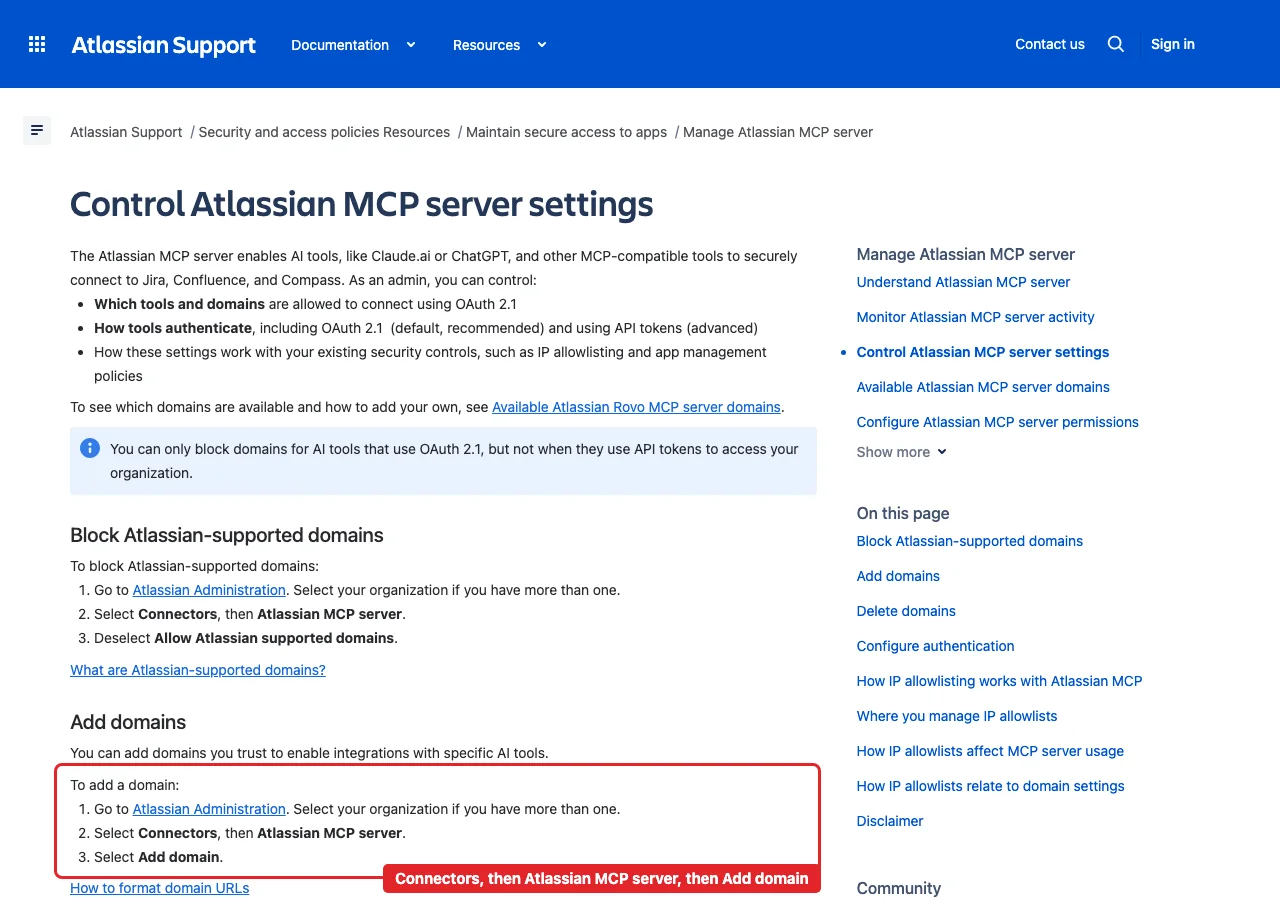
1. Go to **Atlassian Administration** and select the organization.
2. Select **Connectors**, then **Atlassian MCP server**.
3. Select **Add domain** and enter `https://server.autom8.pro/**`.
Until the domain is added, Atlassian stops the sign-in. Removing the domain
blocks new connections.
**Before you start**
* An Atlassian Cloud site with Jira or Confluence, and an Atlassian account that can read the work you need.
* An Atlassian organization admin who can change the Atlassian MCP server settings.
* Rovo credits in your Atlassian organization. Rovo search and Teamwork Graph reads can spend up to 10 Rovo credits a call from the shared pool.
In Atlassian Administration, an organization admin selects Connectors, then Atlassian MCP server, chooses Add domain, and enters [https://server.autom8.pro/](https://server.autom8.pro/)\*\*. Atlassian stops the sign-in until this is done. If your organization uses an IP allowlist, ask ApexGenius support for the address to add.
 Choose Connect, or Add connection when offered. Give the connection a name if prompted.
Sign in to Atlassian in the browser, choose the site, and approve read access to Jira, Confluence, Rovo search and Teamwork Graph. No Atlassian API token is pasted into ApexGenius.
Use Test connection and read the status. Add an AI agent from the AI agents page, choose Read only for the first test, and try the question below.
**Try a first question with your AI agent**
```text theme={"system"}
Which Atlassian sites can my Atlassian Rovo connection reach? List each site and its apps. Do not search or change anything.
```
Compare the sites with the one you chose on Atlassian's screen. Listing sites spends no Rovo credits and changes nothing.
[Add your AI agent](/guides/mcp-setup) · [Official Atlassian Rovo instructions](https://developer.atlassian.com/cloud/rovo-mcp/)
## Tools and the AtlassianRovo skill
Open **Skills** on the connection to read **AtlassianRovo**, or read that MCP
prompt in a compatible AI client. It explains when to use Rovo and when to use
the Jira and Confluence connectors, the first safe read, and the credit rules.
Three ApexGenius tools route Atlassian's live catalog:
| ApexGenius tool | What it does | Access |
| - | - | - |
| `atlassian_rovo_search_tools` | Searches the live Atlassian catalog and returns exact tool names and schemas | Read |
| `atlassian_rovo_call_read_tool` | Runs a tool that Atlassian's live catalog marks read-only, such as listing your sites, reading an issue or searching with Rovo | Read |
| `atlassian_rovo_call_tool` | Runs a tool the live catalog does not mark read-only. The connection has no write scopes, so Atlassian refuses changes | Write |
Your AI discovers the tools with `apex_search_tools`. Reads use
`apex_call_read_tool`.
The connection asks Atlassian for read and search access only: Jira and
Confluence reads and search, Rovo search, and Teamwork Graph reads. The
[connector page](https://www.apexgenius.ai/connectors/atlassian-rovo) lists the
59 read tools by job.
## Rovo credits
Rovo search (`search`) and the two Teamwork Graph reads
(`getTeamworkGraphContext` and `getTeamworkGraphObject`) can spend up to 10 Rovo
credits a call from your organization's shared pool. Spent credits cannot be
returned. Listing sites spends none. When you know the exact filter, ask for a
JQL search (`searchJiraIssuesUsingJql`) or a CQL search (`searchConfluence`)
instead.
## Rovo or the Jira and Confluence connectors
* Use Rovo to search across Jira, Confluence and connected apps in plain words.
* Use Rovo to follow Teamwork Graph links between work items, pages, people,
teams, goals, projects and Compass components.
* Use Rovo to read history, worklogs, boards, versions, comments, tasks and
attachments.
* Use the [Jira](/integrations/jira) and [Confluence](/integrations/confluence)
connectors to create or change issues and pages.
## Limits
* An Atlassian organization admin must allow `https://server.autom8.pro/**` in
Atlassian Administration under **Connectors**, then **Atlassian MCP server**,
before anyone can connect.
* If your organization uses an Atlassian IP allowlist, calls from an address it
does not list fail with a permission error.
* A refresh token that goes unused for 90 days expires. Connect again to keep
using Rovo.
* Bitbucket, Loom, Goals and Projects tools are not part of this connection.
* Disconnecting stops future gateway access.
## Troubleshooting
* **Atlassian stops the sign-in.** The ApexGenius domain is not allowed yet. Ask
an organization admin to add `https://server.autom8.pro/**` under
**Connectors**, then **Atlassian MCP server**.
* **A site is missing.** The connection reaches the site you chose at sign-in.
Connect again and choose the other site.
* **An issue or page is missing.** The connection sees only what your Atlassian
account can open. Check that you can open it in Jira or Confluence.
* **A change was refused.** This connection reads only. Use the Jira or
Confluence connector for changes.
## Official Atlassian documentation
* Atlassian Rovo MCP
* Supported tools
* Control Atlassian MCP server settings
* Available Atlassian MCP server domains
This documentation is built and hosted on [Mintlify](https://mintlify.com), a developer documentation platform.
Choose Connect, or Add connection when offered. Give the connection a name if prompted.
Sign in to Atlassian in the browser, choose the site, and approve read access to Jira, Confluence, Rovo search and Teamwork Graph. No Atlassian API token is pasted into ApexGenius.
Use Test connection and read the status. Add an AI agent from the AI agents page, choose Read only for the first test, and try the question below.
**Try a first question with your AI agent**
```text theme={"system"}
Which Atlassian sites can my Atlassian Rovo connection reach? List each site and its apps. Do not search or change anything.
```
Compare the sites with the one you chose on Atlassian's screen. Listing sites spends no Rovo credits and changes nothing.
[Add your AI agent](/guides/mcp-setup) · [Official Atlassian Rovo instructions](https://developer.atlassian.com/cloud/rovo-mcp/)
## Tools and the AtlassianRovo skill
Open **Skills** on the connection to read **AtlassianRovo**, or read that MCP
prompt in a compatible AI client. It explains when to use Rovo and when to use
the Jira and Confluence connectors, the first safe read, and the credit rules.
Three ApexGenius tools route Atlassian's live catalog:
| ApexGenius tool | What it does | Access |
| - | - | - |
| `atlassian_rovo_search_tools` | Searches the live Atlassian catalog and returns exact tool names and schemas | Read |
| `atlassian_rovo_call_read_tool` | Runs a tool that Atlassian's live catalog marks read-only, such as listing your sites, reading an issue or searching with Rovo | Read |
| `atlassian_rovo_call_tool` | Runs a tool the live catalog does not mark read-only. The connection has no write scopes, so Atlassian refuses changes | Write |
Your AI discovers the tools with `apex_search_tools`. Reads use
`apex_call_read_tool`.
The connection asks Atlassian for read and search access only: Jira and
Confluence reads and search, Rovo search, and Teamwork Graph reads. The
[connector page](https://www.apexgenius.ai/connectors/atlassian-rovo) lists the
59 read tools by job.
## Rovo credits
Rovo search (`search`) and the two Teamwork Graph reads
(`getTeamworkGraphContext` and `getTeamworkGraphObject`) can spend up to 10 Rovo
credits a call from your organization's shared pool. Spent credits cannot be
returned. Listing sites spends none. When you know the exact filter, ask for a
JQL search (`searchJiraIssuesUsingJql`) or a CQL search (`searchConfluence`)
instead.
## Rovo or the Jira and Confluence connectors
* Use Rovo to search across Jira, Confluence and connected apps in plain words.
* Use Rovo to follow Teamwork Graph links between work items, pages, people,
teams, goals, projects and Compass components.
* Use Rovo to read history, worklogs, boards, versions, comments, tasks and
attachments.
* Use the [Jira](/integrations/jira) and [Confluence](/integrations/confluence)
connectors to create or change issues and pages.
## Limits
* An Atlassian organization admin must allow `https://server.autom8.pro/**` in
Atlassian Administration under **Connectors**, then **Atlassian MCP server**,
before anyone can connect.
* If your organization uses an Atlassian IP allowlist, calls from an address it
does not list fail with a permission error.
* A refresh token that goes unused for 90 days expires. Connect again to keep
using Rovo.
* Bitbucket, Loom, Goals and Projects tools are not part of this connection.
* Disconnecting stops future gateway access.
## Troubleshooting
* **Atlassian stops the sign-in.** The ApexGenius domain is not allowed yet. Ask
an organization admin to add `https://server.autom8.pro/**` under
**Connectors**, then **Atlassian MCP server**.
* **A site is missing.** The connection reaches the site you chose at sign-in.
Connect again and choose the other site.
* **An issue or page is missing.** The connection sees only what your Atlassian
account can open. Check that you can open it in Jira or Confluence.
* **A change was refused.** This connection reads only. Use the Jira or
Confluence connector for changes.
## Official Atlassian documentation
* Atlassian Rovo MCP
* Supported tools
* Control Atlassian MCP server settings
* Available Atlassian MCP server domains
This documentation is built and hosted on [Mintlify](https://mintlify.com), a developer documentation platform.