> ## Documentation Index
> Fetch the complete documentation index at: https://docs.apexgenius.ai/llms.txt
> Use this file to discover all available pages before exploring further.
# Apify MCP Setup
> Connect your Apify account through Apify's official hosted MCP, find and run Actors from your AI, read results, and stop runs.
**Status: Available.** Apify uses its official hosted MCP server at `mcp.apify.com` and browser sign-in. You do not paste an Apify API token. One connection is one Apify account, and every Actor run spends Apify credits on that account.
[Explore the Apify connector](https://www.apexgenius.ai/connectors/apify).
## What you need
* An Apify account
* A usage limit you are comfortable with. In Apify Console open **Billing**, then **Limits**.
* An ApexGenius account
## Connect Apify
1. In ApexGenius, open **Connections**.
2. Select **Apify**.
3. Choose **Connect Apify**.
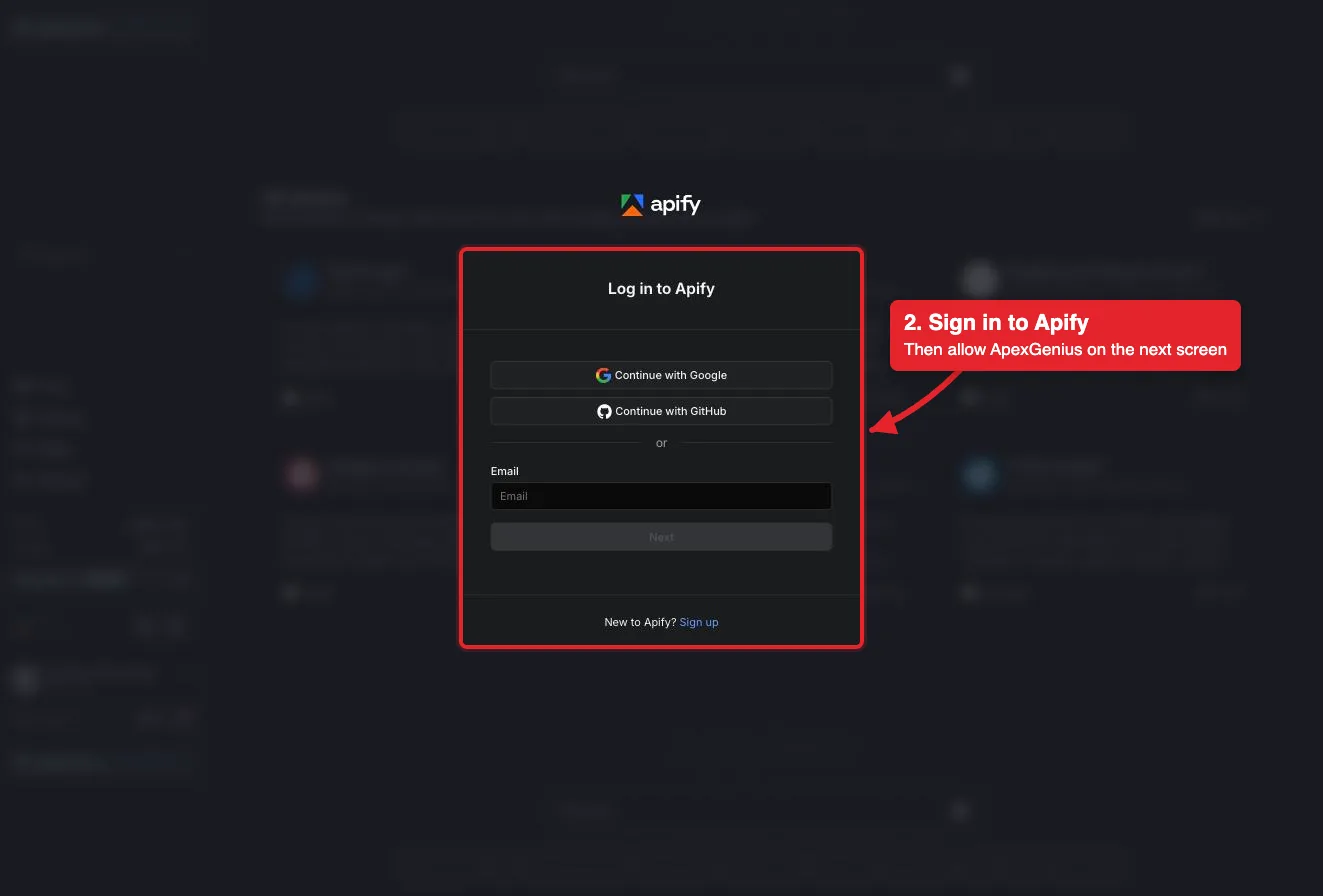
4. Sign in to Apify in the browser and approve access.
5. Return to ApexGenius and open **Tools** to review what your AI can call.
**Before you start**
* An account with permission to use the Apify resources you intend to connect.
Choose Connect, or Add connection when offered. Give the connection a name if prompted. If Gateway setup pending appears, contact ApexGenius support before continuing.
Sign in to Apify in the browser and approve access for ApexGenius. Apify uses browser authorization; no Apify API token is pasted into ApexGenius.
 Confirm the connected Apify account. Open Tools to review the Apify tools. Running an Actor spends Apify credits on that account, and a run keeps going until it finishes or is stopped.
Use Test connection or Check again and read the reported status. Add an AI agent from the AI agents page, choose Read only for the first test, and try the question below.
**Try a first question with your AI agent**
```text theme={"system"}
Search Apify Store for an Actor that scrapes Google Maps reviews and show its price. Do not run any Actor or spend credits.
```
Compare the returned account and resource with Apify. Check the connection status separately from the result of the first read.
[Add your AI agent](/guides/mcp-setup) · [Official Apify instructions](https://docs.apify.com/platform/integrations/mcp)
## Connector, tools, and skill
Apify is one integration bundle with three layers:
| Layer | What must work |
| --------- | ------------------------------------------------------------------------------------------------------------------------- |
| Connector | Sign-in completes, the Apify account is shown, and health is current. |
| Tools | `apify_search_tools`, `apify_call_read_tool`, and `apify_call_tool` are discoverable, and a Store search returns results. |
| Skill | The `Apify` MCP prompt is readable. It covers credits, stopping a run, and undo limits. |
Compatible MCP clients discover the skill with `prompts/list` and read it with
`prompts/get` using the name `Apify`.
If any row fails, Apify is **partially ready**. A saved sign-in by itself is not a fully ready integration.
## What your AI can do
ApexGenius loads Apify's default tool set:
* **Find an Actor:** `search-actors` and `fetch-actor-details` search Apify Store and show an Actor's input and price.
* **Run an Actor:** `call-actor`, `apify--rag-web-browser`, and `apify--web-fetch` start runs. Each run spends Apify credits.
* **Runs and results:** `get-actor-run`, `get-dataset-items`, and `get-key-value-store-record` read a run and what it produced.
* **Stop a run:** `abort-actor-run` stops a run that is starting or running.
* **Docs:** `search-apify-docs` and `fetch-apify-docs` read the Apify documentation.
Reads go through `apify_call_read_tool`, which checks Apify's live read-only label before each call. Runs and stops go through `apify_call_tool` and happen right away unless you set that tool to Ask me first. Run lists, run logs, storage lists, saved tasks, schedules, and builds are not included.
## Credits and stopping a run
Running an Actor spends Apify credits. Some Actors charge per result or event, others for the compute, proxy, and storage they use. Reading results can use a little platform usage. Ask your AI to read the Actor's price with `fetch-actor-details` before it runs anything.
`call-actor` waits up to 45 seconds, then returns the run status. A longer run keeps going, and keeps spending, until it finishes, times out, or is stopped. To stop it, ask your AI to call `abort-actor-run` with the run ID, or open the run in Apify Console and choose **Abort**.
There is no undo for a run. Credits already spent are not refunded, a stopped run cannot be resumed, and anything an Actor fetched or sent to other sites cannot be taken back. Results stay in your Apify account until you delete them in Apify Console. Disconnecting stops future access; it does not stop a run that is already going.
## Check your first read
Ask your AI to search Apify Store for an Actor and show its price, without running anything. Compare the result with Apify Store and check Tool Activity. Discovery alone does not verify a read.
## Troubleshooting
* **Unavailable to this account:** check that you are signed in to the intended ApexGenius account and refresh Connections.
* **Reconnect required:** use the connection page to review and renew the saved sign-in.
* **A run stops with a limit error:** the Apify account reached its usage limit. Check **Billing**, then **Limits** in Apify Console.
* **Approval required:** the tool is set to Ask me first. Review the exact call in ApexGenius, then retry.
[Explore the Apify connector](https://www.apexgenius.ai/connectors/apify) · [Open Apify Connections](https://www.apexgenius.ai/connections/apify)
## Official Apify documentation
* Apify MCP server
* Apify plans and usage limits
* Actor pricing models
Apify documentation is authoritative for Actor pricing, plan limits, and rate limits.
Confirm the connected Apify account. Open Tools to review the Apify tools. Running an Actor spends Apify credits on that account, and a run keeps going until it finishes or is stopped.
Use Test connection or Check again and read the reported status. Add an AI agent from the AI agents page, choose Read only for the first test, and try the question below.
**Try a first question with your AI agent**
```text theme={"system"}
Search Apify Store for an Actor that scrapes Google Maps reviews and show its price. Do not run any Actor or spend credits.
```
Compare the returned account and resource with Apify. Check the connection status separately from the result of the first read.
[Add your AI agent](/guides/mcp-setup) · [Official Apify instructions](https://docs.apify.com/platform/integrations/mcp)
## Connector, tools, and skill
Apify is one integration bundle with three layers:
| Layer | What must work |
| --------- | ------------------------------------------------------------------------------------------------------------------------- |
| Connector | Sign-in completes, the Apify account is shown, and health is current. |
| Tools | `apify_search_tools`, `apify_call_read_tool`, and `apify_call_tool` are discoverable, and a Store search returns results. |
| Skill | The `Apify` MCP prompt is readable. It covers credits, stopping a run, and undo limits. |
Compatible MCP clients discover the skill with `prompts/list` and read it with
`prompts/get` using the name `Apify`.
If any row fails, Apify is **partially ready**. A saved sign-in by itself is not a fully ready integration.
## What your AI can do
ApexGenius loads Apify's default tool set:
* **Find an Actor:** `search-actors` and `fetch-actor-details` search Apify Store and show an Actor's input and price.
* **Run an Actor:** `call-actor`, `apify--rag-web-browser`, and `apify--web-fetch` start runs. Each run spends Apify credits.
* **Runs and results:** `get-actor-run`, `get-dataset-items`, and `get-key-value-store-record` read a run and what it produced.
* **Stop a run:** `abort-actor-run` stops a run that is starting or running.
* **Docs:** `search-apify-docs` and `fetch-apify-docs` read the Apify documentation.
Reads go through `apify_call_read_tool`, which checks Apify's live read-only label before each call. Runs and stops go through `apify_call_tool` and happen right away unless you set that tool to Ask me first. Run lists, run logs, storage lists, saved tasks, schedules, and builds are not included.
## Credits and stopping a run
Running an Actor spends Apify credits. Some Actors charge per result or event, others for the compute, proxy, and storage they use. Reading results can use a little platform usage. Ask your AI to read the Actor's price with `fetch-actor-details` before it runs anything.
`call-actor` waits up to 45 seconds, then returns the run status. A longer run keeps going, and keeps spending, until it finishes, times out, or is stopped. To stop it, ask your AI to call `abort-actor-run` with the run ID, or open the run in Apify Console and choose **Abort**.
There is no undo for a run. Credits already spent are not refunded, a stopped run cannot be resumed, and anything an Actor fetched or sent to other sites cannot be taken back. Results stay in your Apify account until you delete them in Apify Console. Disconnecting stops future access; it does not stop a run that is already going.
## Check your first read
Ask your AI to search Apify Store for an Actor and show its price, without running anything. Compare the result with Apify Store and check Tool Activity. Discovery alone does not verify a read.
## Troubleshooting
* **Unavailable to this account:** check that you are signed in to the intended ApexGenius account and refresh Connections.
* **Reconnect required:** use the connection page to review and renew the saved sign-in.
* **A run stops with a limit error:** the Apify account reached its usage limit. Check **Billing**, then **Limits** in Apify Console.
* **Approval required:** the tool is set to Ask me first. Review the exact call in ApexGenius, then retry.
[Explore the Apify connector](https://www.apexgenius.ai/connectors/apify) · [Open Apify Connections](https://www.apexgenius.ai/connections/apify)
## Official Apify documentation
* Apify MCP server
* Apify plans and usage limits
* Actor pricing models
Apify documentation is authoritative for Actor pricing, plan limits, and rate limits.